15% Off Selected iFixit Tools — Limited Time
Free Shipping on Domestic Orders $75+

Removing Delphi MyFi XM2GO Keypad

What you need

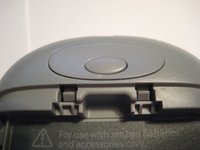
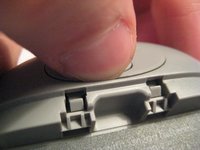
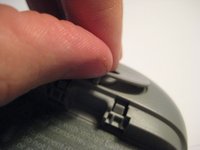
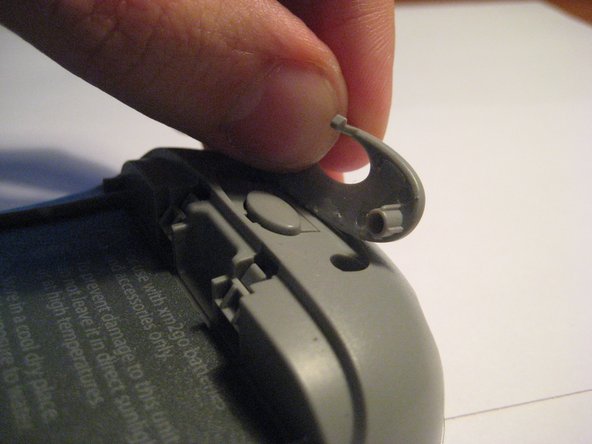
  1. Removing Delphi MyFi XM2GO Keypad, Battery Cover: step 1, image 1 of 3 Removing Delphi MyFi XM2GO Keypad, Battery Cover: step 1, image 2 of 3 Removing Delphi MyFi XM2GO Keypad, Battery Cover: step 1, image 3 of 3
    • Locate the large button on the top of the device.

    • Push down on the button and slide the cover away from the button.

    • The battery removal tab may pop up.

    Ask FixBot

    Add Comment

  2. Removing Delphi MyFi XM2GO Keypad, Battery: step 2, image 1 of 3 Removing Delphi MyFi XM2GO Keypad, Battery: step 2, image 2 of 3 Removing Delphi MyFi XM2GO Keypad, Battery: step 2, image 3 of 3
    • Grab the red pull tab and pull down to unlock the latch.

    • Pull the battery out.

    Ask FixBot

    Add Comment

  3. Removing Delphi MyFi XM2GO Keypad, Motherboard: step 3, image 1 of 2 Removing Delphi MyFi XM2GO Keypad, Motherboard: step 3, image 2 of 2
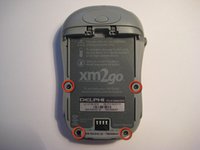
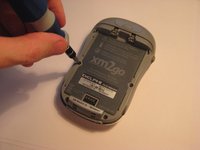
    • Remove the four screws from the bottom of the device using a T6 Torx screwdriver.

    Ask FixBot

    Add Comment

  4. Removing Delphi MyFi XM2GO Keypad: step 4, image 1 of 3 Removing Delphi MyFi XM2GO Keypad: step 4, image 2 of 3 Removing Delphi MyFi XM2GO Keypad: step 4, image 3 of 3
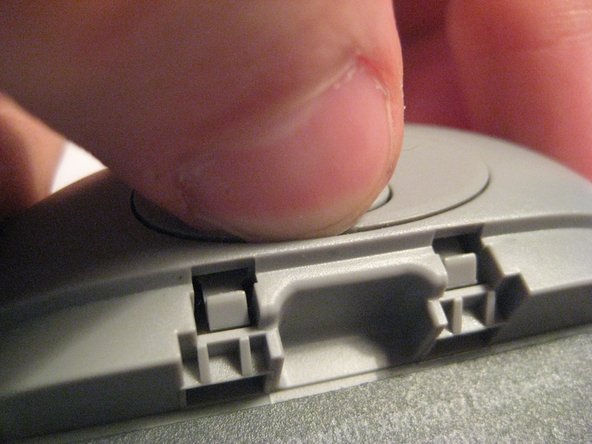
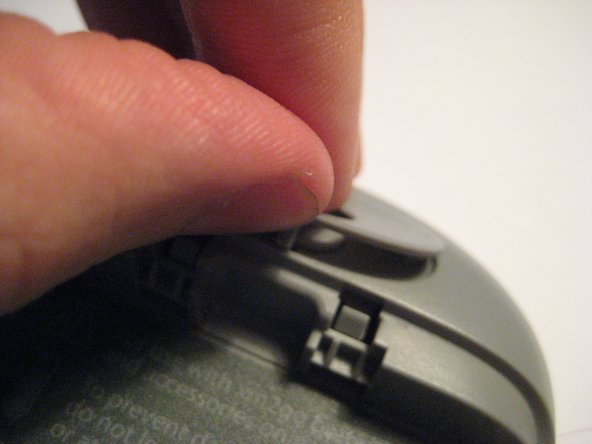
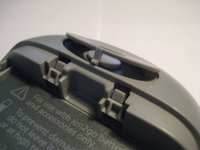
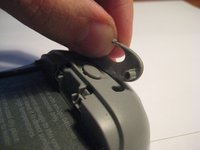
    • Remove the button cover on the back of the device by prying it up with a spudger or your thumb nail.

    Ask FixBot

    Add Comment

  5. Removing Delphi MyFi XM2GO Keypad: step 5, image 1 of 3 Removing Delphi MyFi XM2GO Keypad: step 5, image 2 of 3 Removing Delphi MyFi XM2GO Keypad: step 5, image 3 of 3
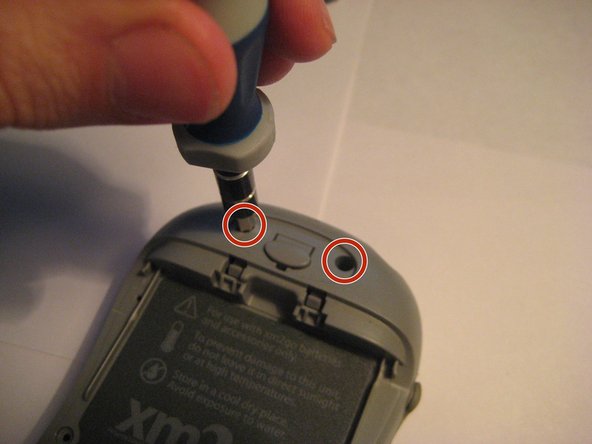
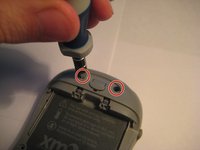
    • Remove the two screws under the button using the T6 Torx screwdriver.

    Ask FixBot

    Add Comment

  6. Removing Delphi MyFi XM2GO Keypad: step 6, image 1 of 2 Removing Delphi MyFi XM2GO Keypad: step 6, image 2 of 2
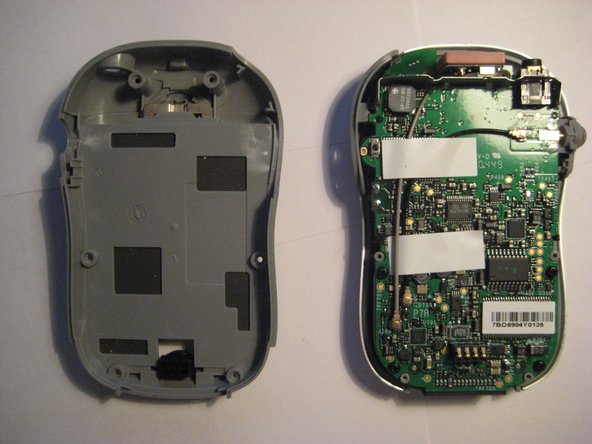
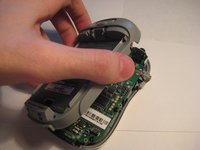
    • Remove the back cover.

    Ask FixBot

    Add Comment

  7. Removing Delphi MyFi XM2GO Keypad: step 7, image 1 of 2 Removing Delphi MyFi XM2GO Keypad: step 7, image 2 of 2
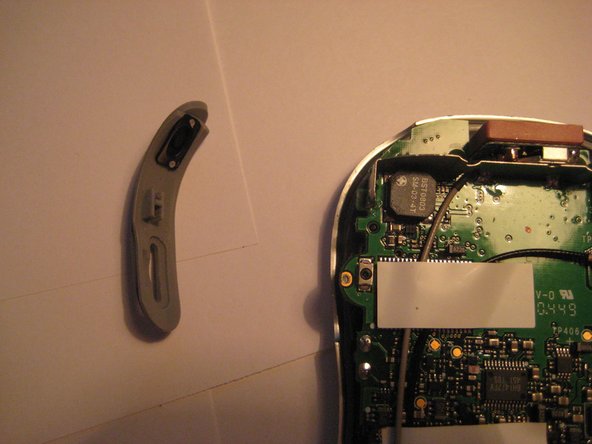
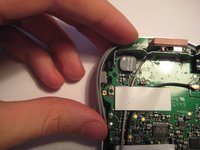
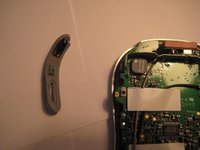
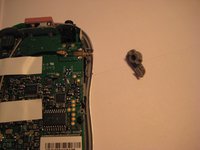
    • Remove the power button by pulling it to the left.

    Ask FixBot

    Add Comment

  8. Removing Delphi MyFi XM2GO Keypad: step 8, image 1 of 2 Removing Delphi MyFi XM2GO Keypad: step 8, image 2 of 2
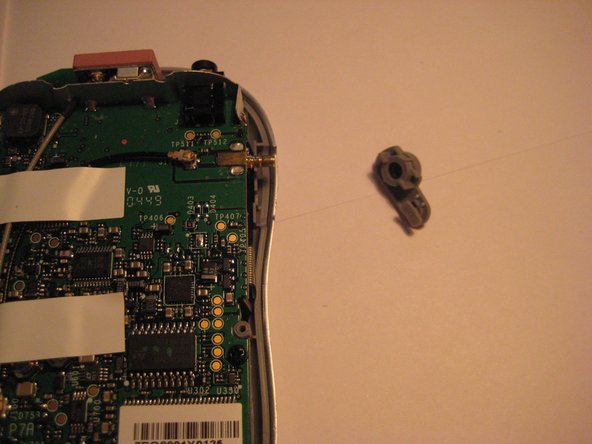
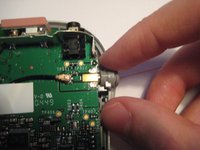
    • Remove the plastic antenna extension connector on the right side of the device.

    Ask FixBot

    Add Comment

  9. Removing Delphi MyFi XM2GO Keypad: step 9, image 1 of 3 Removing Delphi MyFi XM2GO Keypad: step 9, image 2 of 3 Removing Delphi MyFi XM2GO Keypad: step 9, image 3 of 3
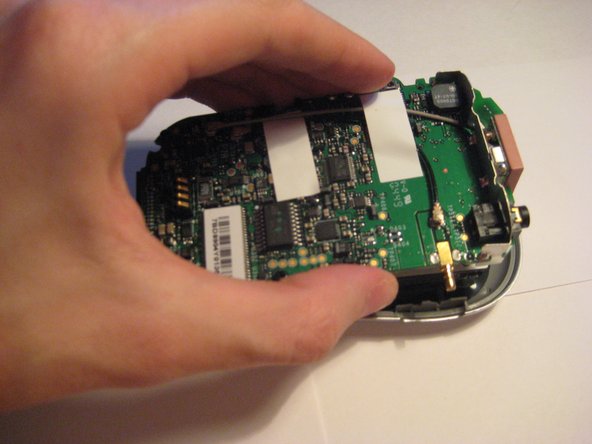
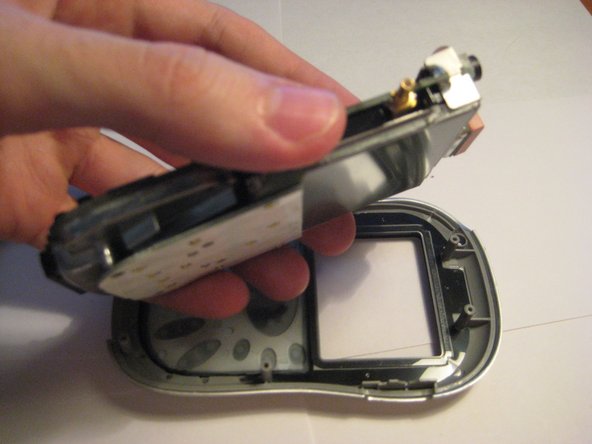
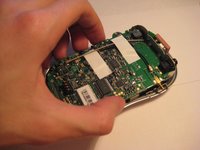
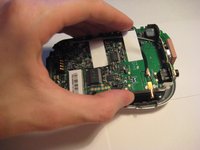
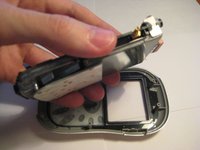
    • Pull up on the motherboard to remove it from the device.

    • The LCD screen and keypad are only connected to the motherboard with ribbon cables. They will hang down as the motherboard is removed.

    Ask FixBot

    Add Comment

  10. Removing Delphi MyFi XM2GO Keypad, Removing Delphi Myfi XM2GO LCD Screen: step 10, image 1 of 2 Removing Delphi MyFi XM2GO Keypad, Removing Delphi Myfi XM2GO LCD Screen: step 10, image 2 of 2
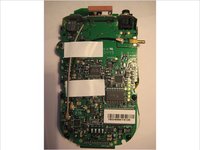
    • The logic board must be exposed to begin.

    • Flip the device over (see second picture).

    • CAUTION: The keyboard is loosely attached by a ribbon cable and may move when the device is flipped.

    Ask FixBot

    Add Comment

  11. Removing Delphi MyFi XM2GO Keypad: step 11, image 1 of 1
    • Lift up the keyboard carefully from the right side, flipping to the left.

    • NOTE: The keyboard is attached on the left side by a ribbon cable. Do not remove it completely yet.

    Ask FixBot

    Add Comment

  12. Removing Delphi MyFi XM2GO Keypad: step 12, image 1 of 3 Removing Delphi MyFi XM2GO Keypad: step 12, image 2 of 3 Removing Delphi MyFi XM2GO Keypad: step 12, image 3 of 3
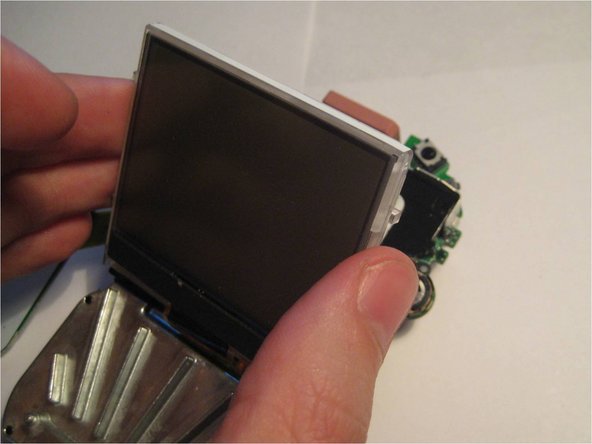
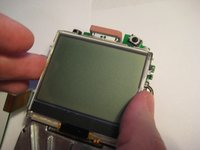
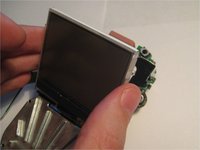
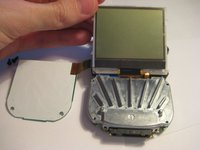
    • Pivot the LCD screen, pulling on the top and sides and keeping the bottom attached.

    Ask FixBot

    Add Comment

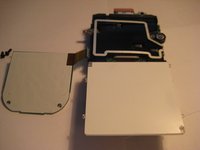
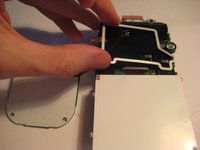
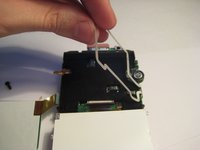
  13. Removing Delphi MyFi XM2GO Keypad: step 13, image 1 of 3 Removing Delphi MyFi XM2GO Keypad: step 13, image 2 of 3 Removing Delphi MyFi XM2GO Keypad: step 13, image 3 of 3
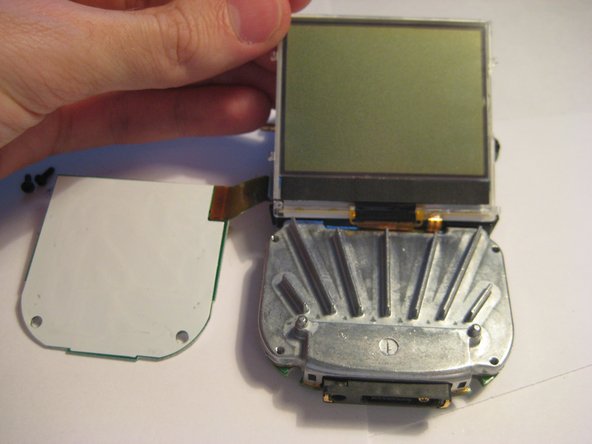
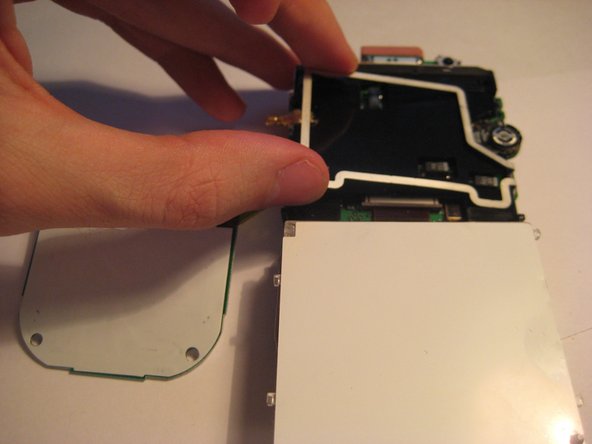
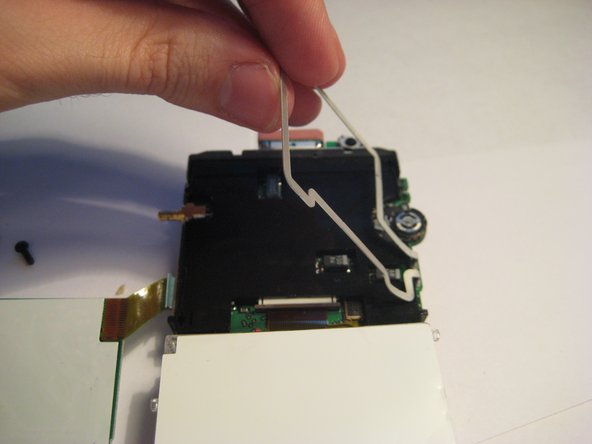
    • Continue to pivot the screen until it is lying on its face.

    • Pivot the wire frame, that was under the LCD, from the left side.

    • CAUTION: The wire bends as the frame pivots. Use the least amount of force necessary.

    Ask FixBot

    Add Comment

  14. Removing Delphi MyFi XM2GO Keypad: step 14, image 1 of 3 Removing Delphi MyFi XM2GO Keypad: step 14, image 2 of 3 Removing Delphi MyFi XM2GO Keypad: step 14, image 3 of 3
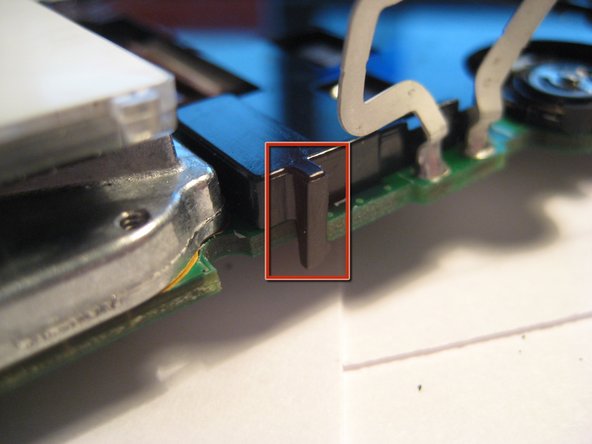
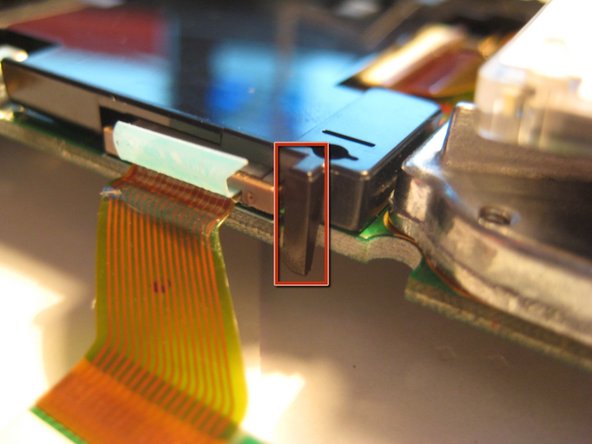
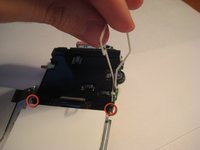
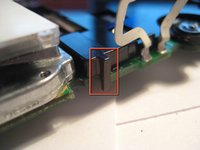
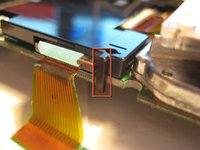
    • With the frame perpendicular to the device, locate the two black, plastic tabs shown in the two red circles.

    • The boxes show more detailed views in the following pictures.

    Ask FixBot

    Add Comment

  15. Removing Delphi MyFi XM2GO Keypad: step 15, image 1 of 3 Removing Delphi MyFi XM2GO Keypad: step 15, image 2 of 3 Removing Delphi MyFi XM2GO Keypad: step 15, image 3 of 3
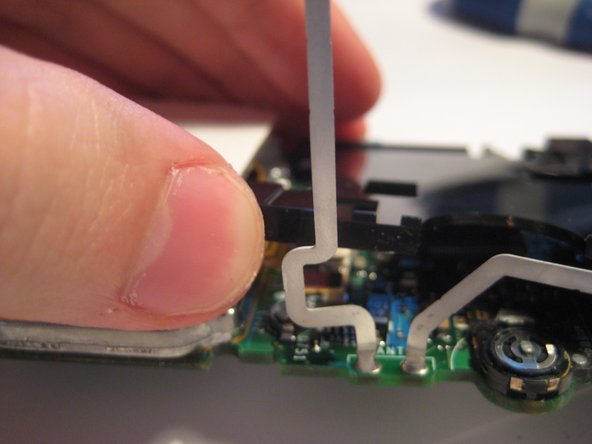
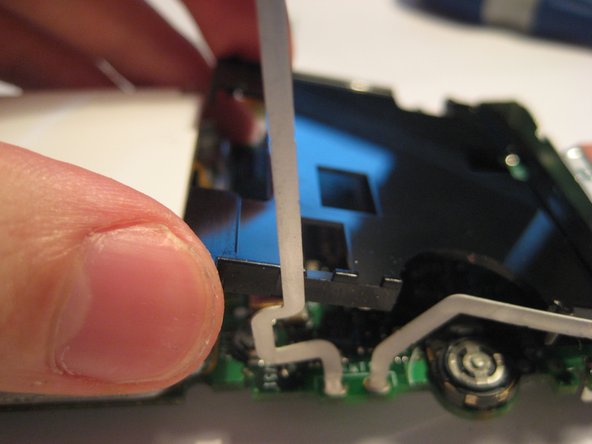
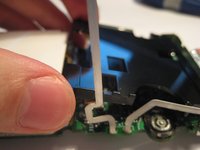
    • WIth both hands, pull the tabs outwards to release the plastic cover from the board.

    • Once the tabs are disengaged, pivot the plastic cover upwards.

    • After the cover is pivoted slightly, remove it from the device.

    Ask FixBot

    Add Comment

  16. Removing Delphi MyFi XM2GO Keypad: step 16, image 1 of 2 Removing Delphi MyFi XM2GO Keypad: step 16, image 2 of 2
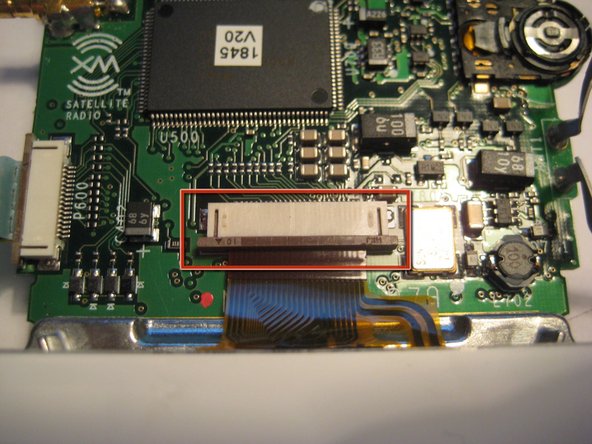
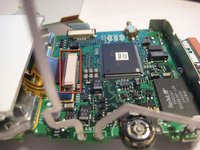
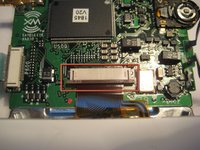
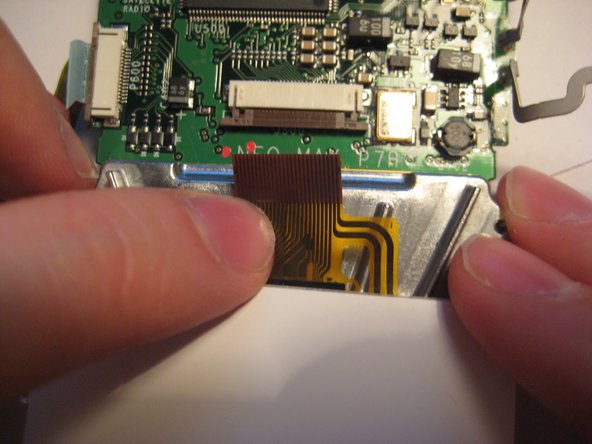
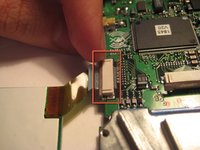
    • After the plastic cover is removed, locate the white, ribbon connector highlighted by the red square.

    • Rotate the device 90 degrees counterclockwise to remove the ribbon connector.

    Ask FixBot

    Add Comment

  17. Removing Delphi MyFi XM2GO Keypad: step 17, image 1 of 3 Removing Delphi MyFi XM2GO Keypad: step 17, image 2 of 3 Removing Delphi MyFi XM2GO Keypad: step 17, image 3 of 3
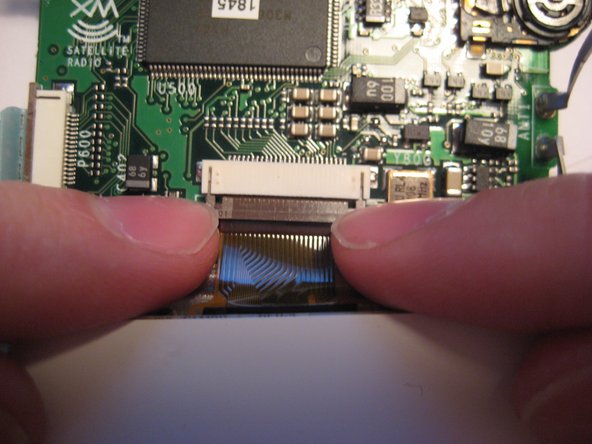
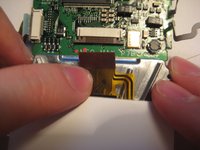
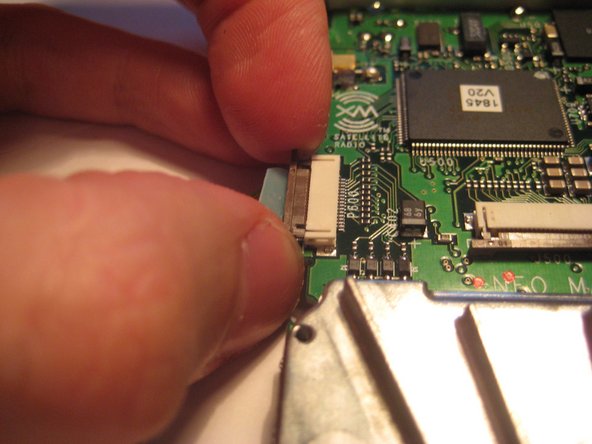
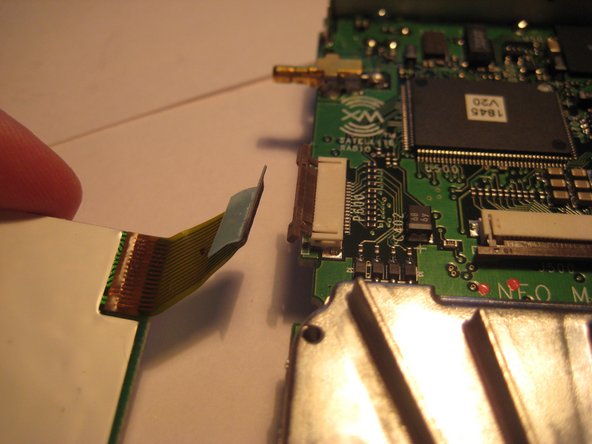
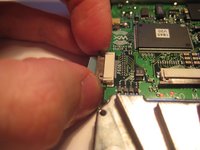
    • To remove the ribbon cable from the board, catch the sides of the connector with fingernails and pull downward.

    • CAUTION: The connector is delicate.

    • After the latch is pulled down, the ribbon cable is free to slide out of the connector housing.

    Ask FixBot

    Add Comment

  18. Removing Delphi MyFi XM2GO Keypad: step 18, image 1 of 1
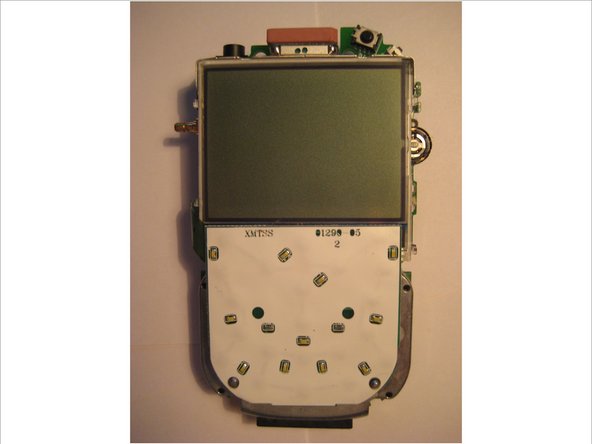
    • After following the prerequisite steps in the guide, the components are laid out as depicted in the picture.

    • The LCD screen is highlighted in red.

    Ask FixBot

    Add Comment

  19. Removing Delphi MyFi XM2GO Keypad, Removing Delphi MyFi XM2GO Keypad: step 19, image 1 of 3 Removing Delphi MyFi XM2GO Keypad, Removing Delphi MyFi XM2GO Keypad: step 19, image 2 of 3 Removing Delphi MyFi XM2GO Keypad, Removing Delphi MyFi XM2GO Keypad: step 19, image 3 of 3
    • Locate the white ribbon connector attached to the keyboard.

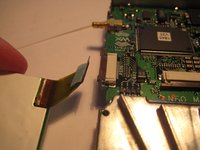
    • Catch the sides of the connector with fingernails and pull outward.

    • CAUTION: The connector is delicate.

    • After the latch is pulled out, the ribbon cable is free to slide out of the connector housing.

    Ask FixBot

    Add Comment

  20. Removing Delphi MyFi XM2GO Keypad: step 20, image 1 of 1
    • After following the prerequisite steps and the steps of this guide, all of the components should look like this.

    • The keyboard is highlighted in red.

    Ask FixBot

    Add Comment

Conclusion

To reassemble your device, follow these instructions in reverse order.

Cancel: I did not complete this guide.

Aubrey

Member since: 03/09/12

54 Reputation

3 Guides authored

Team

Clemson, Team 1-2, Benson Spring 2012 Member of Clemson, Team 1-2, Benson Spring 2012

CLEM-BENSON-S12S1G2

3 Members

9 Guides authored

0 Guide Comments

Add Comment

View Statistics:

Past 24 Hours: 1

Past 7 Days: 5

Past 30 Days: 39

All Time: 1,934