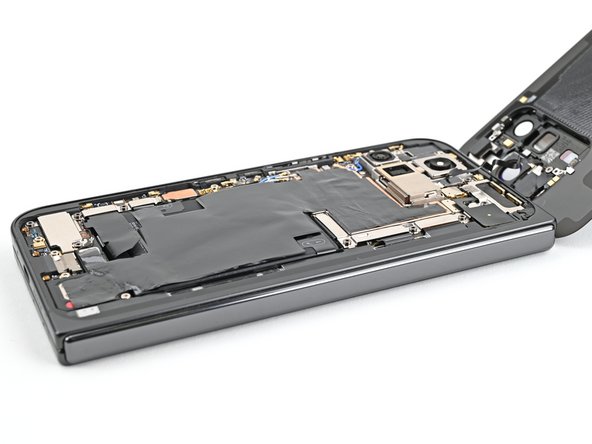
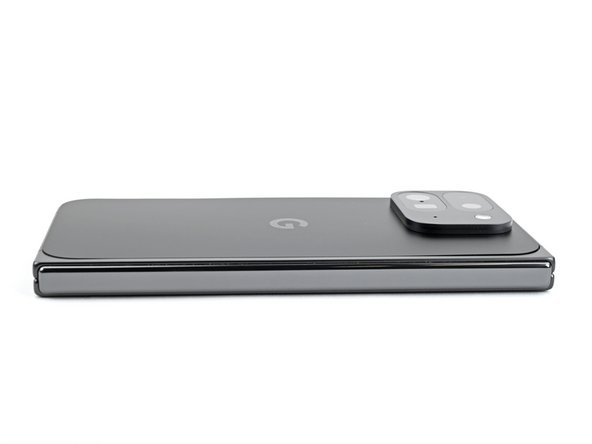
Google Pixel 9 Pro Fold Back Cover Reinstallation

Prerequisite Only
This is a prerequisite-only guide! This guide is part of another procedure and isn’t meant to be used alone.
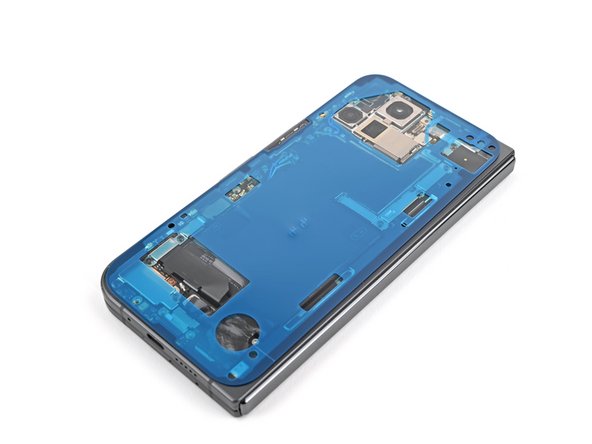
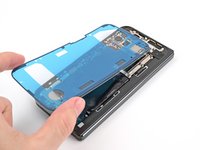
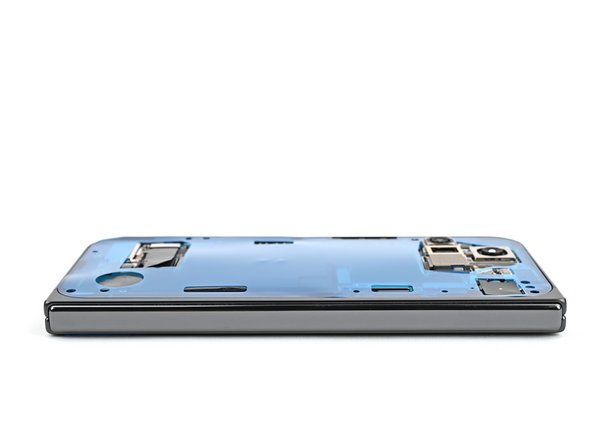
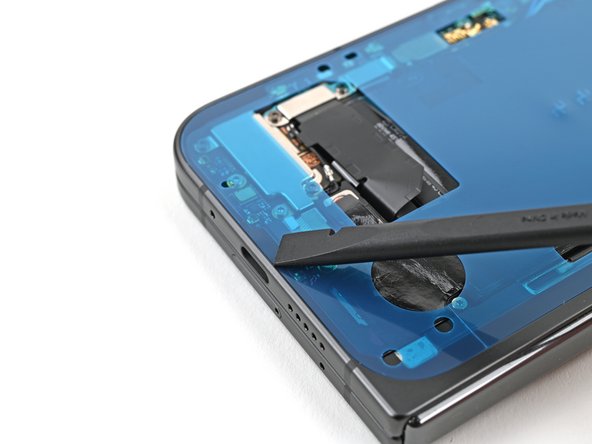
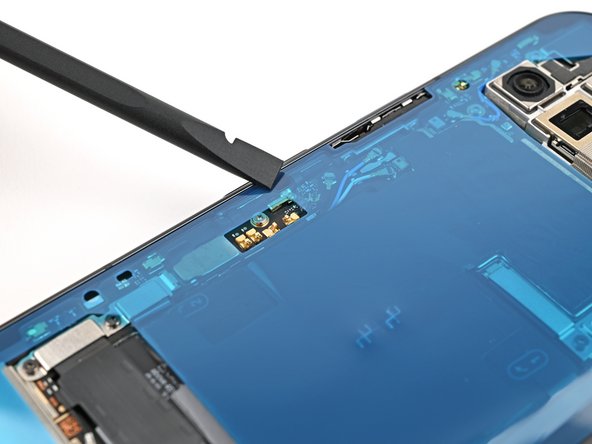
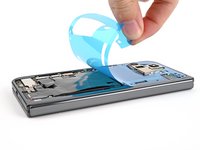
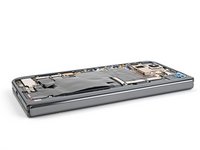
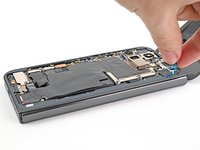
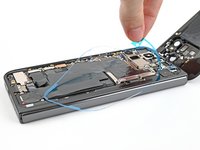
  1. Google Pixel 9 Pro Fold Back Cover Reinstallation, Remove the old adhesive: step 1, image 1 of 2 Google Pixel 9 Pro Fold Back Cover Reinstallation, Remove the old adhesive: step 1, image 2 of 2
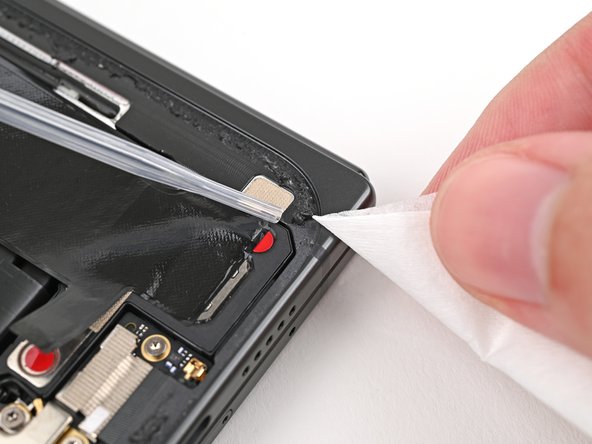
    • Use a spudger, or your fingers, to remove the old back cover adhesive.

    • Use isopropyl alcohol (>90%) and a coffee filter or a microfiber cloth to remove any adhesive residue.

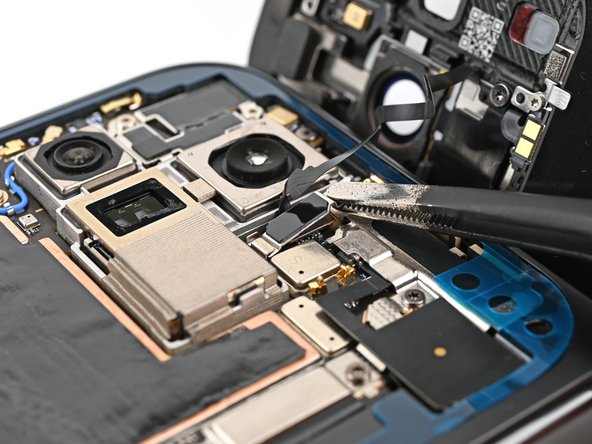
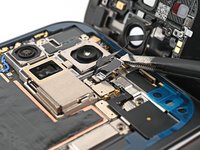
  2. Google Pixel 9 Pro Fold Back Cover Reinstallation, Remove the back cover liners: step 2, image 1 of 3 Google Pixel 9 Pro Fold Back Cover Reinstallation, Remove the back cover liners: step 2, image 2 of 3 Google Pixel 9 Pro Fold Back Cover Reinstallation, Remove the back cover liners: step 2, image 3 of 3
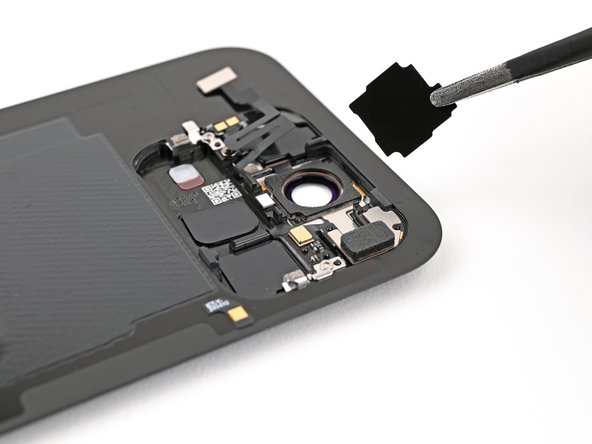
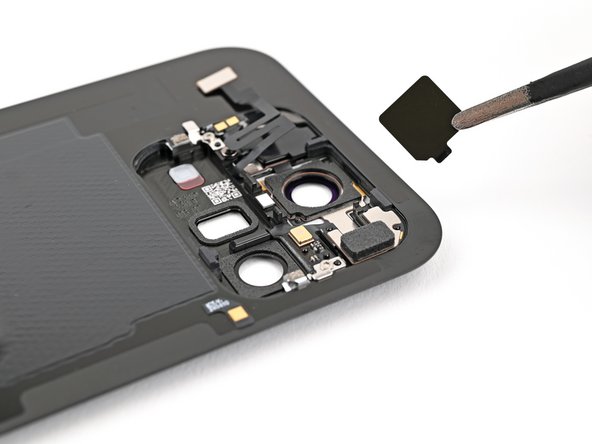
    • If you're replacing your back cover with a new one, follow the next two steps. Otherwise, skip them.

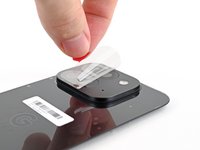
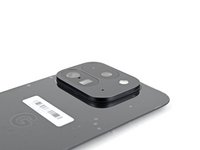
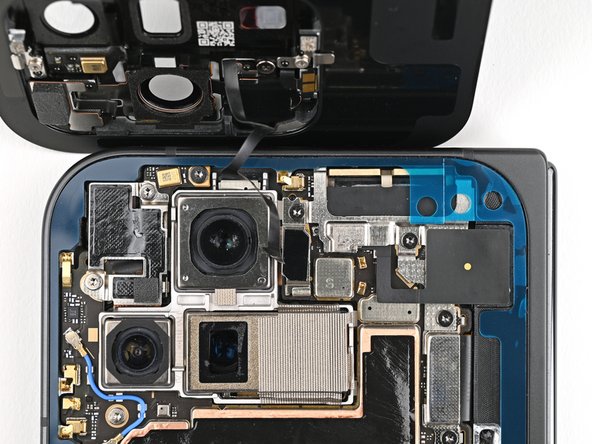
    • Use tweezers, or your fingers, to remove the three rear camera liners from the inside of your new back cover.

  3. Google Pixel 9 Pro Fold Back Cover Reinstallation: step 3, image 1 of 3 Google Pixel 9 Pro Fold Back Cover Reinstallation: step 3, image 2 of 3 Google Pixel 9 Pro Fold Back Cover Reinstallation: step 3, image 3 of 3
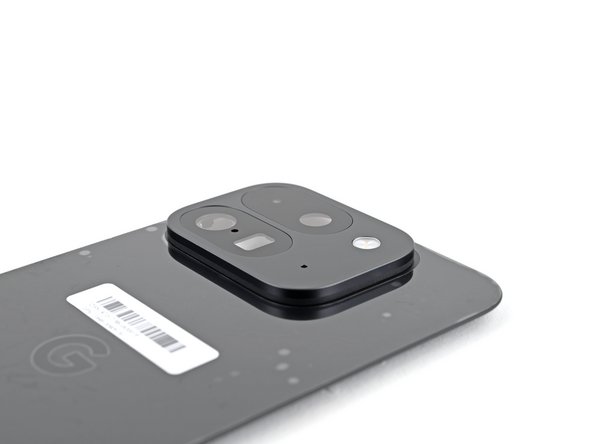
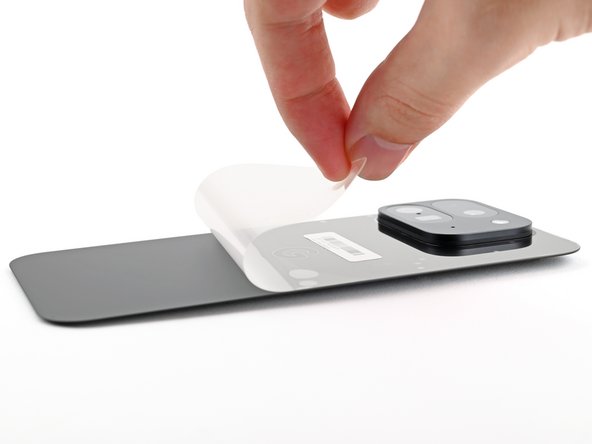
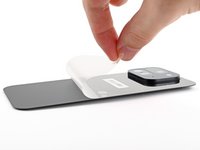
    • Peel off the remaining clear liners on the outside of the back cover.

  4. Google Pixel 9 Pro Fold Back Cover Reinstallation, Compare your adhesive: step 4, image 1 of 2 Google Pixel 9 Pro Fold Back Cover Reinstallation, Compare your adhesive: step 4, image 2 of 2
    • Before removing any liners, check if the adhesive matches the frame.

    • The clear liner should face the frame.

  5. Google Pixel 9 Pro Fold Back Cover Reinstallation, Apply the new adhesive: step 5, image 1 of 3 Google Pixel 9 Pro Fold Back Cover Reinstallation, Apply the new adhesive: step 5, image 2 of 3 Google Pixel 9 Pro Fold Back Cover Reinstallation, Apply the new adhesive: step 5, image 3 of 3
    • Be careful during this step, as it's easy to stick the adhesive in the wrong spot. Take your time and work slowly.

    • Peel away the top half of the new adhesive strip from its clear liner and keep it folded before continuing.

    • Align the top half of the adhesive over the frame, using the corners as reference points.

    • Place the adhesive on the frame.

  6. Google Pixel 9 Pro Fold Back Cover Reinstallation: step 6, image 1 of 2 Google Pixel 9 Pro Fold Back Cover Reinstallation: step 6, image 2 of 2
    • Use the flat end of a spudger, or your fingers, to press down the top edge of the adhesive and adhere it to the frame.

  7. Google Pixel 9 Pro Fold Back Cover Reinstallation: step 7, image 1 of 3 Google Pixel 9 Pro Fold Back Cover Reinstallation: step 7, image 2 of 3 Google Pixel 9 Pro Fold Back Cover Reinstallation: step 7, image 3 of 3
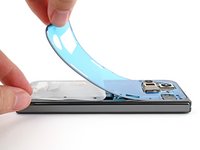
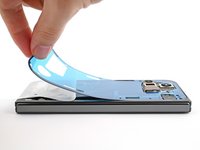
    • While peeling away the rest of the clear liner, slowly lay the rest of the adhesive over the perimeter of the phone.

  8. Google Pixel 9 Pro Fold Back Cover Reinstallation: step 8, image 1 of 3 Google Pixel 9 Pro Fold Back Cover Reinstallation: step 8, image 2 of 3 Google Pixel 9 Pro Fold Back Cover Reinstallation: step 8, image 3 of 3
    • Use the flat end of a spudger, or your fingers, to press down the rest of the adhesive and adhere it to the frame.

  9. Google Pixel 9 Pro Fold Back Cover Reinstallation: step 9, image 1 of 3 Google Pixel 9 Pro Fold Back Cover Reinstallation: step 9, image 2 of 3 Google Pixel 9 Pro Fold Back Cover Reinstallation: step 9, image 3 of 3
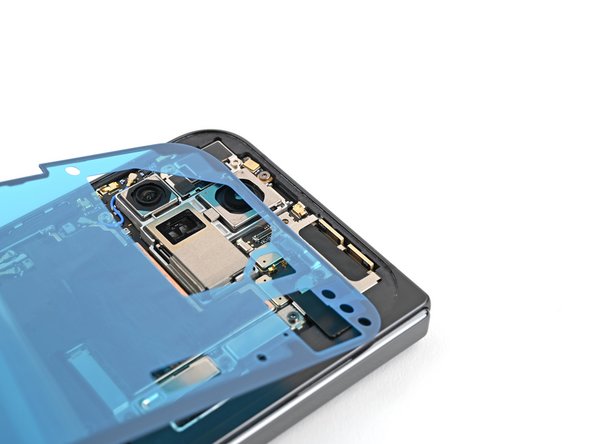
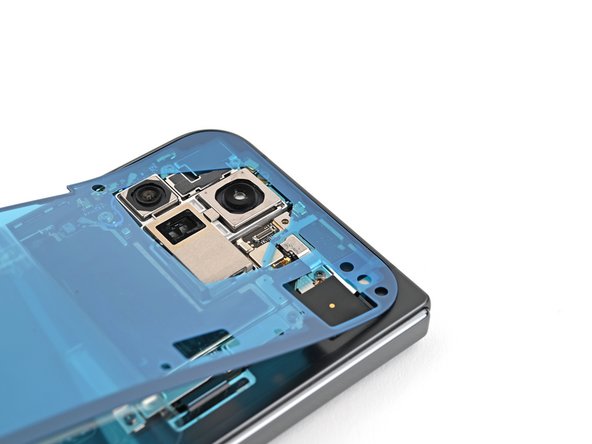
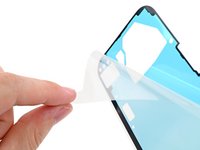
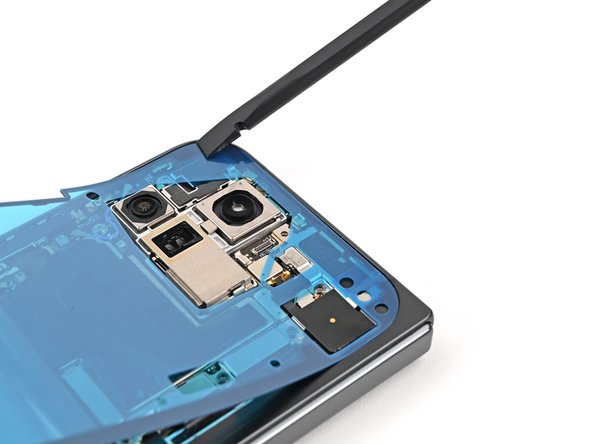
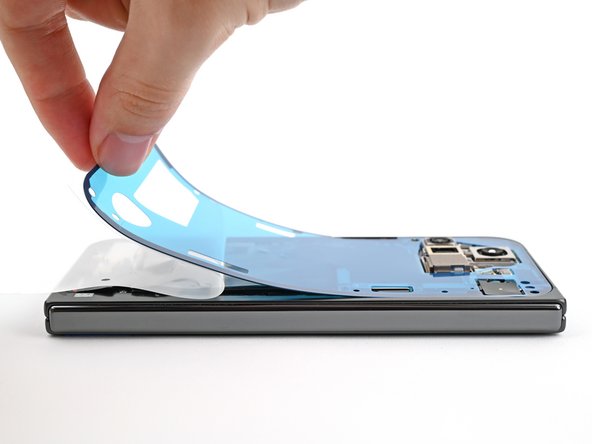
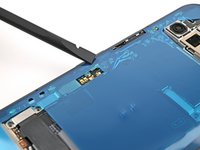
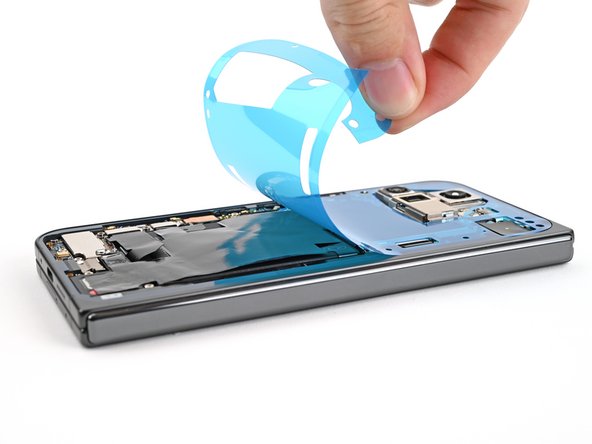
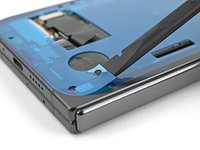
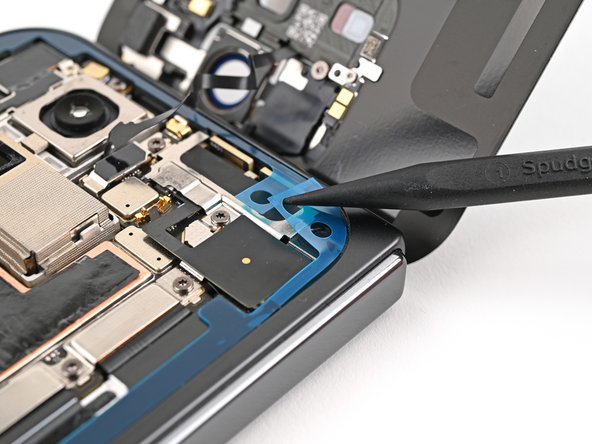
    • Use a spudger to pry up the segmented tab on the bottom right corner of the large blue liner.

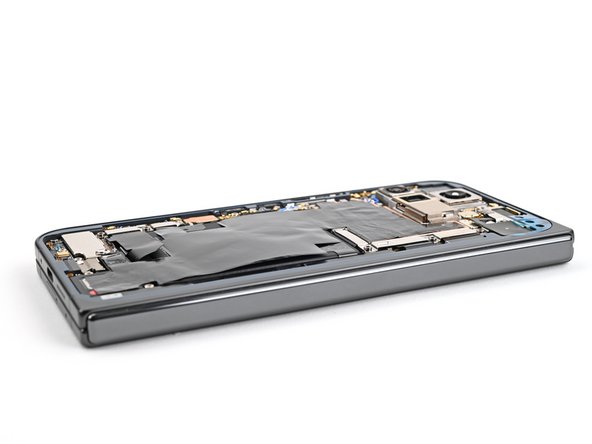
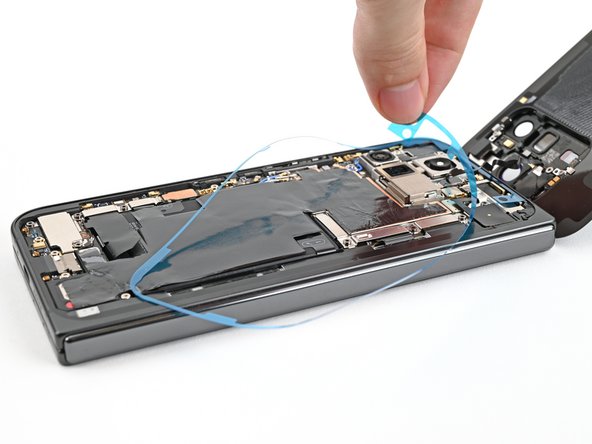
    • Lift the tab and peel off the large blue liner to expose the secondary liner.

    • If any of the adhesive starts to peel up with the liner, gently lay it back on the frame and use the flat end of a spudger to secure it.

  10. Google Pixel 9 Pro Fold Back Cover Reinstallation, Reconnect the back cover cable: step 10, image 1 of 1
    • While holding the back cover or propping it up, reconnect the back cover cable.

    • Don't try to force the connector into place. If you're having trouble, reposition it and try again.

  11. Google Pixel 9 Pro Fold Back Cover Reinstallation, Reinstall the top bracket: step 11, image 1 of 2 Google Pixel 9 Pro Fold Back Cover Reinstallation, Reinstall the top bracket: step 11, image 2 of 2
    • Reinsert the top bracket clip under its slot in the logic board and align its screw hole.

  12. Google Pixel 9 Pro Fold Back Cover Reinstallation: step 12, image 1 of 2 Google Pixel 9 Pro Fold Back Cover Reinstallation: step 12, image 2 of 2
    • Use a Torx Plus 3IP driver to install the 3.0 mm‑long screw securing the top bracket.

  13. Google Pixel 9 Pro Fold Back Cover Reinstallation, Remove the secondary liner: step 13, image 1 of 2 Google Pixel 9 Pro Fold Back Cover Reinstallation, Remove the secondary liner: step 13, image 2 of 2
    • Use the tip of a spudger to pry up the segmented tab on the top right corner of the secondary liner.

  14. Google Pixel 9 Pro Fold Back Cover Reinstallation: step 14, image 1 of 3 Google Pixel 9 Pro Fold Back Cover Reinstallation: step 14, image 2 of 3 Google Pixel 9 Pro Fold Back Cover Reinstallation: step 14, image 3 of 3
    • Peel off the secondary liner to expose the adhesive.

    • If any of the adhesive starts to peel up with the liner, gently lay it back on the frame and use the flat end of a spudger to secure it.

  15. Google Pixel 9 Pro Fold Back Cover Reinstallation, Secure the back cover: step 15, image 1 of 2 Google Pixel 9 Pro Fold Back Cover Reinstallation, Secure the back cover: step 15, image 2 of 2
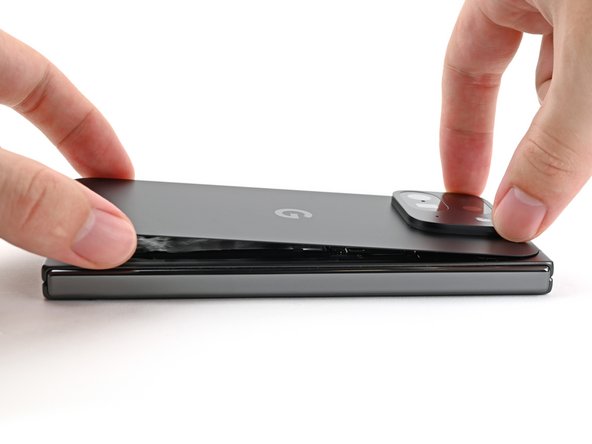
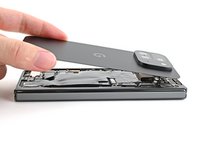
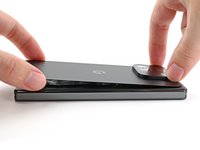
    • Align the top edge of the back cover with the frame and press down to adhere it.

  16. Google Pixel 9 Pro Fold Back Cover Reinstallation: step 16, image 1 of 3 Google Pixel 9 Pro Fold Back Cover Reinstallation: step 16, image 2 of 3 Google Pixel 9 Pro Fold Back Cover Reinstallation: step 16, image 3 of 3
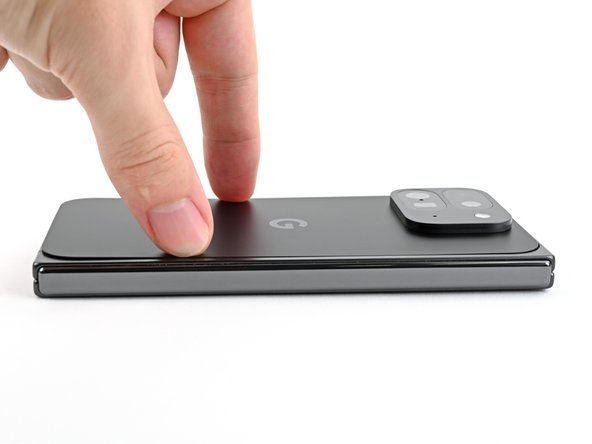
    • Press along the perimeter of the back cover to adhere it to the frame.

    • Optionally, you can use a hair dryer or heat gun to lightly heat the edges of the back cover and create a stronger bond.

    • Let the phone sit a few hours for the adhesive to cure.

Conclusion

To reassemble your device, follow these instructions in reverse order.

Alex Diaz-Kokaisl

Member since: 01/16/22

215,201 Reputation

1,046 Guides authored

Team

iFixit Member of iFixit

Staff

123 Members

23,788 Guides authored

0 Guide Comments

Add Comment

View Statistics:

Past 24 Hours: 0

Past 7 Days: 0

Past 30 Days: 1

All Time: 38