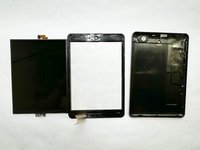
RCA 8 Apollo Screen Replacement

What you need

  1. RCA 8 Apollo Screen Replacement, Back Panel: step 1, image 1 of 1
    • Before you begin, discharge your tablet battery below 25%. A charged lithium-ion battery can catch fire and/or explode if accidentally punctured.

    • Power off your tablet before beginning to disassemble.

  2. RCA 8 Apollo Screen Replacement: step 2, image 1 of 2 RCA 8 Apollo Screen Replacement: step 2, image 2 of 2
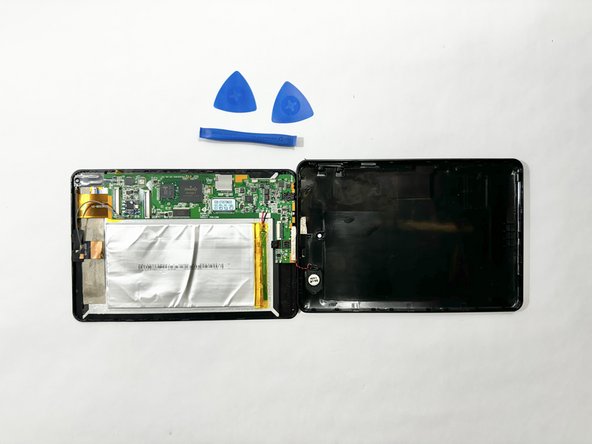
    • Insert an iFixit opening tool into the gap between the tablet and back panel.

    • Using a combination of iFixit opening tools and iFixit opening picks, pry the tablet upward around its perimeter to release it from the plastic rear case.

    • If inserted too far, an opening pick can damage your device. It is helpful to mark the edge with an opening pick, or opening tool at a depth that will not damage the inner contents of the tablet.

  3. RCA 8 Apollo Screen Replacement: step 3, image 1 of 2 RCA 8 Apollo Screen Replacement: step 3, image 2 of 2
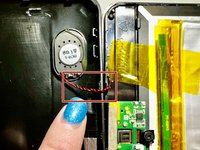
    • Disconnect the red and black speaker wires from the tablet.

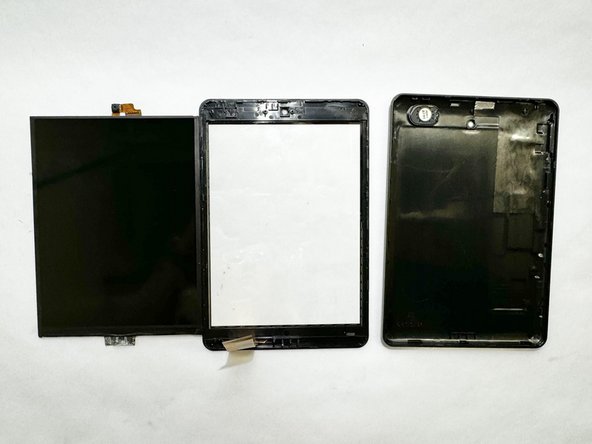
    • The front and back of the tablet will be disconnected.

  4. RCA 8 Apollo Screen Replacement, Display Assembly: step 4, image 1 of 3 RCA 8 Apollo Screen Replacement, Display Assembly: step 4, image 2 of 3 RCA 8 Apollo Screen Replacement, Display Assembly: step 4, image 3 of 3
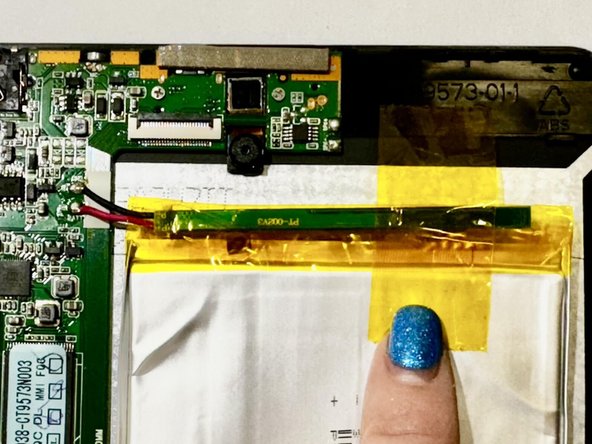
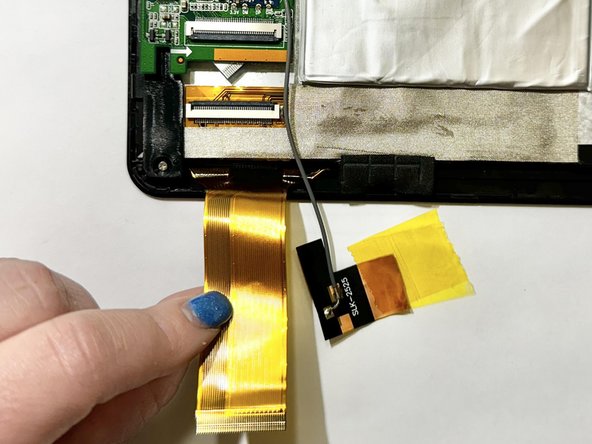
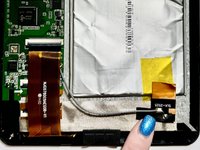
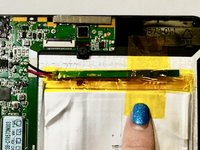
    • Release the gold and black tab from the battery that's attached to a gray wire. The gold tab is held down by an adhesive; pull it until the adhesive releases.

    • Remove the yellow tape that is around the battery.

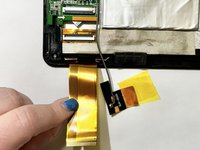
    • Unlock the ZIF socket and detach the display data interconnect cable from the front panel assembly.

    • If the connector is misaligned, the pins can bend, causing permanent damage.

  5. RCA 8 Apollo Screen Replacement: step 5, image 1 of 1
    • Remove the three screws from the motherboard using a Phillips screwdriver.

  6. RCA 8 Apollo Screen Replacement: step 6, image 1 of 1
    • Remove the battery and motherboard together from the tablet.

    • If the tablet needs a battery replacement, disconnect the battery and replace it with a new one.

    • The battery might be glued down; you will just need to slowly remove the battery as the adhesive releases.

  7. RCA 8 Apollo Screen Replacement, Screen: step 7, image 1 of 3 RCA 8 Apollo Screen Replacement, Screen: step 7, image 2 of 3 RCA 8 Apollo Screen Replacement, Screen: step 7, image 3 of 3
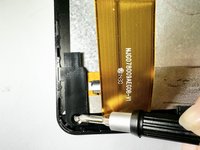
    • Remove the screw from the bottom left of the tablet.

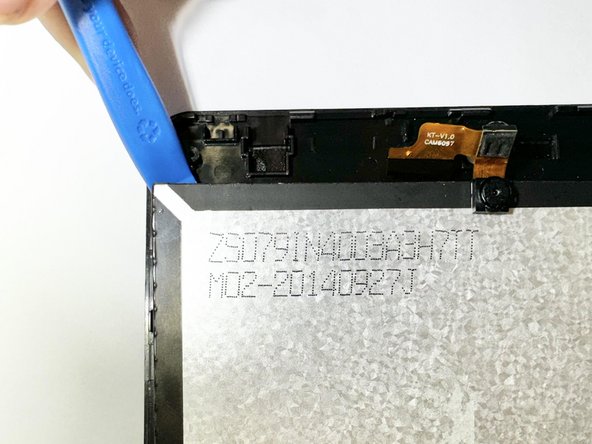
    • Place an opening tool under the screen.

    • Pry up the screen and it will unclip from the clips holding the screen down.

    • Avoid using too much force to prevent the glass from breaking.

Conclusion

To reassemble your device, follow these instructions in reverse order.

McKenna Shipper

Member since: 04/12/24

123 Reputation

1 Guide authored

Team

0 Guide Comments

Add Comment

View Statistics:

Past 24 Hours: 0

Past 7 Days: 3

Past 30 Days: 6

All Time: 114