Free Shipping on Domestic Orders $75+

ProntoTec Axius Camera Replacement

What you need

  1. ProntoTec Axius Camera Replacement, Camera: step 1, image 1 of 1
    • Make sure the device is completely turned off before you begging taking it apart to avoid electrocution risks.

    • Place the tablet face-up on a flat table.

    Ask FixBot

    Add Comment

  2. ProntoTec Axius Camera Replacement: step 2, image 1 of 1
    • Starting near the headphone port, fit the flat end of the spudger in between the screen and back case.

    • Pry the back case from the screen around each point on the device to release the clips securing the case halves to each other.

    Ask FixBot

    Add Comment

  3. ProntoTec Axius Camera Replacement: step 3, image 1 of 1
    • Gently remove the back case of the device and lay it in a flat surface as shown in the photo.

    • Make sure not to sever the wires (red and black) connected to the speaker that is located in the back case.

    Ask FixBot

    Add Comment

  4. ProntoTec Axius Camera Replacement: step 4, image 1 of 1
    • Remove only the yellow tape that touches the battery.

    • Be careful not to cut or damage the wires (red and black) that are under the yellow tape.'

    Ask FixBot

    Add Comment

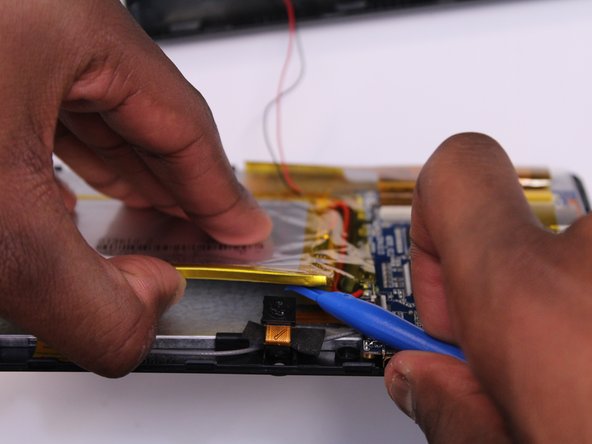
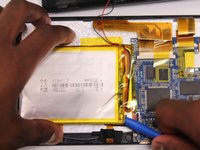
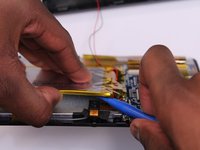
  5. ProntoTec Axius Camera Replacement: step 5, image 1 of 2 ProntoTec Axius Camera Replacement: step 5, image 2 of 2
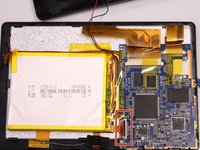
    • Use the flat end of the spudger to gently pry the top left corner battery from the back of the screen in order to access the camera.

    Ask FixBot

    Add Comment

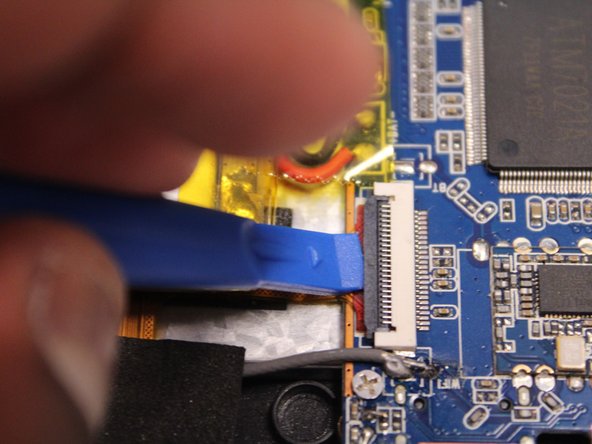
  6. ProntoTec Axius Camera Replacement: step 6, image 1 of 3 ProntoTec Axius Camera Replacement: step 6, image 2 of 3 ProntoTec Axius Camera Replacement: step 6, image 3 of 3
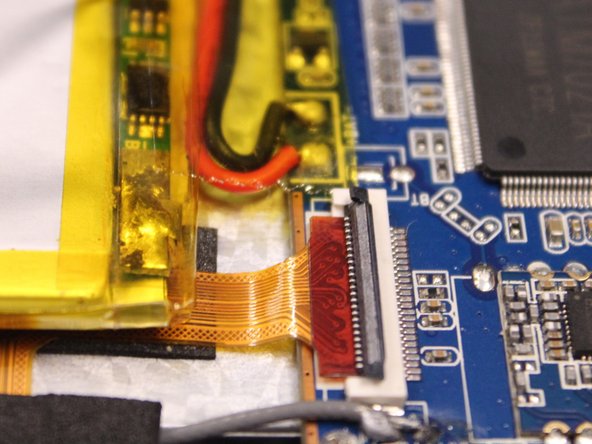
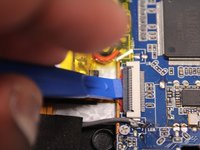
    • Use the spudger to lift the black clamp as shown in the photo to disconnect the camera from the motherboard.

    Ask FixBot

    Add Comment

  7. ProntoTec Axius Camera Replacement: step 7, image 1 of 2 ProntoTec Axius Camera Replacement: step 7, image 2 of 2
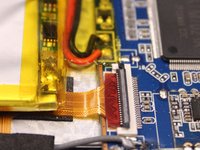
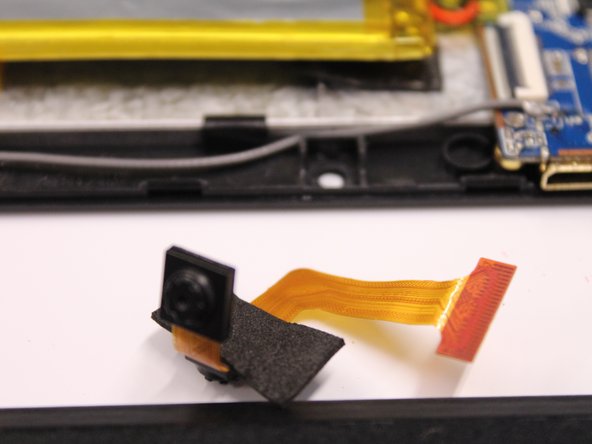
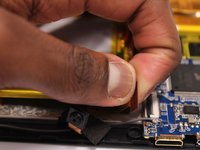
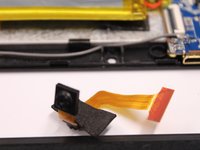
    • Disconet the camera from the motherboard.

    • Pull the camera from the back of the screen.

    Ask FixBot

    Add Comment

Conclusion

To reassemble your device, follow these instructions in reverse order.

Cancel: I did not complete this guide.

One other person completed this guide.

Antonio Irons

Member since: 10/20/16

441 Reputation

4 Guides authored

Team

UMass Dartmouth, Team 5-3, Martin Fall 2016 Member of UMass Dartmouth, Team 5-3, Martin Fall 2016

UMASSD-MARTIN-F16S5G3

3 Members

10 Guides authored

0 Guide Comments

Add Comment

View Statistics:

Past 24 Hours: 2

Past 7 Days: 8

Past 30 Days: 33

All Time: 400