PowerBook G4 Aluminum 17" 1.67 GHz (High-Res) RAM Replacement

What you need

  1. PowerBook G4 Aluminum 17" 1.67 GHz (High-Res) RAM Replacement, Battery: step 1, image 1 of 2 PowerBook G4 Aluminum 17" 1.67 GHz (High-Res) RAM Replacement, Battery: step 1, image 2 of 2
    • Use your thumbs to push the two battery retaining tabs away from the battery.

    • The battery should pop up enough to rotate it toward yourself and lift it out of the lower case.

  2. PowerBook G4 Aluminum 17" 1.67 GHz (High-Res) RAM Replacement, Memory Door: step 2, image 1 of 1
    • Remove the three 2.3 mm Phillips screws securing the memory cover to the lower case.

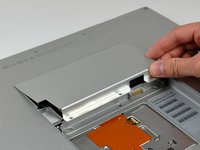
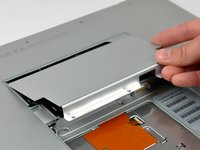
  3. PowerBook G4 Aluminum 17" 1.67 GHz (High-Res) RAM Replacement: step 3, image 1 of 2 PowerBook G4 Aluminum 17" 1.67 GHz (High-Res) RAM Replacement: step 3, image 2 of 2
    • Lift the memory cover slightly and pull it toward yourself to remove it from the lower case.

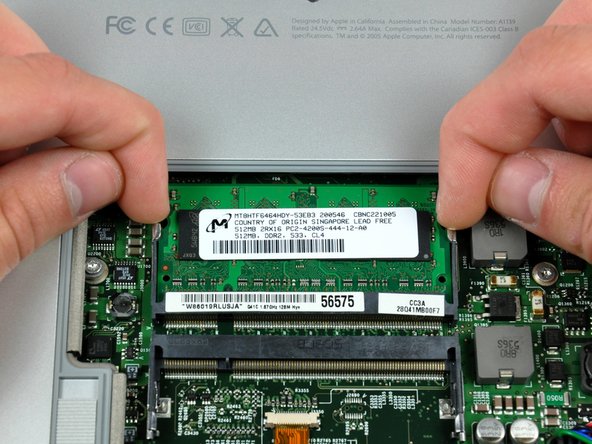
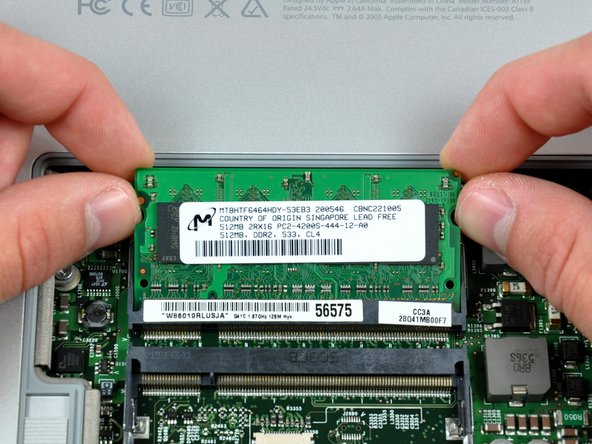
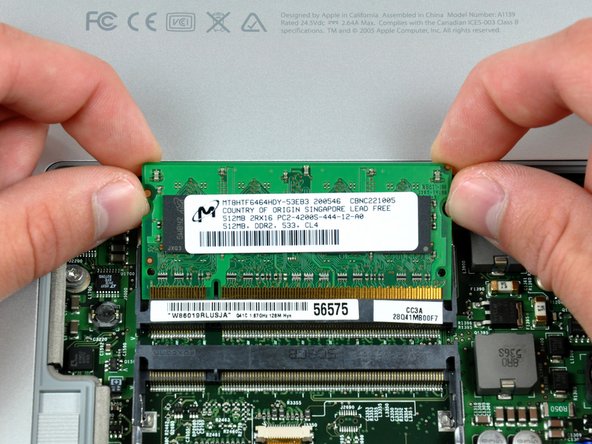
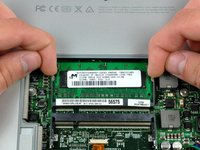
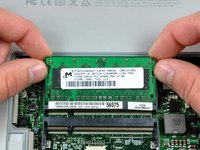
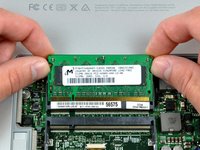
  4. PowerBook G4 Aluminum 17" 1.67 GHz (High-Res) RAM Replacement, RAM: step 4, image 1 of 3 PowerBook G4 Aluminum 17" 1.67 GHz (High-Res) RAM Replacement, RAM: step 4, image 2 of 3 PowerBook G4 Aluminum 17" 1.67 GHz (High-Res) RAM Replacement, RAM: step 4, image 3 of 3
    • Use your fingertips to pull the two RAM arms away from the sides of the RAM chip. The chip should pop up slightly.

    • Pull the RAM chip away from its socket and remove it from the logic board.

    • Repeat this process for the other RAM chip, if present.

Conclusion

To reassemble your device, follow these instructions in reverse order.

24 other people completed this guide.

Attached Documents

1 Guide Comment

What is the maximum ram that I can bump up this system to?

Legendary Ocelot - Reply

Add Comment

View Statistics:

Past 24 Hours: 2

Past 7 Days: 3

Past 30 Days: 14

All Time: 8,549