Introduction
Use this guide to replace/remove the faceplate of a Power A Spectra Infinity Enhanced Xbox controller.
The faceplate may need to be replaced if it is chipped, cracked, or scratched. Please ensure that the controller is not plugged in before taking it apart.
What you need
-
-
-
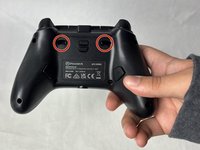
Remove the eight 10 mm screws from the back of the controller using a Phillips #0 screwdriver.
-
-
-
Unlock the trigger locks before removing the backplate.
-
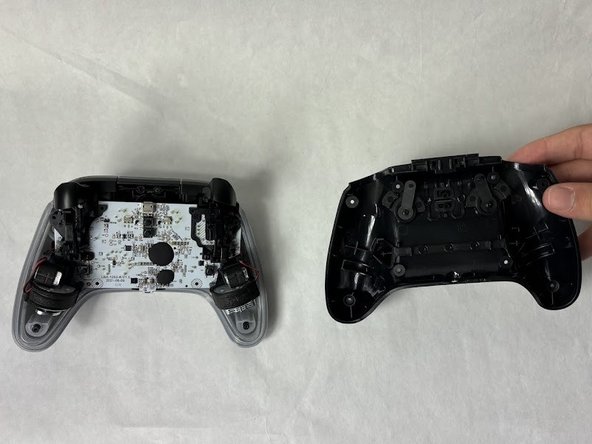
Use your fingers and carefully remove the backplate.
-
-
-
-
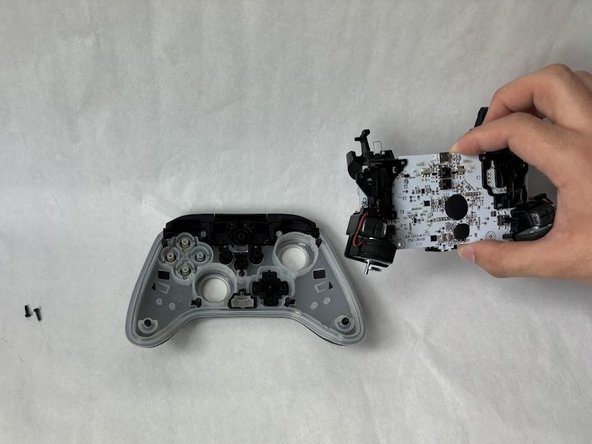
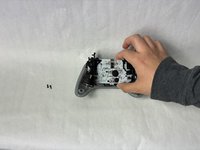
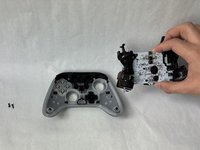
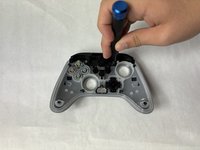
Remove the two 10 mm screws connecting the motherboard to the faceplate using a Phillips #0 screwdriver.
-
-
-
-
Remove the buttons from the face plate (d-pad, action buttons, start/select, etc).
-
-
-
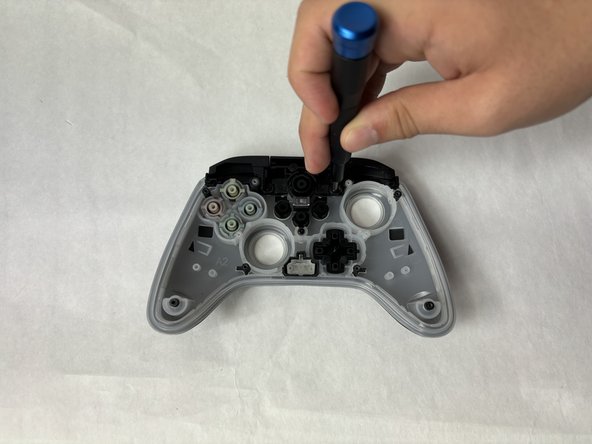
Remove two 10 mm screws holding the bumper to the faceplate using a Phillips #0 screwdriver.
-
-
-
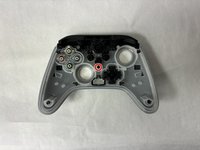
Remove the single 7.9 mm screw holding the bumpers to the faceplate using a Phillips #0 screwdriver.
-
-


 Ask FixBot







To reassemble your device, follow these instructions in reverse order.

Team

UMass Dartmouth, Team 6-5, Botvin Spring 2024 Member of UMass Dartmouth, Team 6-5, Botvin Spring 2024
UMASSD-BOTVIN-S24S6G5
3 Members
72 Guides authored
