
PowerA Enhanced Wireless Controller Directional Pad Replacement

Ayjah Montgomery and 4 other contributors
Last updated on May 7, 2024
Views: 1.7K
View statistics:
- Past 24 Hours:
- 2
- Past 7 Days:
- 19
- Past 30 Days:
- 70
- All Time:
- 1,723
Comments: 0
No one has left comments on this guide. Will you be first?
Go to guide commentsCompleted: 0 1
No one has marked this guide "completed." Will you be the first?
1 person has marked this guide "completed." It's you — great job!
Favorites: 0 1
No one has favorited (and subscribed to) this guide. Will you be the first?
1 person has favorited (and subscribed to) this guide — and that's you!
Introduction
Go to step 1 ↓This guide will show you how to access and replace the directional pad of your PowerA Enhanced Wireless Controller. Built-up residue can cause complications with the directional pad. As this cannot always be cleaned away with a Q-tip and rubbing alcohol, it may be necessary to disassemble the controller to either clean beneath the directional pad or change it entirely. Follow the steps provided to do so.
What you need
Tools


-
-
-
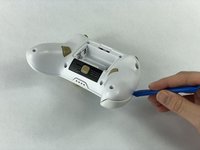
Remove the battery cover by pressing down on the lever located on the top of the cover.
-
Apply pressure until it clicks out of place, and pull it off.
 Ask FixBot
-
-
-
-
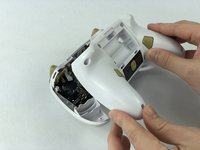
Insert the iFixit opening tool into the seam and gently pry the cover plate up.
-
Remove the cover plate once it is loosened.
-
-
-
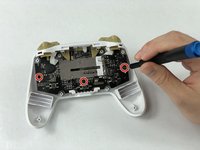
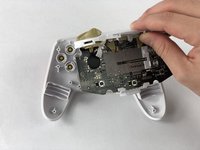
Remove all three screws securing the motherboard using the J00 screwdriver.
-
Remove the motherboard.
-
-
-
-
Tool used on this step:Tweezers$4.99
-
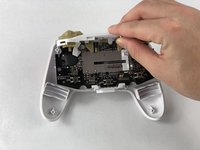
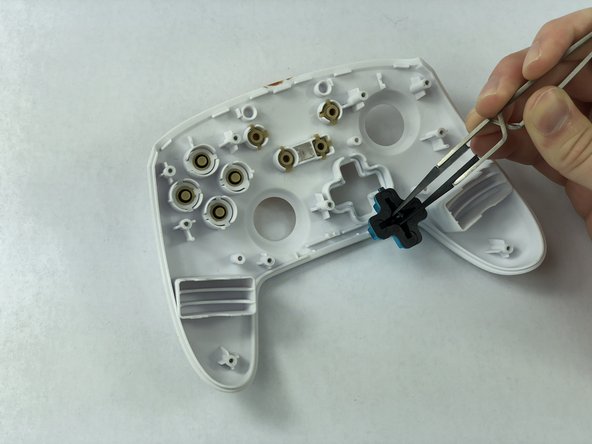
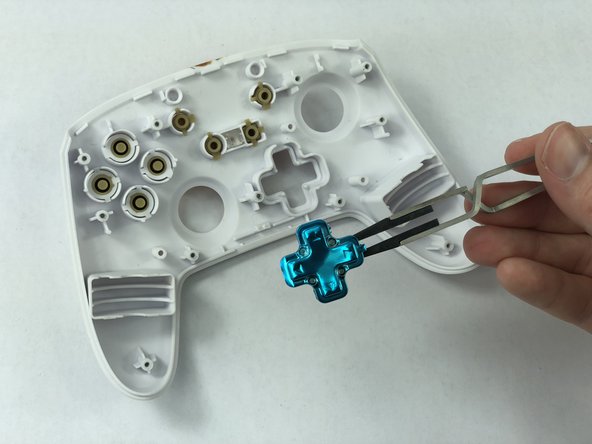
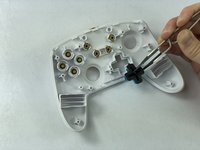
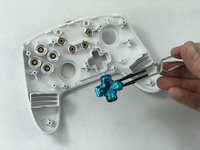
Use the rubber tweezers to grab the center of the directional pad and pull it out by pinching its center.
-
-





To reassemble your device, follow these instructions in reverse order.

Team

USF Tampa, Team S1-G5, Leahy Fall 2019 Member of USF Tampa, Team S1-G5, Leahy Fall 2019
USFT-LEAHY-F19S1G5
3 Members
60 Guides authored
