Free Shipping on Domestic Orders $75+

Power Cable Disconnection

Prerequisite Only
This is a prerequisite-only guide! This guide is part of another procedure and isn’t meant to be used alone.

What you need

    1. Power Cable Disconnection, Disconnect the flex shaft: step 1, image 1 of 3 Power Cable Disconnection, Disconnect the flex shaft: step 1, image 2 of 3 Power Cable Disconnection, Disconnect the flex shaft: step 1, image 3 of 3
      • Before starting, ensure the device is unplugged from power.

      • Pull up on the quick-disconnect handle to release the lock on the flex shaft.

      • Remove the flex shaft.

      Ask FixBot

      Add Comment

    1. Power Cable Disconnection, Remove the housing screws: step 2, image 1 of 1
      • Use a T20 Torx screwdriver to remove the nineteen screws securing the two halves of the device housing.

      Ask FixBot

      Add Comment

    2. Power Cable Disconnection, Remove the dust filter: step 3, image 1 of 2 Power Cable Disconnection, Remove the dust filter: step 3, image 2 of 2
      • Lay the device down onto its right side, screw holes facing up.

      • Remove the rear dust filter.

      Ask FixBot

      Add Comment

    3. Power Cable Disconnection, Separate the halves: step 4, image 1 of 3 Power Cable Disconnection, Separate the halves: step 4, image 2 of 3 Power Cable Disconnection, Separate the halves: step 4, image 3 of 3
      • Lift to remove the left half of the device housing.

      • If the housings feel stuck together, use a flathead screwdriver to create a gap between the halves.

      Ask FixBot

      Add Comment

    1. Power Cable Disconnection, Lift up the switch: step 5, image 1 of 2 Power Cable Disconnection, Lift up the switch: step 5, image 2 of 2
      • Lift the switch out of its recess in the case housing.

      Ask FixBot

      Add Comment

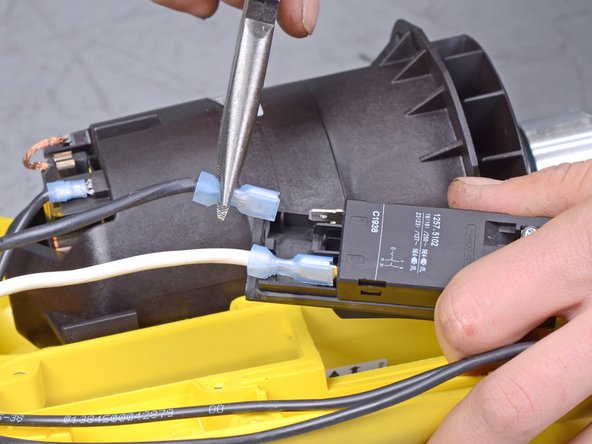
    2. Power Cable Disconnection, Disconnect the power wires: step 6, image 1 of 3 Power Cable Disconnection, Disconnect the power wires: step 6, image 2 of 3 Power Cable Disconnection, Disconnect the power wires: step 6, image 3 of 3
      • Use a pair of needle nose pliers to disconnect the black and white power wires from their terminals on the switch.

      Ask FixBot

      Add Comment

Conclusion

To reassemble your device, follow these instructions in reverse order.

Cancel: I did not complete this guide.

Carsten Frauenheim

Member since: 03/10/20

171,409 Reputation

442 Guides authored

Team

iFixit Member of iFixit

Staff

122 Members

72,401 Guides authored

0 Guide Comments

Add Comment

View Statistics:

Past 24 Hours: 0

Past 7 Days: 3

Past 30 Days: 10

All Time: 130