
PlayStation VR Display Replacement

Elliott Ruoff and 3 other contributors
Last updated on Jun 16, 2021
Views: 4.8K
View statistics:
- Past 24 Hours:
- 1
- Past 7 Days:
- 16
- Past 30 Days:
- 88
- All Time:
- 4,770
Comments: 3
2 comments on steps, 1 guide comment.
Go to guide commentsCompleted: 2 3
2 people have marked this guide "completed." Will you be next?
3 people have marked this guide "completed." Including you — great job!
Favorites: 0 1
No one has favorited (and subscribed to) this guide. Will you be the first?
1 person has favorited (and subscribed to) this guide — and that's you!
Needs Better Images
Better photos will improve this guide. Help out by taking, editing, or uploading new ones!
Needs More Images
A few more images would make this guide's procedures crystal clear.
Better Introduction
Improve this guide by completing or revising its introduction.
Introduction
Go to step 1 ↓This guide shows you how to disassemble and replace the display on your Playstation VR headset.
What you need
Tools


-
-
-
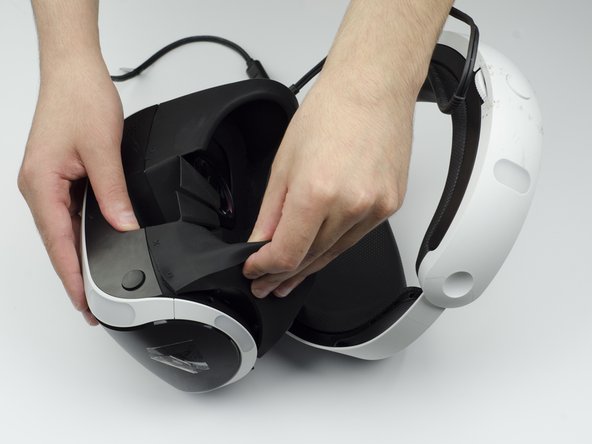
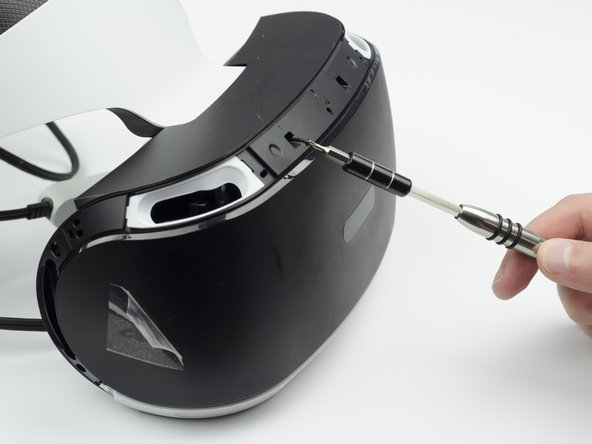
Peel back the rubber covering around the lenses to remove the surrounding plastic eyepieces.
 Ask FixBot
-
-
-
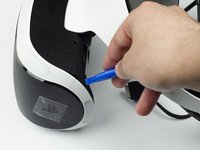
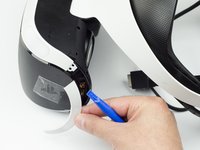
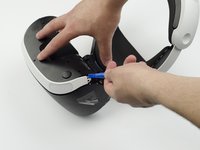
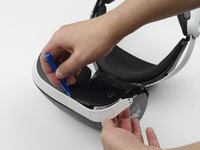
Using the plastic opening tool, carefully pry the white plastic panel free from the side of the headset. Repeat this action for the opposite side.
-
-
-
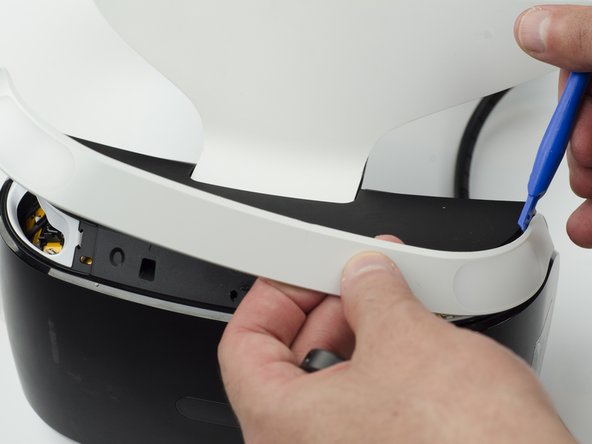
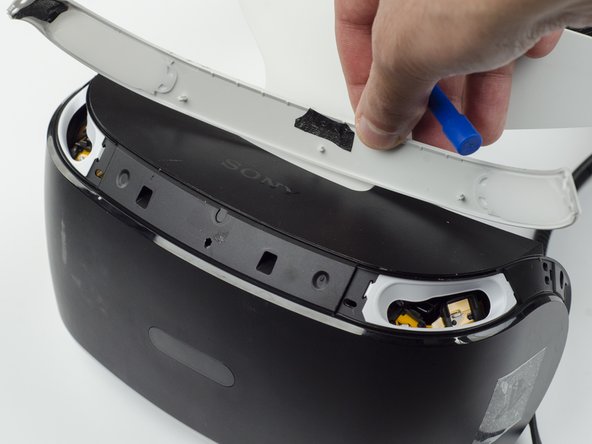
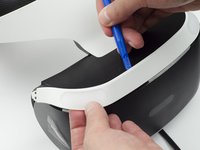
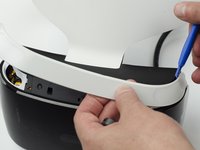
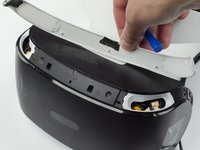
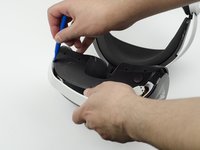
Use the plastic opening tool to pry the top white plastic panel free from the headset.
-
-
-
Flip the headset over.
-
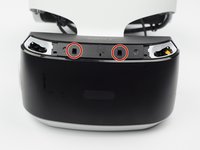
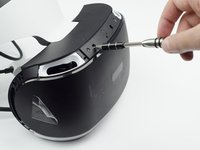
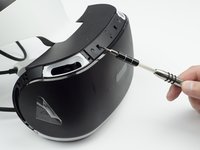
Using a PH #000, unscrew the 7 mm screw found on the bottom of the headset.
-
-
-
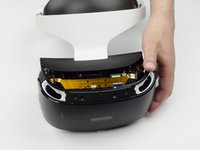
Using the plastic opening tool, pry the bottom white plastic panel loose and remove it from the headset.
-
-
-
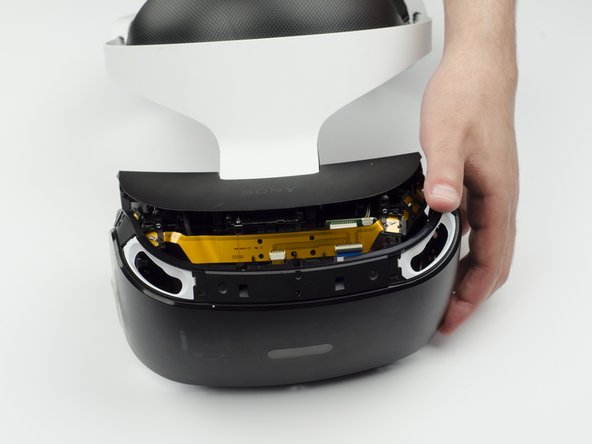
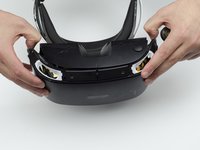
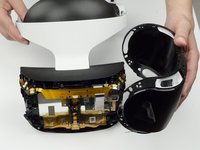
Using your fingers, carefully pry the black front panel free from the headset.
-
-
-
Unscrew the four silver 6 mm screws in each corner using a PH #000 screwdriver.
-
-
-
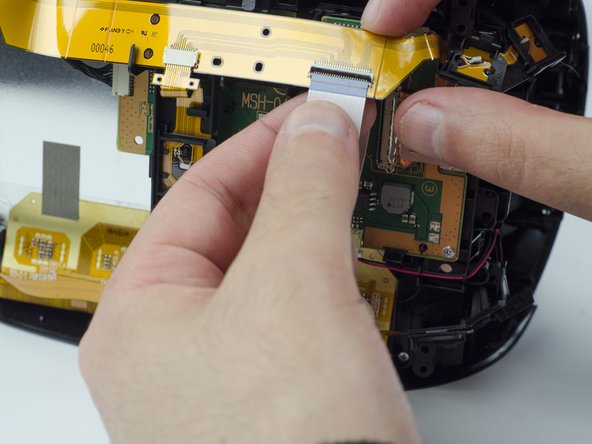
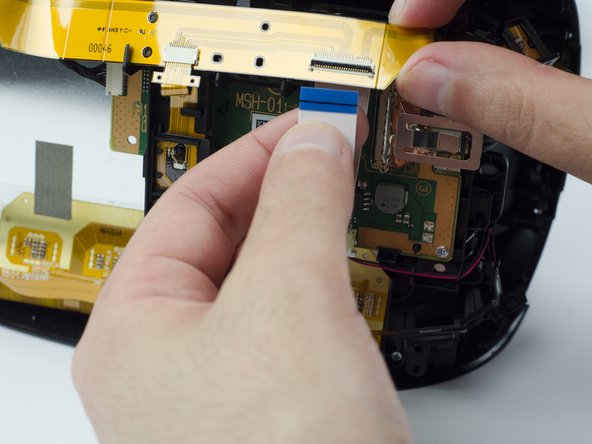
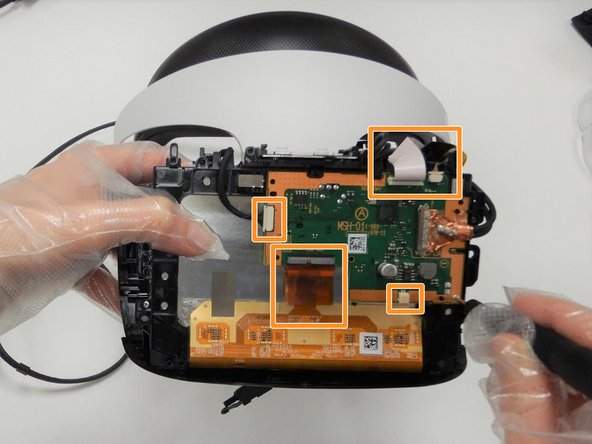
Lift the small silver latch attaching the ZIF (zero insertion force) connector to the circuit board.
-
Carefully pull the end of the white ribbon connector from its slot.
-
-
-
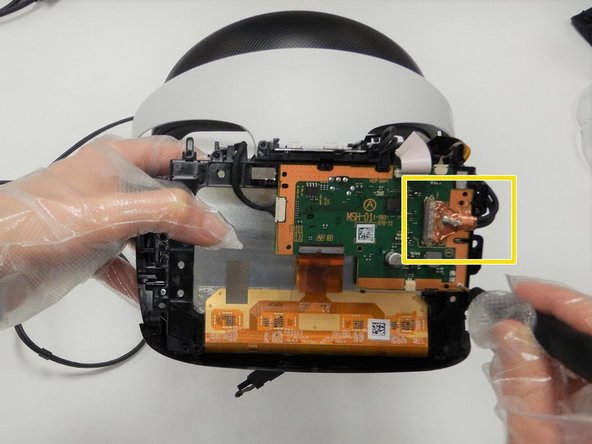
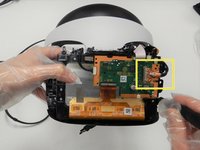
Carefully pry the black plastic piece attaching the yellow ribbon to the headset away from the green circuit board.
-
Remove the yellow LED ribbons and black plastic connecting piece from the headset.
-
-
-
-
-
-
Remove the two 6mm screws on the L shaped silver clip to the upper left of the motherboard using the Phillips #000 screwdriver.
-
Remove the one 6mm screw that is securing the silver clip on the far right side using the Phillips #000 screwdriver.
-
-
-
Remove the three 6mm screws from the motherboard using the Phillips #000 screwdriver.
-
Unplug the white cable and ribbons from the motherboard(make sure to lift the gates on the ribbons before pulling out).
-
Unplug the HDMI cable by lifting the gate and pulling gently(there will be adhesive).
-
-
-
-
-
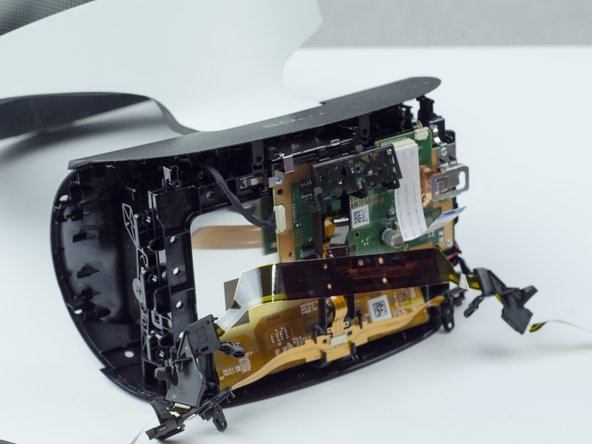
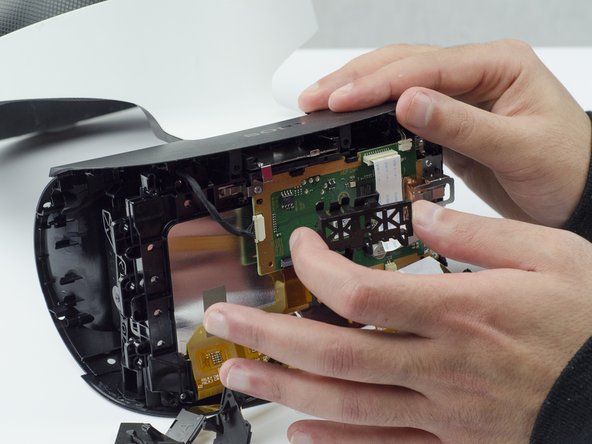
Press down firmly on the two clips on the sides of the device to remove the display.
-
-
-
Remove the four 6mm screws holding the display in place using the Phillips #000 screwdriver.
-
-













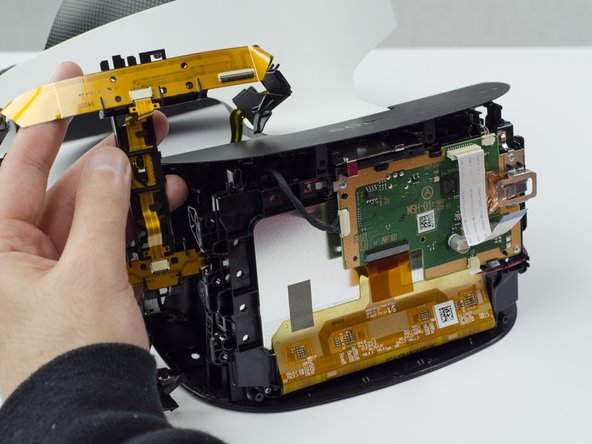
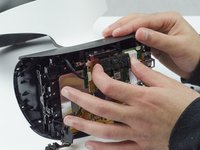
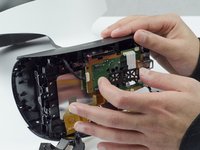
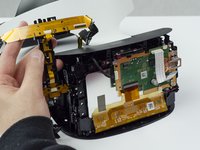




To reassemble your device, follow these instructions in reverse order.
Cancel: I did not complete this guide.
2 other people completed this guide.

Team

The Citadel Military College of South Carolina, Team S1-G10, Eggleston Spring 2021 Member of The Citadel Military College of South Carolina, Team S1-G10, Eggleston Spring 2021
CMCSC-EGGLESTON-S21S1G10
3 Members
36 Guides authored
