Free Shipping on Domestic Orders $75+

PlayStation Move Battery Replacement

What you need

  1. PlayStation Move Battery Replacement, Case: step 1, image 1 of 2 PlayStation Move Battery Replacement, Case: step 1, image 2 of 2
    • Turn the controller over and unscrew the four 10mm screws with a PH #00 screwdriver.

    Ask FixBot

    Add Comment

  2. PlayStation Move Battery Replacement: step 2, image 1 of 3 PlayStation Move Battery Replacement: step 2, image 2 of 3 PlayStation Move Battery Replacement: step 2, image 3 of 3
    • Pinch the sides of the back panel to remove it and set it aside.

    Ask FixBot

    Add Comment

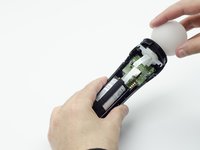
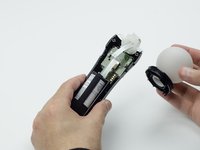
  3. PlayStation Move Battery Replacement: step 3, image 1 of 2 PlayStation Move Battery Replacement: step 3, image 2 of 2
    • Hold the base of the controller with one hand and with the other carefully pull up on the white spherical piece to remove it.

    Ask FixBot

    Add Comment

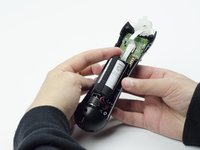
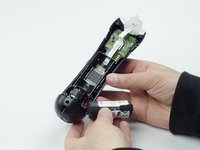
  4. PlayStation Move Battery Replacement: step 4, image 1 of 2 PlayStation Move Battery Replacement: step 4, image 2 of 2
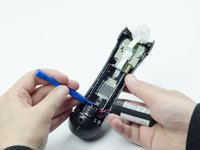
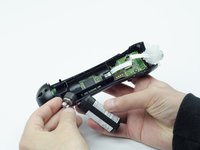
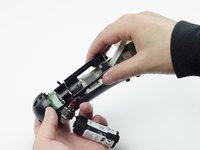
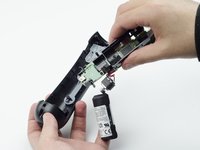
    • Push the Lithium Ion battery from its slot to remove it.

    • Be mindful not to damage the wires or wired components, as the battery will still be attached via its connector.

    Ask FixBot

    Add Comment

  5. PlayStation Move Battery Replacement: step 5, image 1 of 1
    • Unscrew the 9mm screw in the battery slot with a PH #00 screwdriver.

    Ask FixBot

    Add Comment

  6. PlayStation Move Battery Replacement: step 6, image 1 of 2 PlayStation Move Battery Replacement: step 6, image 2 of 2
    • Using a plastic opening tool, carefully pry the rumble motor free.

    Ask FixBot

    Add Comment

  7. PlayStation Move Battery Replacement: step 7, image 1 of 1
    • Unscrew the 9mm screw behind the rumble motor slot with a PH #00 screwdriver.

    Ask FixBot

    Add Comment

  8. PlayStation Move Battery Replacement: step 8, image 1 of 3 PlayStation Move Battery Replacement: step 8, image 2 of 3 PlayStation Move Battery Replacement: step 8, image 3 of 3
    • Carefully pinch the plastic sides of the battery slot and lift it (along with the circuit board) from the plastic shell of the move controller.

    Ask FixBot

    Add Comment

  9. PlayStation Move Battery Replacement: step 9, image 1 of 2 PlayStation Move Battery Replacement: step 9, image 2 of 2
    • Using your fingers, carefully pry the square green piece beneath the battery slot free.

    • It is attached via white ribbons which need to be kept intact.

    Ask FixBot

    Add Comment

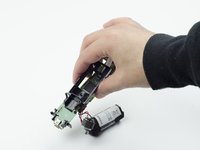
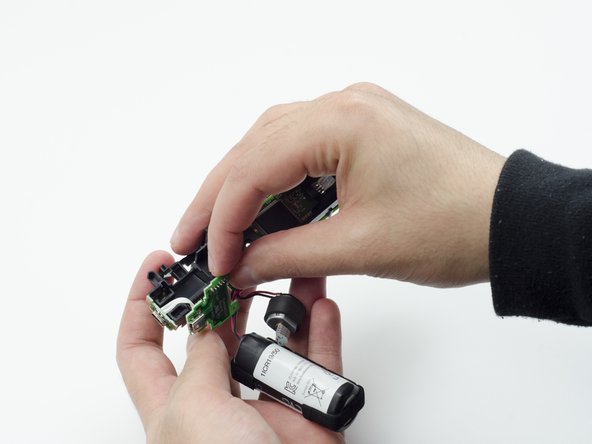
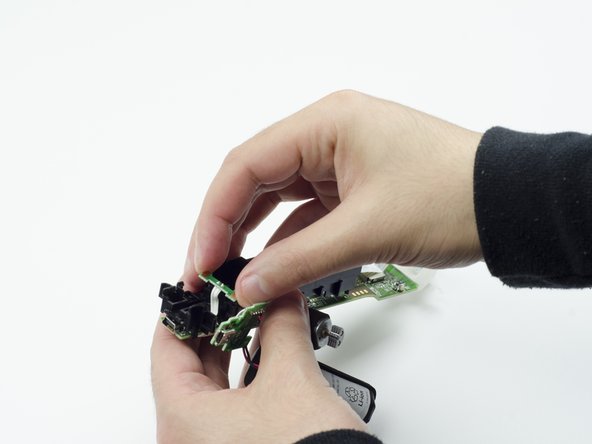
  10. PlayStation Move Battery Replacement: step 10, image 1 of 3 PlayStation Move Battery Replacement: step 10, image 2 of 3 PlayStation Move Battery Replacement: step 10, image 3 of 3
    • Follow the white ribbon attached to the part you just removed to a smaller, more rectangular piece.

    • Lift the rectangular piece from its slot to free it.

    Ask FixBot

    Add Comment

  11. PlayStation Move Battery Replacement: step 11, image 1 of 3 PlayStation Move Battery Replacement: step 11, image 2 of 3 PlayStation Move Battery Replacement: step 11, image 3 of 3
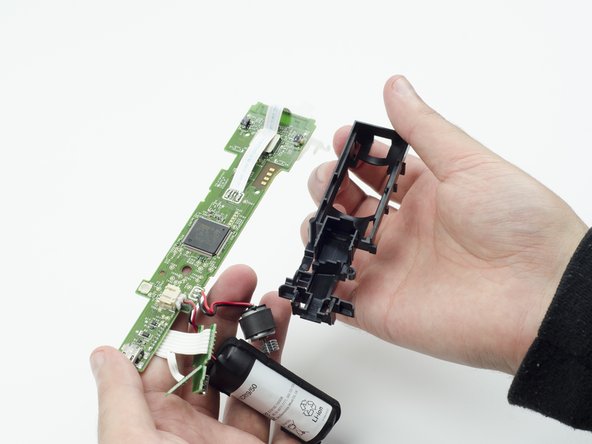
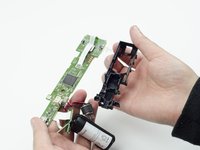
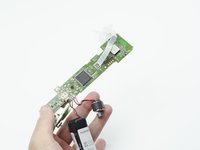
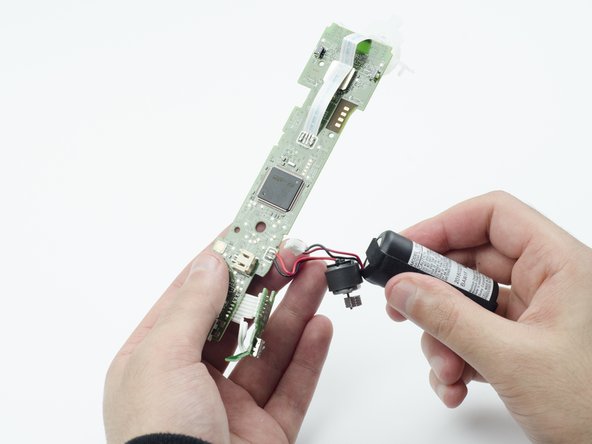
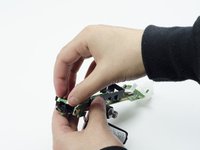
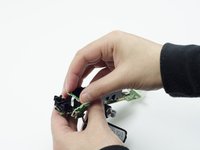
    • Carefully lift the entire circuit board from the black plastic encasing it.

    • Take extra care not to damage any of the wired components.

    Ask FixBot

    Add Comment

  12. PlayStation Move Battery Replacement, Battery: step 12, image 1 of 2 PlayStation Move Battery Replacement, Battery: step 12, image 2 of 2
    Tool used on this step:
    Tweezers
    $4.99
    Buy
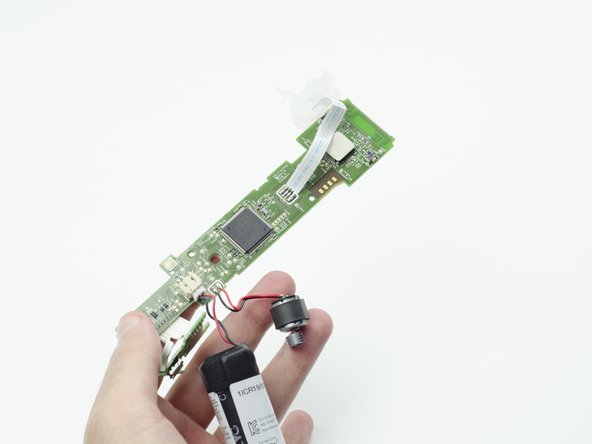
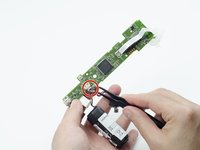
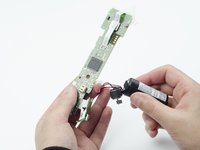
    • Using tweezers, carefully pull the power cable from its port on the circuit board.

    Ask FixBot

    Add Comment

Conclusion

To reassemble your device, follow these instructions in reverse order.

Cancel: I did not complete this guide.

9 other people completed this guide.

Sarah Shand

Member since: 02/20/17

1,996 Reputation

7 Guides authored

Team

USF Tampa, Team S3-G1, Sullivan Spring 2017 Member of USF Tampa, Team S3-G1, Sullivan Spring 2017

USFT-SULLIVAN-S17S3G1

3 Members

15 Guides authored

2 Guide Comments

No need to remove the the rumble motor, if you are careful and gentle and have some good tweezers you can unplug the battery cable after step 4, but it’s safer to do all steps

Andrew S. - Reply Share
Is it the same process for the nav move controller?

GP Severo - Reply Share
Add Comment

View Statistics:

Past 24 Hours: 5

Past 7 Days: 37

Past 30 Days: 185

All Time: 26,049