15% Off Selected iFixit Tools — Limited Time
Free Shipping on Domestic Orders $75+

Pipo Smart S1 Screen Replacement

What you need

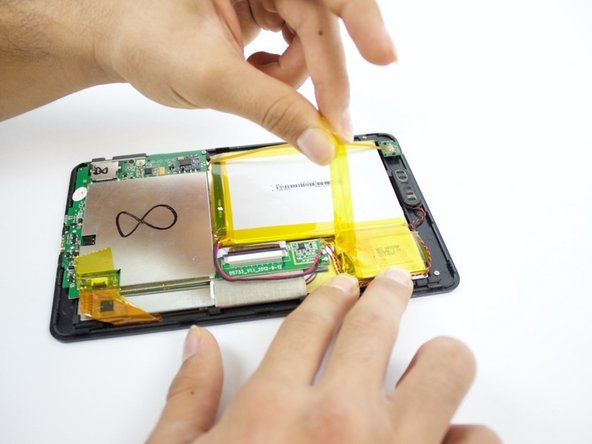
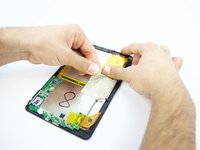
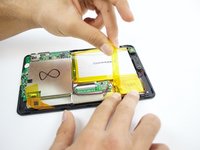
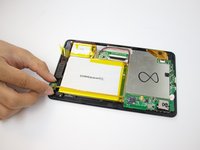
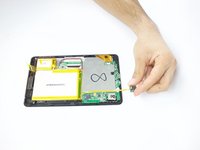
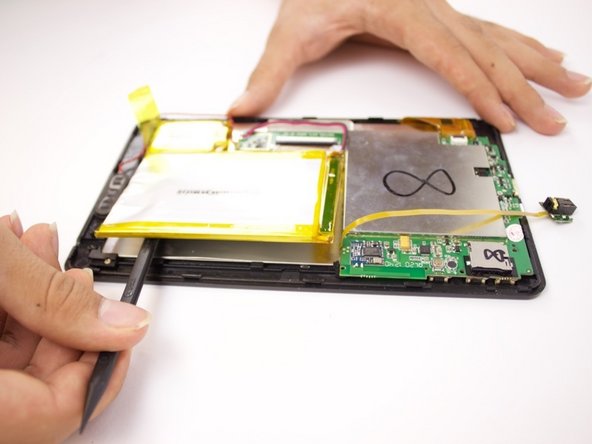
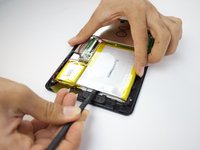
  1. Pipo Smart S1 Screen Replacement, Battery: step 1, image 1 of 3 Pipo Smart S1 Screen Replacement, Battery: step 1, image 2 of 3 Pipo Smart S1 Screen Replacement, Battery: step 1, image 3 of 3
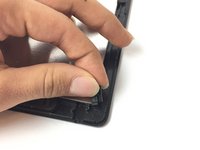
    • Insert an iFixit opening tool between the body and display of the tablet at the bottom of the device where the charging port is.

    • Slide the tool along the gap you are creating, moving to the right direction against the mini USB port.

    Ask FixBot

    Add Comment

  2. Pipo Smart S1 Screen Replacement: step 2, image 1 of 1
    • Gently pry the body of the tablet and pop the back cover open.

    • Lift the back cover of the device and place it on the side.

    Ask FixBot

    Add Comment

  3. Pipo Smart S1 Screen Replacement: step 3, image 1 of 1
    • Lift the edge of the white tape with the iFixit opening tool.

    Ask FixBot

    Add Comment

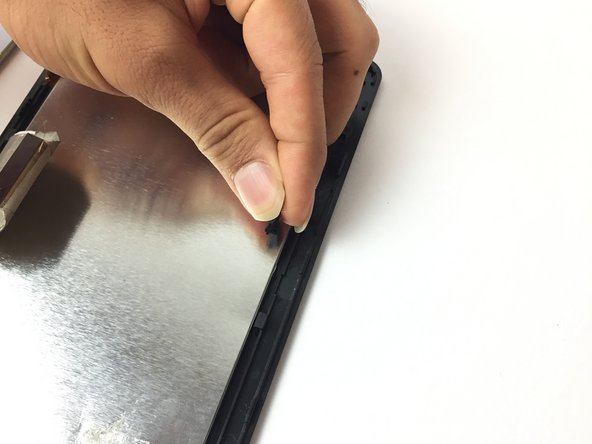
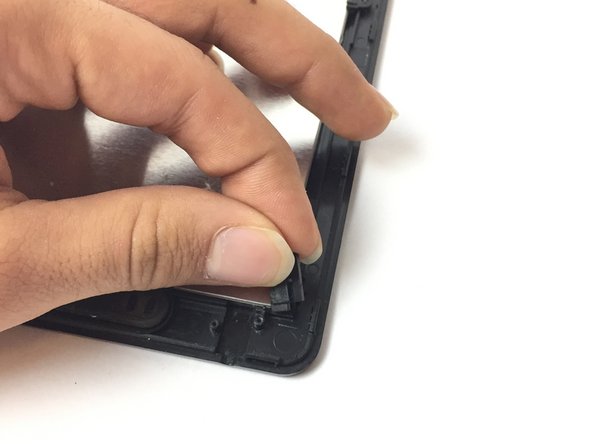
  4. Pipo Smart S1 Screen Replacement: step 4, image 1 of 2 Pipo Smart S1 Screen Replacement: step 4, image 2 of 2
    • Lift the white tape with your fingers, then lift the yellow tape that holds the battery extension.

    Ask FixBot

    Add Comment

  5. Pipo Smart S1 Screen Replacement: step 5, image 1 of 1
    • On the bottom of your tablet, use the Phillips #0 screwdriver to take the two 3mm screws out.

    Ask FixBot

    Add Comment

  6. Pipo Smart S1 Screen Replacement: step 6, image 1 of 2 Pipo Smart S1 Screen Replacement: step 6, image 2 of 2
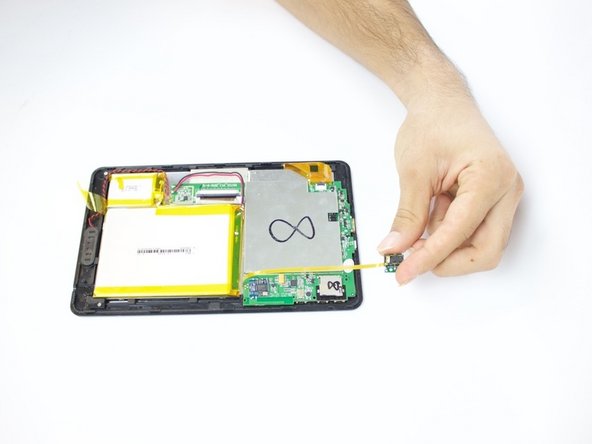
    • Lift the headphone jack and move it to the other side, placing it on the surface you are working on.

    Ask FixBot

    Add Comment

  7. Pipo Smart S1 Screen Replacement: step 7, image 1 of 2 Pipo Smart S1 Screen Replacement: step 7, image 2 of 2
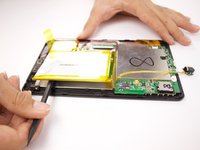
    • Use a spudger to pry the battery and detach it from the glue underneath it.

    • Be careful not to pinch the battery—lithium batteries are hazardous and prone to short circuiting, and thus burning and/or exploding.

    Ask FixBot

    Add Comment

  8. Pipo Smart S1 Screen Replacement: step 8, image 1 of 1
    • Lift the battery and place it a little further away from the positive and negative battery wires.

    Ask FixBot

    Add Comment

  9. Pipo Smart S1 Screen Replacement: step 9, image 1 of 1
    • Using your soldering iron, melt the two lead spots to detach the wires.

    • The soldering iron is extremely hot, so handle with caution. Always keep the soldering iron holder next to you when using it so you can return it easily.

    • When reassembling, make sure you solder the right pole to the right spot on the circuit board, as swapping them can burn the motherboard.

    Ask FixBot

    Add Comment

  10. Pipo Smart S1 Screen Replacement: step 10, image 1 of 2 Pipo Smart S1 Screen Replacement: step 10, image 2 of 2
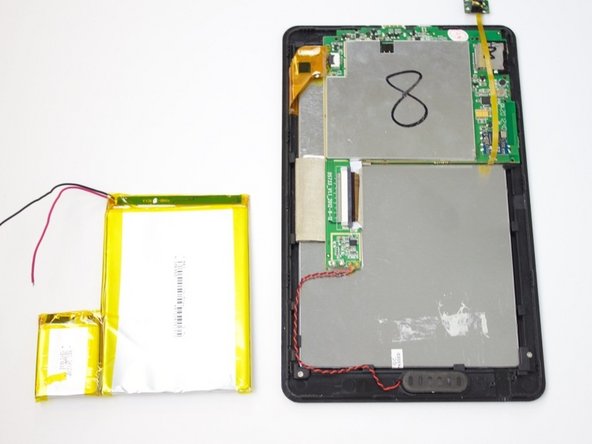
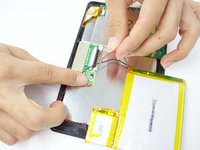
    • Remove the two wires. Then remove the battery completely from the device.

    • Make sure you tape the negative and positive battery wires to keep them from short-circuiting.

    Ask FixBot

    Add Comment

  11. Pipo Smart S1 Screen Replacement, Screen: step 11, image 1 of 2 Pipo Smart S1 Screen Replacement, Screen: step 11, image 2 of 2
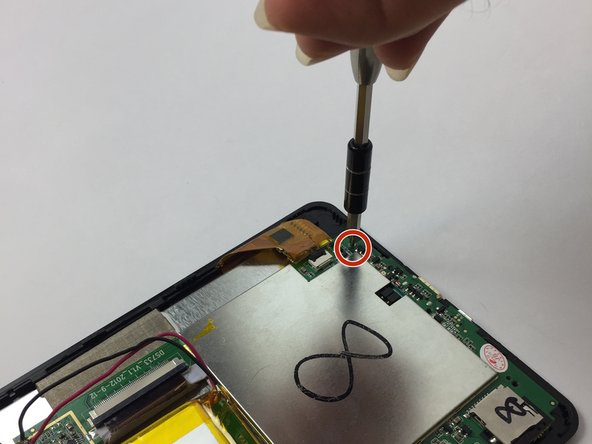
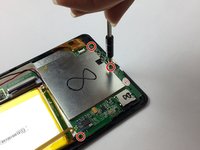
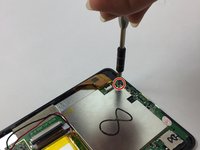
    • On the bottom of your tablet, take your J000 screwdriver and take out the three 3mm screws that hold down the motherboard.

    Ask FixBot

    Add Comment

  12. Pipo Smart S1 Screen Replacement: step 12, image 1 of 2 Pipo Smart S1 Screen Replacement: step 12, image 2 of 2
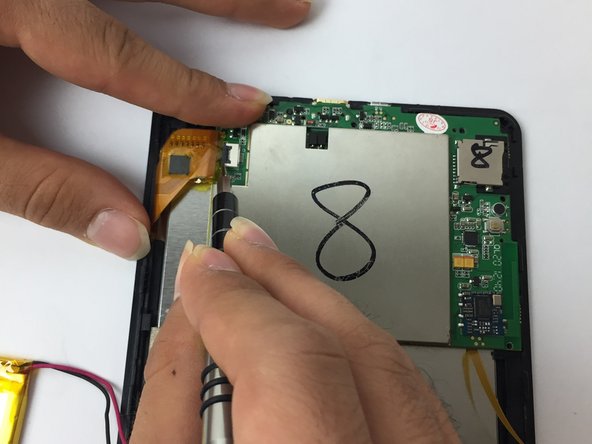
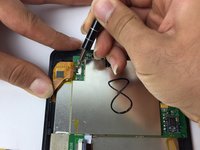
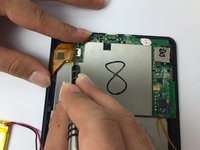
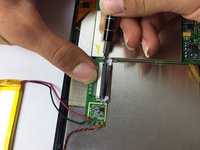
    • Locate the orange connection strip that connects the motherboard to the display screen. Use your J001 to pry the connector off.

    Ask FixBot

    Add Comment

  13. Pipo Smart S1 Screen Replacement: step 13, image 1 of 2 Pipo Smart S1 Screen Replacement: step 13, image 2 of 2
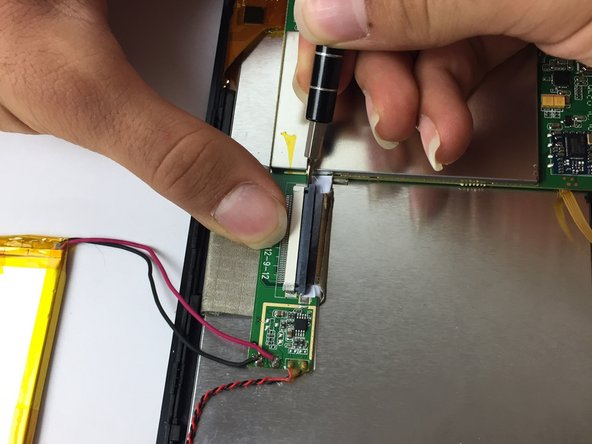
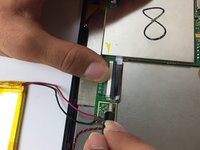
    • Take your J001 screwdriver and carefully push out the cable ribbon alternating on both sides.

    Ask FixBot

    Add Comment

  14. Pipo Smart S1 Screen Replacement: step 14, image 1 of 1
    • After you loosened the cable ribbon with your J001 screwdriver, pull it out with your fingers.

    Ask FixBot

    Add Comment

  15. Pipo Smart S1 Screen Replacement: step 15, image 1 of 2 Pipo Smart S1 Screen Replacement: step 15, image 2 of 2
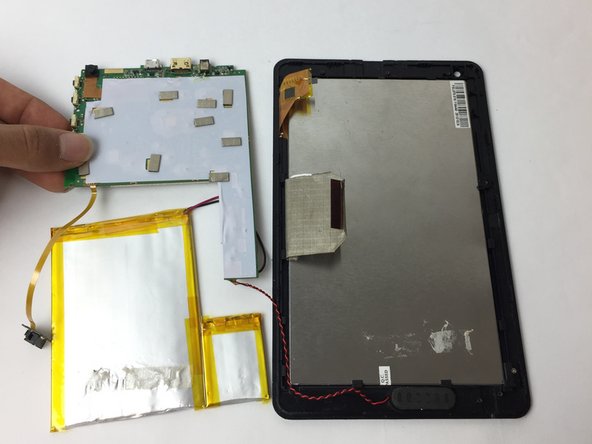
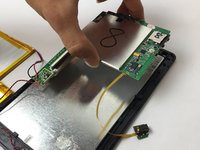
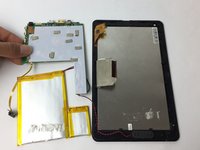
    • After the motherboard is freed from screws and connections, now you can lift it with two fingers and slowly place it next to your device front cover that holds the display screen.

    • The speaker connection that is on the front cover of your device is still attached to the motherboard; therefore place the motherboard close to the front cover.

    Ask FixBot

    Add Comment

  16. Pipo Smart S1 Screen Replacement: step 16, image 1 of 3 Pipo Smart S1 Screen Replacement: step 16, image 2 of 3 Pipo Smart S1 Screen Replacement: step 16, image 3 of 3
    • Take you J000 screwdriver and take out the screws that hold down the levers that keeps the display screen clamped down.

    • Remove the two connectors with your fingers.

    Ask FixBot

    Add Comment

  17. Pipo Smart S1 Screen Replacement: step 17, image 1 of 1
    • Pry off the display screen using J001 screwdriver.

    Ask FixBot

    Add Comment

  18. Pipo Smart S1 Screen Replacement: step 18, image 1 of 1
    • Using your fingers, remove the defective screen from your device.

    Ask FixBot

    Add Comment

Conclusion

To reassemble your device, follow these instructions in reverse order.

Cancel: I did not complete this guide.

One other person completed this guide.

Ali Alqallaf

Member since: 09/28/16

340 Reputation

3 Guides authored

Team

USF Tampa, Team 3-6, Passmore Fall 2016 Member of USF Tampa, Team 3-6, Passmore Fall 2016

USFT-PASSMORE-F16S3G6

3 Members

6 Guides authored

0 Guide Comments

Add Comment

View Statistics:

Past 24 Hours: 1

Past 7 Days: 5

Past 30 Days: 35

All Time: 939