Philips Sonicare ProtectiveClean 6500 Power Button, Mode Button Replacement

What you need

  1. Philips Sonicare ProtectiveClean 6500 Power Button, Mode Button Replacement, Internal Assembly: step 1, image 1 of 3 Philips Sonicare ProtectiveClean 6500 Power Button, Mode Button Replacement, Internal Assembly: step 1, image 2 of 3 Philips Sonicare ProtectiveClean 6500 Power Button, Mode Button Replacement, Internal Assembly: step 1, image 3 of 3
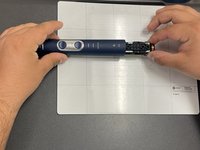
    • Pry the bottom cap away from the toothbrush body.

    • If it is not easy to open, these alternative instructions may help you.

    • Pry the bottom cap away from the toothbrush body until it releases.

    • Remove the bottom cap by hand.

  2. Philips Sonicare ProtectiveClean 6500 Power Button, Mode Button Replacement: step 2, image 1 of 2 Philips Sonicare ProtectiveClean 6500 Power Button, Mode Button Replacement: step 2, image 2 of 2
    • Use a metal spudger to release the two retaining clips inside the device.

    • The clips release when pried inward.

  3. Philips Sonicare ProtectiveClean 6500 Power Button, Mode Button Replacement: step 3, image 1 of 2 Philips Sonicare ProtectiveClean 6500 Power Button, Mode Button Replacement: step 3, image 2 of 2
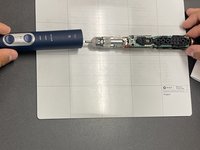
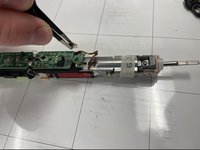
    • Slide the internal assembly out of the chassis.

  4. Philips Sonicare ProtectiveClean 6500 Power Button, Mode Button Replacement, Power Button, Mode Button: step 4, image 1 of 2 Philips Sonicare ProtectiveClean 6500 Power Button, Mode Button Replacement, Power Button, Mode Button: step 4, image 2 of 2
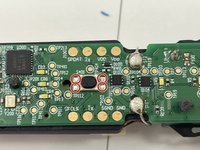
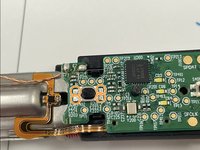
    • Locate the power button (solder locations circled in orange).

    • Locate the mode button (solder locations circled in red).

    • Both buttons are attached by four soldered pins each.

  5. Philips Sonicare ProtectiveClean 6500 Power Button, Mode Button Replacement: step 5, image 1 of 2 Philips Sonicare ProtectiveClean 6500 Power Button, Mode Button Replacement: step 5, image 2 of 2
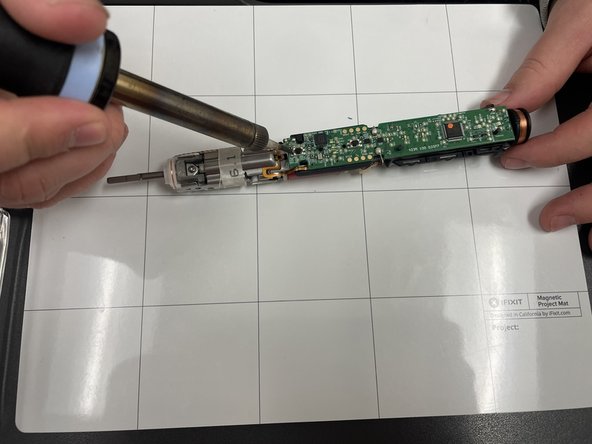
    • Heat the soldering iron.

    • Soldering can cause burns and fires. Always solder in a well-ventilated area.

    • To test if the soldering iron is ready, place on the solder and if the solder melts easily and quickly, your soldering iron is ready.

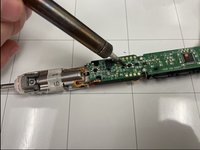
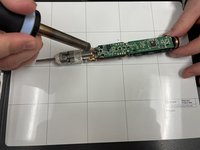
    • Use the soldering iron to desolder all of the connections.

  6. Philips Sonicare ProtectiveClean 6500 Power Button, Mode Button Replacement: step 6, image 1 of 2 Philips Sonicare ProtectiveClean 6500 Power Button, Mode Button Replacement: step 6, image 2 of 2
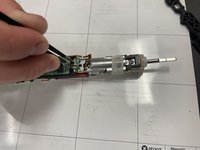
    • Use tweezers to remove the buttons from the board.

    • Place new button onto board and repeat previous steps in reverse to reassemble.

Conclusion

To reassemble your device, follow these instructions in reverse order.

Liam Casto

Member since: 04/01/24

354 Reputation

3 Guides authored

Team

IUPUI, Team 1-4, Harley Spring 2024 Member of IUPUI, Team 1-4, Harley Spring 2024

IUPUI-HARLEY-S24S1G4

3 Members

6 Guides authored

0 Guide Comments

Add Comment

View Statistics:

Past 24 Hours: 2

Past 7 Days: 16

Past 30 Days: 52

All Time: 633