
Philips PD9000 37 Buttons Replacement

Abigail Scarborough and 3 other contributors
Last updated on Dec 18, 2015
Views: 2.4K
View statistics:
- Past 24 Hours:
- 3
- Past 7 Days:
- 24
- Past 30 Days:
- 88
- All Time:
- 2,421
Comments: 0
No one has left comments on this guide. Will you be first?
Go to guide commentsCompleted: 0 1
No one has marked this guide "completed." Will you be the first?
1 person has marked this guide "completed." It's you — great job!
Favorites: 0 1
No one has favorited (and subscribed to) this guide. Will you be the first?
1 person has favorited (and subscribed to) this guide — and that's you!
Introduction
Go to step 1 ↓Buttons on your portable DVD player can become damaged and no longer able to respond, this guide will direct you on how to replace the button panel. You will be able to complete this task with a minimum amount of time and tools required.
What you need
Tools
-
Spudger4.9


-
-
-
Lay the player flat so the outside casing is facing upwards. Using the screwdriver, unscrew all the case screws on the bottom of the player.
 Ask FixBot
-
-
-
Open the disc flap and unscrew the screws inside. There will be three screws.
-
Using spudger, pry open the disk casing, and pull upwards removing it from the outer casing.
-
-
-
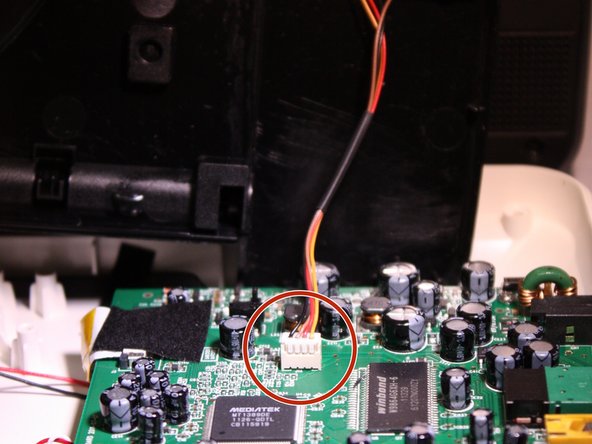
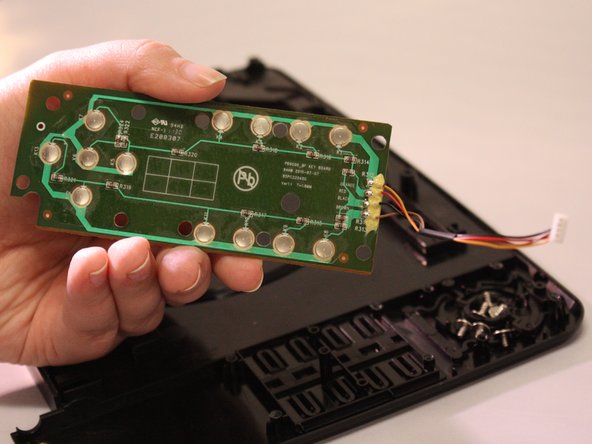
After casing has been detached, there will be a wire connecting the button panel on the disk flap case to the motherboard.
-
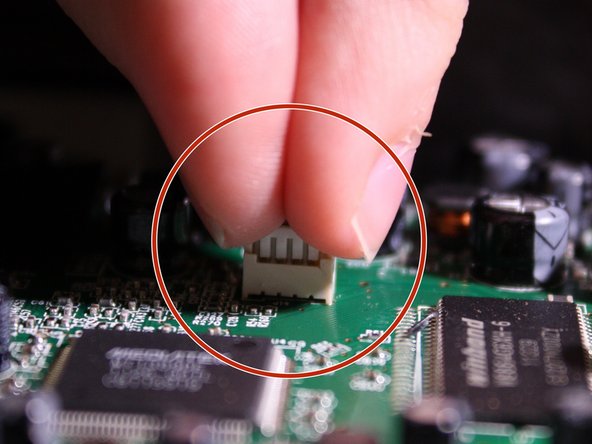
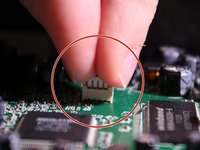
To detach this wire, use your fingers and tightly pinch the plastic connector, and gently pull upwards disconnecting it from the motherboard.
-
-
-
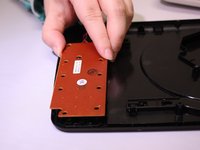
On the bottom side of the disk flap case, the back of the button panel will be visible. Using a Philips J0 screwdriver, unscrew all 6 screws.
-
-
-
-
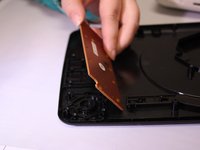
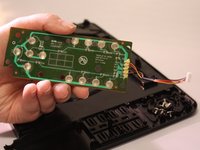
Once unscrewed. gently pull upwards detaching the button panel from the casing.
-
-




To reassemble your device, follow these instructions in reverse order.

Team

Eastern Washington University, Team 1-3, Matresse Fall 2015 Member of Eastern Washington University, Team 1-3, Matresse Fall 2015
EWU-MATRESSE-F15S1G3
3 Members
48 Guides authored
