15% Off Selected iFixit Tools — Limited Time
Free Shipping on Domestic Orders $75+

Palm Rest Disassembly

What you need

  1. Palm Rest Disassembly, Battery: step 1, image 1 of 1
    • Turn power off using the power button located in the top left corner of the keyboard. Press and hold the power button for 3 seconds until it turns off.

    Ask FixBot

    Add Comment

  2. Palm Rest Disassembly: step 2, image 1 of 2 Palm Rest Disassembly: step 2, image 2 of 2
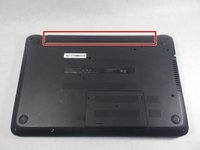
    • Close the laptop and flip it over so that the HP cover logo is on the underside of the laptop.

    Ask FixBot

    Add Comment

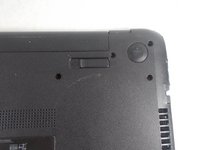
  3. Palm Rest Disassembly: step 3, image 1 of 2 Palm Rest Disassembly: step 3, image 2 of 2
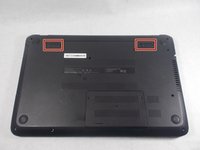
    • Locate the battery and the two switches that release the battery when they are unlocked.

    Ask FixBot

    Add Comment

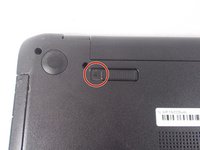
  4. Palm Rest Disassembly: step 4, image 1 of 2 Palm Rest Disassembly: step 4, image 2 of 2
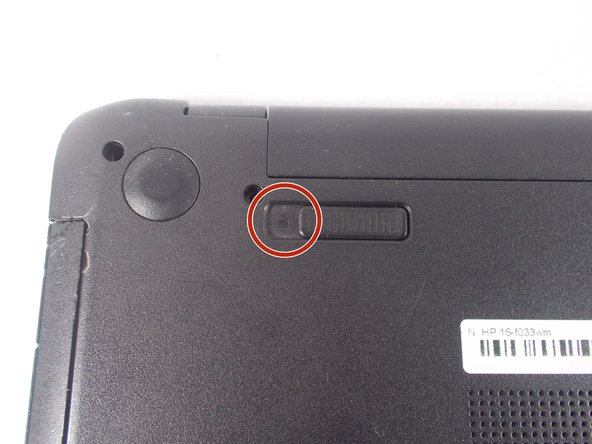
    • Slide the left switch to the right so that the icon of a locked padlock is no longer visible and the icon of an unlocked padlock is now visible.

    Ask FixBot

    Add Comment

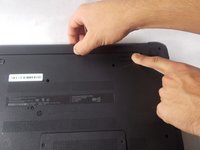
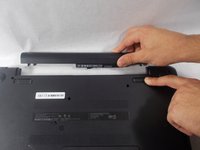
  5. Palm Rest Disassembly: step 5, image 1 of 3 Palm Rest Disassembly: step 5, image 2 of 3 Palm Rest Disassembly: step 5, image 3 of 3
    • With your left hand, slide the right switch to the left and hold it in place. This will unlock the battery and allow you to easily slide it out of its port.

    • While holding the switch in place, use your right hand to gently remove the battery from its port.

    Ask FixBot

    Add Comment

  6. Palm Rest Disassembly, Palm Rest Disassembly: step 6, image 1 of 1
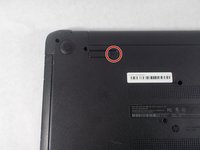
    • Remove the thirteen 7 mm PH1 Phillips head screws from the bottom of the laptop.

    Ask FixBot

    Add Comment

  7. Palm Rest Disassembly: step 7, image 1 of 1
    • Pry up and detach the keyboard. Starting at the top, slowly work the side and pull the keyboard away from you to unseat the bottom tabs.

    Ask FixBot

    Add Comment

  8. Palm Rest Disassembly: step 8, image 1 of 1
    • Remove the keyboard connection from the laptop by flipping up the black tab on the ZIF connector.

    Ask FixBot

    Add Comment

  9. Palm Rest Disassembly: step 9, image 1 of 2 Palm Rest Disassembly: step 9, image 2 of 2
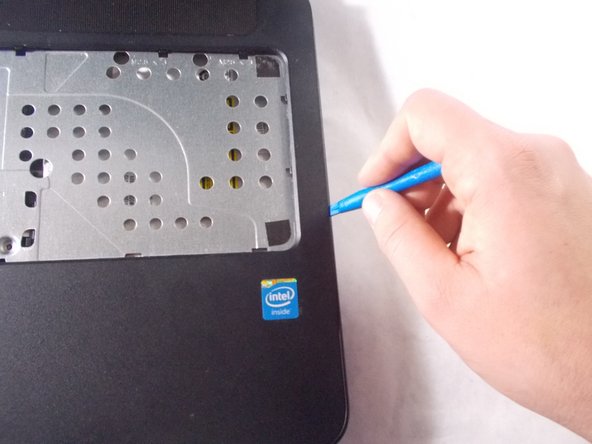
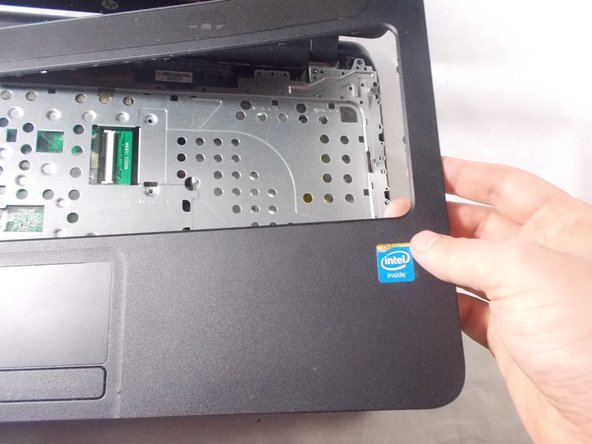
    • Remove the palm rest using the blue spudger tool.

    Ask FixBot

    Add Comment

  10. Palm Rest Disassembly: step 10, image 1 of 1
    • Remove the five 3 mm PH1 Phillips head screws underneath keyboard.

    Ask FixBot

    Add Comment

  11. Palm Rest Disassembly: step 11, image 1 of 1
    • Remove metal keyboard underlayment.

    • There is no way to separate the palm rest from the keyboard. They both are removed as an assembly.

    Ask FixBot

    Add Comment

Conclusion

To reassemble your device, follow these instructions in reverse order.

Cancel: I did not complete this guide.

Benjamin Poirier

Member since: 10/17/17

503 Reputation

2 Guides authored

Team

0 Guide Comments

Add Comment

View Statistics:

Past 24 Hours: 0

Past 7 Days: 8

Past 30 Days: 38

All Time: 2,004