Free Shipping on Domestic Orders $75+

Panasonic SDR H-100 Upper Cover Replacement

Prerequisite Only
This is a prerequisite-only guide! This guide is part of another procedure and isn’t meant to be used alone.

What you need

  1. Panasonic SDR H-100 Upper Cover Replacement, Remove Bottom Screws: step 1, image 1 of 2 Panasonic SDR H-100 Upper Cover Replacement, Remove Bottom Screws: step 1, image 2 of 2
    • Remove the four 4-mm screws on the bottom of the camcorder.

    • The screws are two different colors: three blacks and one silver.

    Ask FixBot
  2. Panasonic SDR H-100 Upper Cover Replacement, Remove Side Screws: step 2, image 1 of 1
    • Remove the three 6-mm screws on the hand-strap side of the camera.

    Ask FixBot
  3. Panasonic SDR H-100 Upper Cover Replacement, Remove DC Input Terminal Screws: step 3, image 1 of 1
    • Pull out the charging port (DC input terminal) cover and remove the 4-mm screw located next to the input terminal.

    Ask FixBot
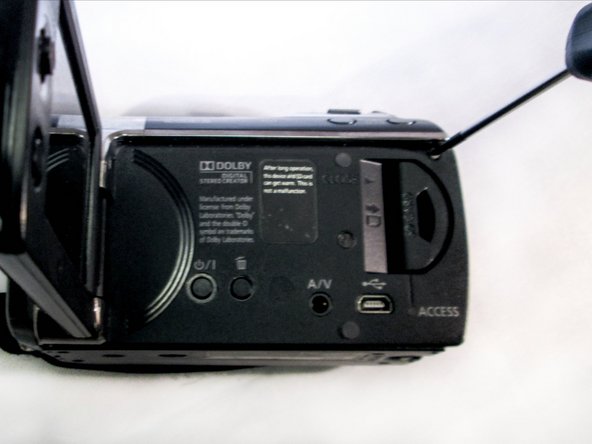
  4. Panasonic SDR H-100 Upper Cover Replacement, Remove LCD Monitor Screws: step 4, image 1 of 2 Panasonic SDR H-100 Upper Cover Replacement, Remove LCD Monitor Screws: step 4, image 2 of 2
    • Flip out the LCD screen to expose the inner screws. Remove the two black 4-mm screws.

    • One screw is located by the hinge of the LCD screen. The second is close to the upper-right corner of the camcorder body.

    Ask FixBot
    • Using a firm hold on both sides of the camcorder, gently pull apart the casing under the hand strap.

    • Pressure should be evenly distributed across entire device.

    • Detach gently so the ribbon cable is not damaged!

    Ask FixBot
  5. Panasonic SDR H-100 Upper Cover Replacement, Detach Ribbon Cable from Body: step 6, image 1 of 1
    Tool used on this step:
    Tweezers
    $4.99
    Buy
    • Use tweezers to grab the ribbon cable at the connection point and slowly lift it away from the connector.

    • This linkage point connects the HDD directly to the motherboard.

    Ask FixBot
Conclusion

To reassemble your device, follow these instructions in reverse order.

0 Guide Comments

Add Comment

View Statistics:

Past 24 Hours: 0

Past 7 Days: 6

Past 30 Days: 20

All Time: 114