This translation was generated by a machine and has not been reviewed by a person yet. Speak this language? Review it.

P775DM3 Replacement WLAN Card

Felice Suglia and 3 other contributors
Last updated on Sep 2, 2026
Views: 804
View statistics:
- Past 24 Hours:
- 3
- Past 7 Days:
- 34
- Past 30 Days:
- 88
- All Time:
- 804
Comments: 0
No one has left comments on this guide. Will you be first?
Go to guide commentsCompleted: 0 1
No one has marked this guide "completed." Will you be the first?
1 person has marked this guide "completed." It's you — great job!
Favorites: 0 1
No one has favorited (and subscribed to) this guide. Will you be the first?
1 person has favorited (and subscribed to) this guide — and that's you!
Community-Contributed Guide
An awesome member of our community made this guide. It was not created by iFixit staff.
Introduction
Go to step 1 ↓This guide shows you how to replace the WLAN card in a P775DM3 laptop.
What you need


-
-
-
Press a paper clip in the three places marked in red
-
Lift the keyboard and feel free to put some strength
-
-
-
-
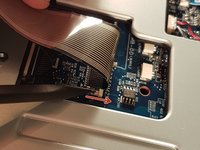
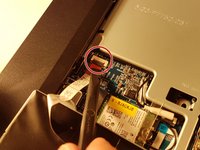
Pull the white drawer in the direction of the arrow to unlock the connector
-
Disconnect the red circled connector
-
-
-
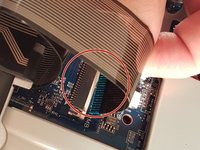
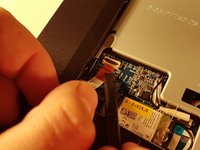
Pull the black drawer in the direction of the arrow to unlock the connector
-
Disconnect the red circled connector
-
-
-
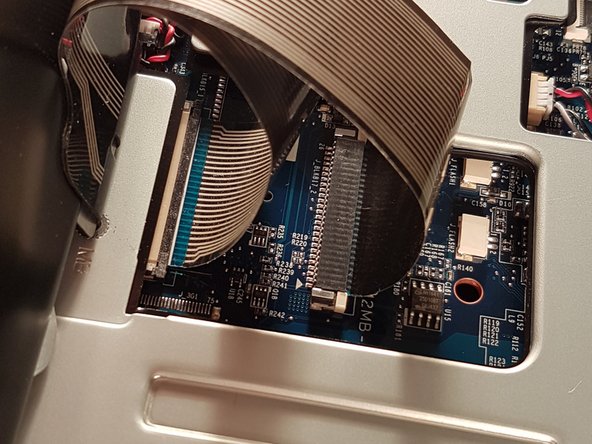
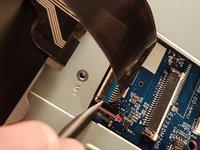
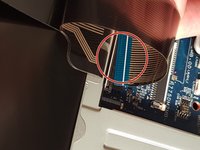
Lift the flap that holds the connector circled in red
-
Disconnect the red circled connector
-
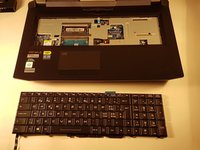
Remove the keyboard
-
-
-
-
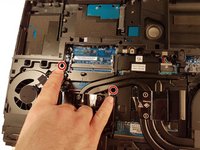
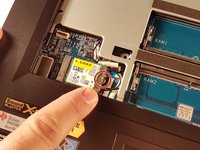
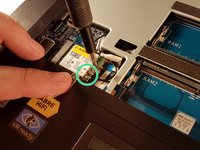
Unscrew the screw circled in red.
-
Disconnect the two connectors circled in green.
-
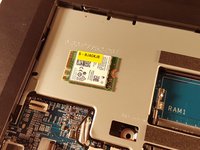
Remove the WLAN card.
-
-



 Ask FixBot


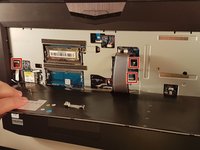








To reassemble your device follow the following instructions in reverse order
Special thanks to these translators:
100%


These translators are helping us fix the world! Want to contribute?
Start translating ›

