Free Shipping on Domestic Orders $75+

P775DM3 Cooler Replacement

Views: 758

View statistics:

Past 24 Hours:
3
Past 7 Days:
25
Past 30 Days:
82
All Time:
758
Comments: 0

No one has left comments on this guide. Will you be first?

Go to guide comments
Completed: 0

No one has marked this guide "completed." Will you be the first?

Favorites: 0

No one has favorited (and subscribed to) this guide. Will you be the first?

Time Required: 7 minutes
Difficulty: Easy
Community-Contributed Guide

An awesome member of our community made this guide. It was not created by iFixit staff.

P775DM3 Cooler Replacement

Introduction

Go to step 1 ↓

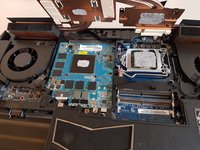
Use this guide to remove and replace the cooling system in a P775DM3 laptop.

What you need

    1. P775DM3 Cooler Replacement, Battery: step 1, image 1 of 2 P775DM3 Cooler Replacement, Battery: step 1, image 2 of 2
      • Unlock the lock circled in red.

      Ask FixBot
      Add Comment

    2. P775DM3 Cooler Replacement: step 2, image 1 of 3 P775DM3 Cooler Replacement: step 2, image 2 of 3 P775DM3 Cooler Replacement: step 2, image 3 of 3
      • Lift the battery while unlocking the lock circled in red.

      Ask FixBot

      Add Comment

    1. P775DM3 Cooler Replacement, Access to major components: step 3, image 1 of 2 P775DM3 Cooler Replacement, Access to major components: step 3, image 2 of 2
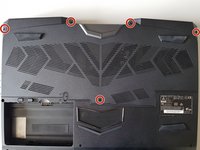
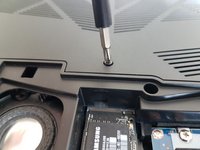
      • Unscrew the five screws circled in red.

      Ask FixBot

      Add Comment

    2. P775DM3 Cooler Replacement: step 4, image 1 of 2 P775DM3 Cooler Replacement: step 4, image 2 of 2
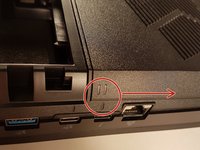
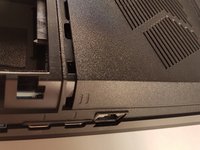
      • Slide the plate in the direction of the red arrow.

      Ask FixBot

      Add Comment

    3. P775DM3 Cooler Replacement: step 5, image 1 of 2 P775DM3 Cooler Replacement: step 5, image 2 of 2
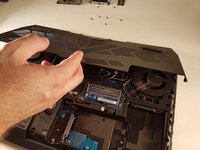
      • Lift the cover.

      Ask FixBot

      Add Comment

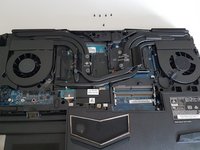
    1. P775DM3 Cooler Replacement, Cooler: step 6, image 1 of 3 P775DM3 Cooler Replacement, Cooler: step 6, image 2 of 3 P775DM3 Cooler Replacement, Cooler: step 6, image 3 of 3
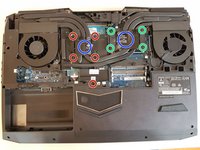
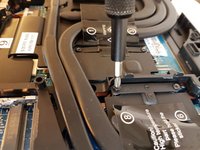
      • Unscrew the four large screws circled in green.

      • Unscrew the five small screws circled in red.

      • Lift the cooler with the two tabs circled in blue.

      Ask FixBot

      Add Comment

Conclusion

To reassemble your device follow the following instructions in reverse order

Cancel: I did not complete this guide.

Special thanks to these translators:

fr en

100%

These translators are helping us fix the world! Want to contribute?
Start translating ›

Felice Suglia

Member since: 06/15/13

33,634 Reputation

283 Guides authored

0 Guide Comments

Add Comment

View Statistics:

Past 24 Hours: 3

Past 7 Days: 25

Past 30 Days: 82

All Time: 758