15% Off Selected iFixit Tools — Limited Time
Free Shipping on Domestic Orders $75+

Optoma HD20 Fan Replacement

What you need

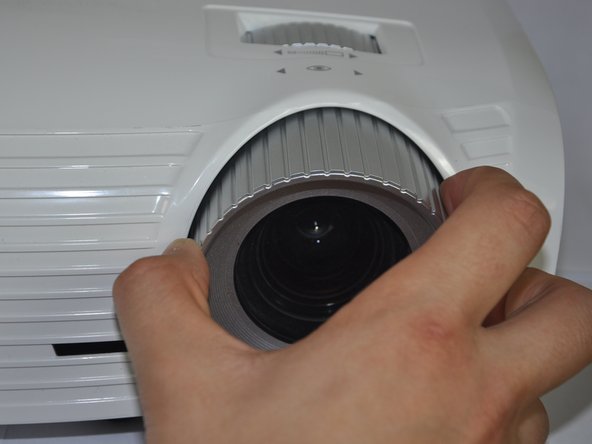
  1. Optoma HD20 Fan Replacement, Disassembling Optoma HD20 Cover: step 1, image 1 of 2 Optoma HD20 Fan Replacement, Disassembling Optoma HD20 Cover: step 1, image 2 of 2
    • Twist the focal cap clockwise until it is fully extended.

    • Remove the focal cap by pulling it straight out.

    Ask FixBot

    Add Comment

  2. Optoma HD20 Fan Replacement: step 2, image 1 of 1
    • Use a Phillips #1 screwdriver to remove the three 7.5mm screws on the bottom of the device.

    Ask FixBot

    Add Comment

  3. Optoma HD20 Fan Replacement: step 3, image 1 of 1
    • Use a plastic opening tool to gently pry the top cover off of the device.

    • It is easier to pry off the cover from the back side just above the HDMI ports.

    Ask FixBot

    Add Comment

  4. Optoma HD20 Fan Replacement: step 4, image 1 of 1
    • When removing the cover, be cautious of the ribbon connecting the top buttons to the main circuit board. The ribbon must be disconnected before proceeding.

    • Remove the ribbon by disconnecting it from the main circuit board.

    • Lift up the clip holding it down and pull the ribbon out.

    Ask FixBot

    Add Comment

  5. Optoma HD20 Fan Replacement, Fan: step 5, image 1 of 1
    • Peel off the tape that is holding the metal casing down.

    Ask FixBot

    Add Comment

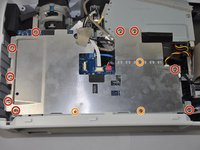
  6. Optoma HD20 Fan Replacement: step 6, image 1 of 2 Optoma HD20 Fan Replacement: step 6, image 2 of 2
    • Use a Phillips #1 screwdriver to unscrew the nine 4.5mm screws.

    • Use a Phillips #0 screwdriver to unscrew the three 2.5 mm screws. This will allow you to remove the metal casing.

    Ask FixBot

    Add Comment

  7. Optoma HD20 Fan Replacement: step 7, image 1 of 1
    • Remove the metal casing by lifting it up off of the circuit board.

    Ask FixBot

    Add Comment

  8. Optoma HD20 Fan Replacement: step 8, image 1 of 1
    • Unplug the six wires stemming from the circuit board.

    Ask FixBot

    Add Comment

  9. Optoma HD20 Fan Replacement: step 9, image 1 of 1
    • Use a Philips #1 screwdriver to remove the four 4.5 mm screws

    Ask FixBot

    Add Comment

  10. Optoma HD20 Fan Replacement: step 10, image 1 of 1
    • Remove the three 4.5 mm screws using the Philips #1 screwdriver.

    Ask FixBot

    Add Comment

  11. Optoma HD20 Fan Replacement: step 11, image 1 of 1
    • Remove the two 4.5 mm screws located on either side of the VGA/SCART port using a 5 mm nut driver. This will further release the plastic backing from the motherboard.

    Ask FixBot

    Add Comment

  12. Optoma HD20 Fan Replacement: step 12, image 1 of 1
    • Slightly rotate the motherboard clockwise. This will prevent ports from getting caught on the plastic backing.

    • Lift the plastic backing to remove it.

    Ask FixBot

    Add Comment

  13. Optoma HD20 Fan Replacement: step 13, image 1 of 1
    • Ensure all screws are removed

    • Lift up the motherboard and take out the metal container beneath it.

    • Do this very carefully as there is still one cable attached.

    Ask FixBot

    Add Comment

  14. Optoma HD20 Fan Replacement: step 14, image 1 of 1
    • Unplug the white connector underneath the right side of the circuit board.

    • To remove, pinch both sides of the connector and pull it away from the circuit board.

    Ask FixBot

    Add Comment

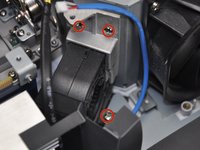
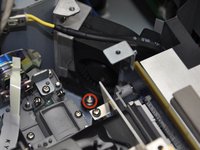
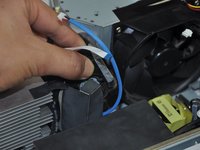
  15. Optoma HD20 Fan Replacement: step 15, image 1 of 2 Optoma HD20 Fan Replacement: step 15, image 2 of 2
    • Use a Phillips #1 screwdriver to remove four 5 mm screws. This will release the fan.

    Ask FixBot

    Add Comment

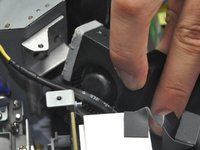
  16. Optoma HD20 Fan Replacement: step 16, image 1 of 2 Optoma HD20 Fan Replacement: step 16, image 2 of 2
    • Pull the fan away from the metal housing unit.

    • Gently lift the fan up and out of the device. The fan is now removed.

    Ask FixBot

    Add Comment

Conclusion

To reassemble your device, follow these instructions in reverse order.

Cancel: I did not complete this guide.

6 other people completed this guide.

Trever

Member since: 01/22/15

1,282 Reputation

6 Guides authored

Team

Cal Poly, Team 21-23, Maness Winter 2015 Member of Cal Poly, Team 21-23, Maness Winter 2015

CPSU-MANESS-W15S21G23

4 Members

6 Guides authored

6 Guide Comments

Very nice set of instructions! Excellent images and identification of items to remove. Thank you!

Graveyard Workshop - Reply Share

Do you know where to get this fan for replacement? Having trouble finding a parts list.

Sterling Grogg - Reply Share

Small fan is GB1245PKVX-8, large fan is KDE1285PTV1

Gyrovague - Reply Share

I am trying to determine if the fan works or not. Should the fan come on when there is no bulb in the projector? I removed the bulb when it burned up and I am not sure whether it was due to a failed fan or simply the bulb.

merrill277 - Reply Share

Amazing! Thank you!!! Took a bit of effort to get the fan but in the end it worked like a charm!! Thank you for saving money!!!!

Mike Popov - Reply Share

Add Comment

View Statistics:

Past 24 Hours: 1

Past 7 Days: 15

Past 30 Days: 65

All Time: 14,310