Free Shipping on Domestic Orders $75+

One Education Infinity Upper Case Replacement

Views: 440

View statistics:

Past 24 Hours:
2
Past 7 Days:
13
Past 30 Days:
51
All Time:
440
Comments: 0

No one has left comments on this guide. Will you be first?

Go to guide comments
Completed: 0

No one has marked this guide "completed." Will you be the first?

Favorites: 0

No one has favorited (and subscribed to) this guide. Will you be the first?

Time Required: 40 minutes
Difficulty: Moderate
One Education Infinity Upper Case Replacement

Introduction

Go to step 1 ↓

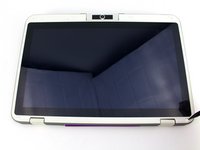
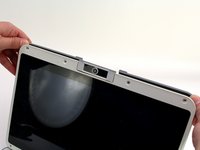
This prerequisite guide shows how to open up the screen casing of the One Education Infinity for access to the components on the back of the screen. These components include the LCD display and touch screen assemblies, two antennae for sending and receiving signals, the webcam, a couple of circuit boards most likely responsible for image and touch input processing, and the upper portion of the hinge assembly.

Additionally, note that this guide has the user remove the battery prior to disassembling the upper case to prevent any electrical damage while disconnecting the display cables. However, the same effect can be achieved by simply disconnecting the battery cable, so the battery removal in step 5 can be skipped to save a bit of time and effort.

What you need

Tools

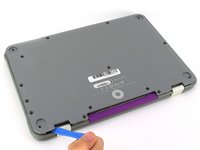
    1. One Education Infinity Upper Case Replacement, Back Case: step 1, image 1 of 3 One Education Infinity Upper Case Replacement, Back Case: step 1, image 2 of 3 One Education Infinity Upper Case Replacement, Back Case: step 1, image 3 of 3
      • Always power off your device before beginning disassembly.

      • Remove the screw covers and rubber feet from the bottom of the laptop with a metal spudger.

      Ask FixBot

      Add Comment

    2. One Education Infinity Upper Case Replacement: step 2, image 1 of 2 One Education Infinity Upper Case Replacement: step 2, image 2 of 2
      • Using a Phillips #00 screwdriver, remove the sixteen 5.0 mm black screws from the back panel.

      Ask FixBot

      Add Comment

    3. One Education Infinity Upper Case Replacement: step 3, image 1 of 3 One Education Infinity Upper Case Replacement: step 3, image 2 of 3 One Education Infinity Upper Case Replacement: step 3, image 3 of 3
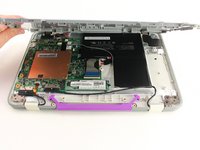
      • Using the iFixit plastic opening tool or spudger, start near the white hinge of the device and lift along the outer edges of the device until all clips are released.

      • Lift the back case off of the device.

      • Removing the back may create a loud snapping noise.

      Ask FixBot

      Add Comment

    1. One Education Infinity Upper Case Replacement, Battery: step 4, image 1 of 3 One Education Infinity Upper Case Replacement, Battery: step 4, image 2 of 3 One Education Infinity Upper Case Replacement, Battery: step 4, image 3 of 3
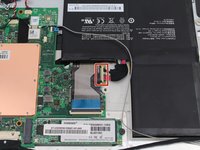
      • There may be black tape inside your device covering components or holding down wires. This tape is unimportant for the function of the device, and can be removed.

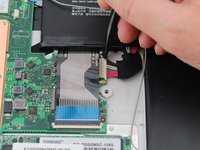
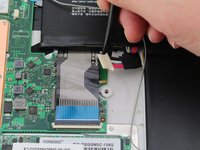
      • Carefully wiggle the battery cable to the right and out of the port with a plastic spudger.

      Ask FixBot

      Add Comment

    2. One Education Infinity Upper Case Replacement: step 5, image 1 of 3 One Education Infinity Upper Case Replacement: step 5, image 2 of 3 One Education Infinity Upper Case Replacement: step 5, image 3 of 3
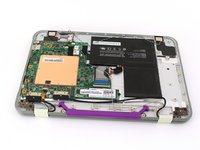
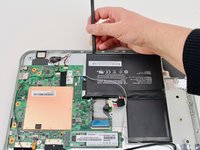
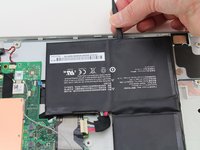
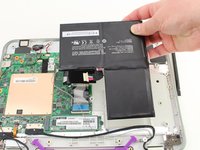
      • Wedge a plastic spudger underneath the battery from the upper edge and slide it carefully along the length of the battery to separate it from the case.

      • There is a mild adhesive holding down the battery. Take care not to puncture or excessively bend the battery while freeing it from the adhesive.

      • Lift the battery out from the internal case.

      Ask FixBot

      Add Comment

    1. One Education Infinity Upper Case Replacement, Upper Case: step 6, image 1 of 3 One Education Infinity Upper Case Replacement, Upper Case: step 6, image 2 of 3 One Education Infinity Upper Case Replacement, Upper Case: step 6, image 3 of 3
      • Flip open the laptop so that the screen is exposed.

      • We found it convenient to flip the laptop into tablet mode for added support.

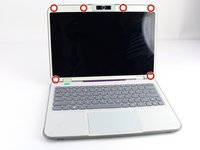
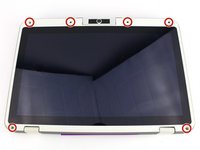
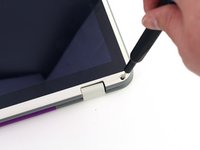
      • Using a spudger, remove the six screw covers along the bezel of the screen.

      Ask FixBot

      Add Comment

    2. One Education Infinity Upper Case Replacement: step 7, image 1 of 2 One Education Infinity Upper Case Replacement: step 7, image 2 of 2
      • Remove the six 2.8 mm Phillips #00 screws along the bezel.

      Ask FixBot

      Add Comment

    3. One Education Infinity Upper Case Replacement: step 8, image 1 of 3 One Education Infinity Upper Case Replacement: step 8, image 2 of 3 One Education Infinity Upper Case Replacement: step 8, image 3 of 3
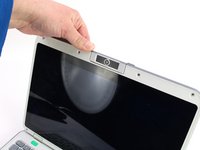
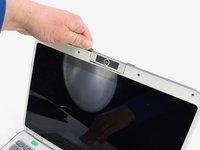
      • Use the two tabs on the top edge of the screen to pry the case apart.

      • Once the two top clips have been disengaged, start to work your way around the rest of the screen.

      Ask FixBot

      Add Comment

    4. One Education Infinity Upper Case Replacement: step 9, image 1 of 1
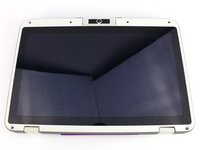
      • Once all the clips have been popped off, remove the upper case from the back of the display assembly.

      • You may want to close the laptop while disconnecting the hinge-side edge, as it will give you extra clearance for the upper case.

      Ask FixBot

      Add Comment

Conclusion

To reassemble your device, follow these instructions in reverse order.

Cancel: I did not complete this guide.

Austin Blakely

Member since: 03/11/19

23,400 Reputation

53 Guides authored

Team

iFixit Member of iFixit

Staff

121 Members

72,955 Guides authored

0 Guide Comments

Add Comment

View Statistics:

Past 24 Hours: 2

Past 7 Days: 13

Past 30 Days: 51

All Time: 440