Free Shipping on Domestic Orders $75+

OLPC XO-4 Touch Mouse Buttons Controller Replacement

What you need

  1. OLPC XO-4 Touch Mouse Buttons Controller Replacement, Battery: step 1, image 1 of 1
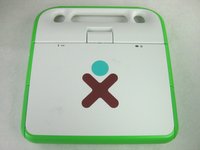
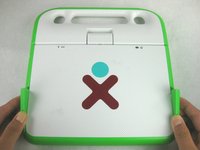
    • Turn the laptop upside-down, with the handle facing away from you.

    Ask FixBot

    Add Comment

  2. OLPC XO-4 Touch Mouse Buttons Controller Replacement: step 2, image 1 of 2 OLPC XO-4 Touch Mouse Buttons Controller Replacement: step 2, image 2 of 2
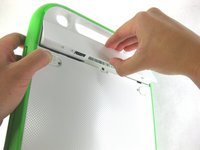
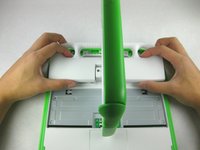
    • Pull the lock tabs towards the green outer edges of the laptop.

    • Hold the left lock tab in the unlock position until the battery is completely removed in the next step.

    Ask FixBot

    Add Comment

  3. OLPC XO-4 Touch Mouse Buttons Controller Replacement: step 3, image 1 of 2 OLPC XO-4 Touch Mouse Buttons Controller Replacement: step 3, image 2 of 2
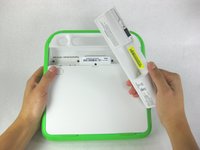
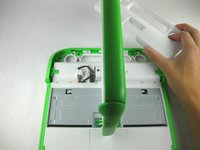
    • Lift up on the middle of the battery to remove it from the device.

    Ask FixBot

    Add Comment

  4. OLPC XO-4 Touch Mouse Buttons Controller Replacement, Keyboard: step 4, image 1 of 2 OLPC XO-4 Touch Mouse Buttons Controller Replacement, Keyboard: step 4, image 2 of 2
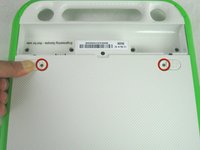
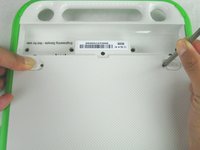
    • Remove the two 2mm Phillips #1 screws from beneath the battery lock tabs.

    Ask FixBot

    Add Comment

  5. OLPC XO-4 Touch Mouse Buttons Controller Replacement: step 5, image 1 of 3 OLPC XO-4 Touch Mouse Buttons Controller Replacement: step 5, image 2 of 3 OLPC XO-4 Touch Mouse Buttons Controller Replacement: step 5, image 3 of 3
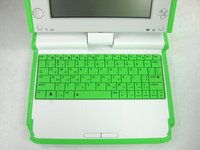
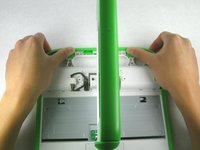
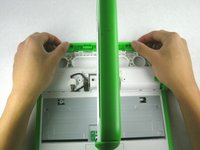
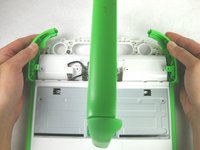
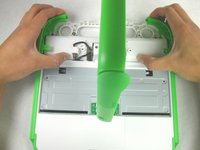
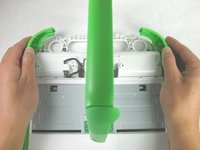
    • Flip the laptop over to its normal position.

    • Lift the two antennas on both sides to unlock the screen.

    • Open the laptop.

    Ask FixBot

    Add Comment

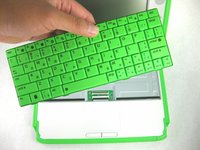
  6. OLPC XO-4 Touch Mouse Buttons Controller Replacement: step 6, image 1 of 2 OLPC XO-4 Touch Mouse Buttons Controller Replacement: step 6, image 2 of 2
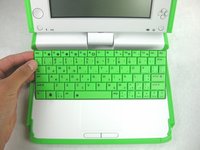
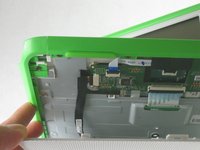
    • Be careful not to pull the keyboard too far because there is still a ribbon cable attached to the bottom.

    • Gently lift up on the back of the keyboard.

    • Pull the keyboard up far enough to expose the ribbon cable.

    Ask FixBot

    Add Comment

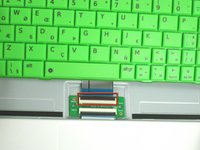
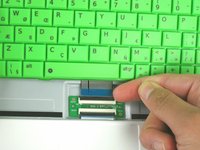
  7. OLPC XO-4 Touch Mouse Buttons Controller Replacement: step 7, image 1 of 2 OLPC XO-4 Touch Mouse Buttons Controller Replacement: step 7, image 2 of 2
    • Gently lift up on the black connector to release the ribbon cable.

    • Gently pull the blue plastic tab up and away from the black connector.

    • Remove the keyboard from the laptop.

    Ask FixBot

    Add Comment

  8. OLPC XO-4 Touch Mouse Buttons Controller Replacement, Lower Case: step 8, image 1 of 2 OLPC XO-4 Touch Mouse Buttons Controller Replacement, Lower Case: step 8, image 2 of 2
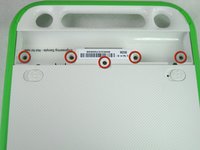
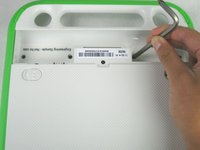
    • Close and flip the laptop over so you are looking at the battery compartment

    • Remove the five 4mm Phillips #1 screws from inside the battery compartment

    Ask FixBot

    Add Comment

  9. OLPC XO-4 Touch Mouse Buttons Controller Replacement: step 9, image 1 of 3 OLPC XO-4 Touch Mouse Buttons Controller Replacement: step 9, image 2 of 3 OLPC XO-4 Touch Mouse Buttons Controller Replacement: step 9, image 3 of 3
    • Flip the laptop over, showing the top of the device.

    • Open the laptop and rotate the screen ninety degrees.

    • Tilt the screen so the lower right corner of the screen is closer to the lower case.

    Ask FixBot
    Add Comment

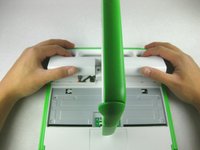
  10. OLPC XO-4 Touch Mouse Buttons Controller Replacement: step 10, image 1 of 3 OLPC XO-4 Touch Mouse Buttons Controller Replacement: step 10, image 2 of 3 OLPC XO-4 Touch Mouse Buttons Controller Replacement: step 10, image 3 of 3
    • Push in and lift up on the keyboard edge of the white handle piece.

    • Pull the piece towards yourself to remove it from the laptop.

    Ask FixBot
    Add Comment

  11. OLPC XO-4 Touch Mouse Buttons Controller Replacement: step 11, image 1 of 1
    • Remove the four 4mm Phillips #1 screws attaching the green trim to the body of the computer.

    Ask FixBot

    Add Comment

  12. OLPC XO-4 Touch Mouse Buttons Controller Replacement: step 12, image 1 of 2 OLPC XO-4 Touch Mouse Buttons Controller Replacement: step 12, image 2 of 2
    • Pry off the rear green trim piece.

    Ask FixBot

    Add Comment

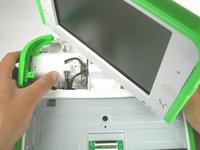
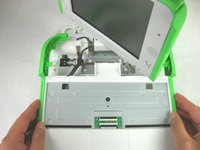
  13. OLPC XO-4 Touch Mouse Buttons Controller Replacement: step 13, image 1 of 3 OLPC XO-4 Touch Mouse Buttons Controller Replacement: step 13, image 2 of 3 OLPC XO-4 Touch Mouse Buttons Controller Replacement: step 13, image 3 of 3
    • Be careful not to pull the bottom portion of the laptop completely off, as there is a cable connecting it to the laptop.

    • Slide the green trim pieces away from the screen.

    • This should release the entire bottom portion of the laptop.

    Ask FixBot

    Add Comment

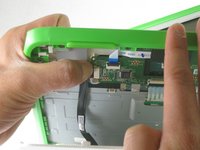
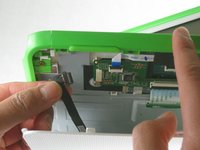
  14. OLPC XO-4 Touch Mouse Buttons Controller Replacement: step 14, image 1 of 3 OLPC XO-4 Touch Mouse Buttons Controller Replacement: step 14, image 2 of 3 OLPC XO-4 Touch Mouse Buttons Controller Replacement: step 14, image 3 of 3
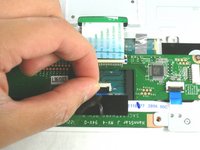
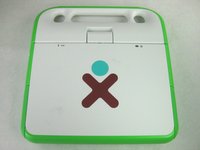
    • Unplug the cable from the mouse buttons controller to completely remove the lower frame from the device.

    Ask FixBot
    Add Comment

  15. OLPC XO-4 Touch Mouse Buttons Controller Replacement: step 15, image 1 of 2 OLPC XO-4 Touch Mouse Buttons Controller Replacement: step 15, image 2 of 2
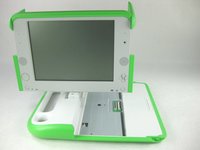
    • Rotate the entire lower assembly up slightly, and pull it away from the screen to free it from the screen hinge.

    • There may be some adhesive holding the cable to the metal plate. Gently pull the cable off of the plate if it is stuck.

    Ask FixBot
    Add Comment

  16. OLPC XO-4 Touch Mouse Buttons Controller Replacement, Mouse Buttons Controller: step 16, image 1 of 3 OLPC XO-4 Touch Mouse Buttons Controller Replacement, Mouse Buttons Controller: step 16, image 2 of 3 OLPC XO-4 Touch Mouse Buttons Controller Replacement, Mouse Buttons Controller: step 16, image 3 of 3
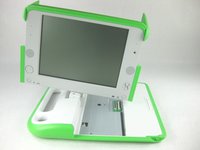
    • You should now be looking at the bottom of the lower case.

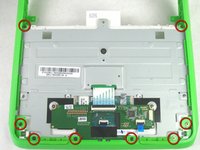
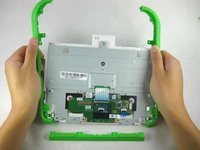
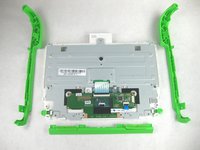
    • Remove the eight 4mm Phillips #1 screws attaching the green trim pieces to the lower frame.

    • Pry off the front and side trim pieces.

    Ask FixBot
    Add Comment

  17. OLPC XO-4 Touch Mouse Buttons Controller Replacement: step 17, image 1 of 1
    • Remove the two 4mm Phillips #1 screws that attach the mouse buttons controller to the lower frame.

    Ask FixBot

    Add Comment

  18. OLPC XO-4 Touch Mouse Buttons Controller Replacement: step 18, image 1 of 3 OLPC XO-4 Touch Mouse Buttons Controller Replacement: step 18, image 2 of 3 OLPC XO-4 Touch Mouse Buttons Controller Replacement: step 18, image 3 of 3
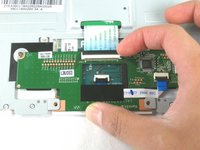
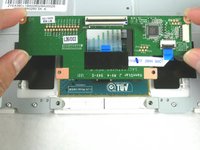
    • Disconnect the ribbon cable attached to the keyboard compartment.

    • Unplug the ribbon cable between the touchpad and the mouse buttons controller.

    • Remove the mouse buttons controller from the device.

    Ask FixBot

    Add Comment

Conclusion

To reassemble your device, follow these instructions in reverse order.

Cancel: I did not complete this guide.

Michael Kellerman

Member since: 01/24/13

58 Reputation

3 Guides authored

Team

Cal Poly, Team 3-30, Amido Winter 2013 Member of Cal Poly, Team 3-30, Amido Winter 2013

CPSU-AMIDO-W13S3G30

3 Members

12 Guides authored

0 Guide Comments

Add Comment

View Statistics:

Past 24 Hours: 0

Past 7 Days: 7

Past 30 Days: 60

All Time: 659