Introduction
If your Nook Simple Touch with Glowlight has an issue relating to its battery, such as not charging or dying very quickly, it may need a new battery. If so, here is the guide to replacing your Nook’s battery.
Before using this guide make sure you check out our trouble shooting page to rule out other issues like the charging port.
Never work on a device that is plugged into a power outlet. Before starting this guide, ensure that the Nook is powered off and the power adapter is disconnected.
What you need
-
-
-
Wedge the opening tool between the power button and the upper edge of the device.
-
Push the opening tool down to pry the power button up.
-
-
-
-
-
-
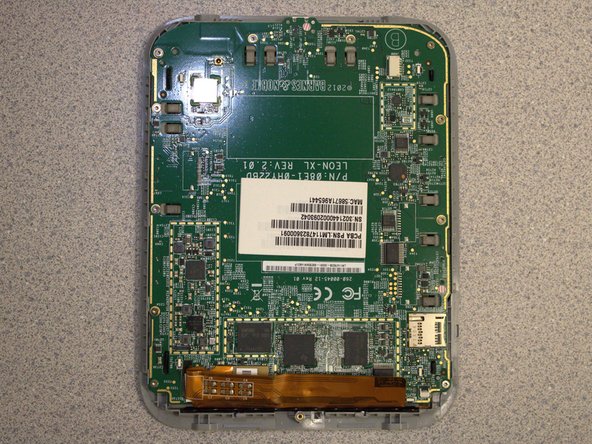
Detach the white cable connector from the motherboard.
-
Remove the battery from the device.
-
-

 Ask FixBot


To reassemble your device, follow these instructions in reverse order.

Team

University of Delaware, Team 12-3, McGuire Spring 2023 Member of University of Delaware, Team 12-3, McGuire Spring 2023
UD-MCGUIRE-S23S12G3
5 Members
5 Guides authored
