Introduction
Go to step 1 ↓Complete teardown of a Lenovo Series One Google Meet Kit Device, usable for RAM upgrade, SSD replacement, cooling fan, ...
What you need
Tools

-
-
-
Lightly warm the rubber mat on the underside with a hair dryer and then unplug it.
-
Under the rubber mat there is also a plastic film (see image 1); this must also be unplugged to access the screws underneath.
-
Afterwards, release all screws (see image 2) with a Phillips screwdriver.
 Ask FixBot
-
-
-
Remove the SSD
-
Release the screw marked with the orange circle. The SSD will pop up on the side and can then be removed to the left (from the perspective of the image). The original part is a SanDisk X600 128GB M.2 SATA III SSD with the model number SD9SN8W-128G.
-
It can likely be replaced with any M.2 2280 SATA III SSD; the difficulty will be getting the operating system onto it in such a way that the Meet Kit remains functional afterward. My (untested) approach would be to install both the new and old SSD in a second computer and clone the old one to the new one.
-
Remove the WiFi/BT chip
-
The WiFi chip (Intel 7265 NGW) can be removed similarly to the SSD by releasing a screw (red mark) and removing it from the slot. The antenna wires (black and white) can be detached by applying light upward pressure.
-
Remove the cooling fan and heat sink
-
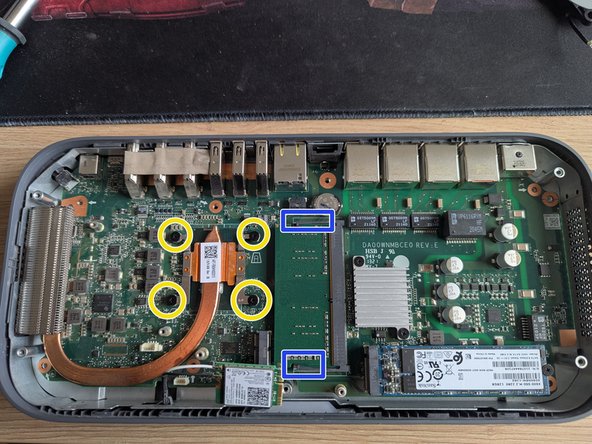
First, release the two screws marked in yellow and unplug the cooling fan cable at the white connector. This is done by carefully wiggling it back and forth while applying a light upward pull (do not pull on the cable itself, as the wires are very thin). The cooling fan can then be removed.
-
Continue with the view in image 2. Here, again, release the screws marked in yellow to remove the heat sink.
-
-
-
The RAM chips are held in position by black plastic tabs on the sides (blue markers).
-
Carefully press these outward simultaneously with your fingers. The chip will pop up and can be removed from the slot.
-
To remove the LED strip, you must first remove the foam block; it is only attached with a weak adhesive and can be easily removed. Next, release the two pink-marked screws and disconnect the cable from the connector at one or both ends.
-
The second chip is located on the underside of the board. To remove the board from the housing, the screws marked with an arrow on the board (image 3, green marker as an example) must be released, the Wi-Fi chip must either be removed or the antenna wires released, and the heat sink and the LEDs must be removed.
-
The installed model is an Apacer 2GB SO-Dimm DDR4-2400 CL17. The installed Intel i7-8550U officially supports 2x16GB DDR4-2400.
-
-
-
-
After removing the logic board, the metal shell can finally be removed from the bottom part of the housing. To do this, simply remove the 6 marked screws.
-
The outer part of the sleep/wake button can then also be detached from the housing; it is only hooked onto a plastic tab at the bottom center. You can then clean it if, as in my case, it keeps getting stuck and causes the device to restart continuously.
-
-