15% Off Selected iFixit Tools — Limited Time
Free Shipping on Domestic Orders $75+

Nintendo DSi XL Volume Buttons Replacement

What you need

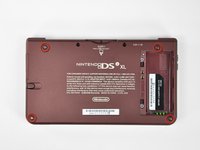
  1. Nintendo DSi XL Volume Buttons Replacement, Battery: step 1, image 1 of 2 Nintendo DSi XL Volume Buttons Replacement, Battery: step 1, image 2 of 2
    • Remove the two Phillips screws securing the battery cover to the back of the handheld console.

    • Lift the battery cover off the back of the DSi XL.

    Ask FixBot

    Add Comment

  2. Nintendo DSi XL Volume Buttons Replacement: step 2, image 1 of 1
    • Lift the battery from the DSi XL.

    Ask FixBot

    Add Comment

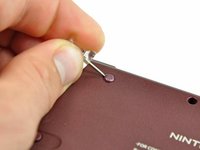
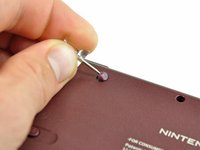
  3. Nintendo DSi XL Volume Buttons Replacement, Lower Case: step 3, image 1 of 3 Nintendo DSi XL Volume Buttons Replacement, Lower Case: step 3, image 2 of 3 Nintendo DSi XL Volume Buttons Replacement, Lower Case: step 3, image 3 of 3
    • Remove the four rubber screw covers on the lower case by prying them up with a push pin.

    Ask FixBot

    Add Comment

  4. Nintendo DSi XL Volume Buttons Replacement: step 4, image 1 of 1
    • Remove the following seven Phillips screws that secure the lower case to the rest of the DSi XL:

    • Four silver 5.3 mm screws

    • Two black 5.3 mm screws

    • One black 2.5 mm screw

    Ask FixBot

    Add Comment

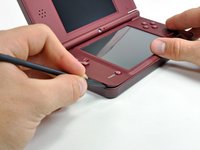
  5. Nintendo DSi XL Volume Buttons Replacement: step 5, image 1 of 3 Nintendo DSi XL Volume Buttons Replacement: step 5, image 2 of 3 Nintendo DSi XL Volume Buttons Replacement: step 5, image 3 of 3
    • Turn the DSi XL over, and open the display.

    • Insert a spudger between the upper and lower case at the bottom left corner of the DSi.

    • Slide the spudger along the bottom edge of the upper case to release the latches securing the upper case to the lower case.

    Ask FixBot

    Add Comment

  6. Nintendo DSi XL Volume Buttons Replacement: step 6, image 1 of 2 Nintendo DSi XL Volume Buttons Replacement: step 6, image 2 of 2
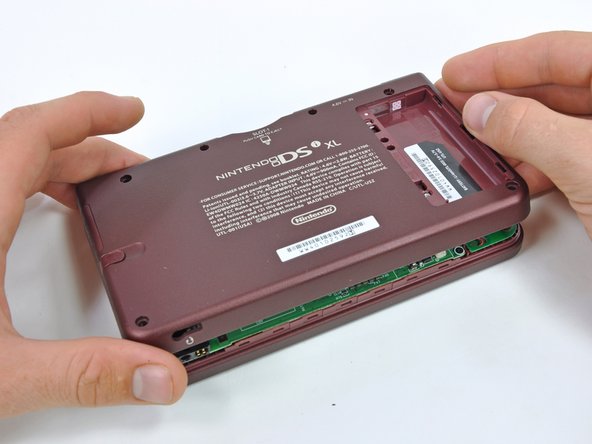
    • Close the display and turn the DSi XL over.

    • Lift the lower case from the front edge.

    • Rotate the lower case away from the DSi.

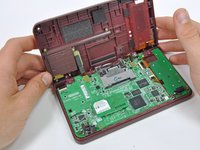
    • The lower case cannot be completely removed yet, since it is still connected to the motherboard.

    Ask FixBot

    Add Comment

  7. Nintendo DSi XL Volume Buttons Replacement: step 7, image 1 of 2 Nintendo DSi XL Volume Buttons Replacement: step 7, image 2 of 2
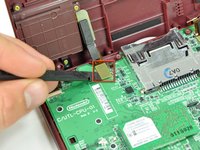
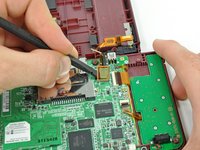
    • Using a spudger, pry the SD card/right shoulder button connector off its socket.

    • Pry the volume button/left shoulder button connector off its socket on the motherboard with a spudger.

    Ask FixBot

    Add Comment

  8. Nintendo DSi XL Volume Buttons Replacement, Volume Control Switch: step 8, image 1 of 1
    • On the inside of the battery compartment, use the tip of a spudger to detach the metal latch securing the volume control switch in place.

    • The latch will only move about 1 mm.

    Ask FixBot

    Add Comment

  9. Nintendo DSi XL Volume Buttons Replacement: step 9, image 1 of 3 Nintendo DSi XL Volume Buttons Replacement: step 9, image 2 of 3 Nintendo DSi XL Volume Buttons Replacement: step 9, image 3 of 3
    • Using the flat end of a spudger, remove the adhesive securing the volume control switch ribbon cable to the back of the battery compartment.

    • Using the flat of a spudger, pry the volume control switch straight up out of the lower case.

    • Remove the volume control switch from the DSi XL.

    Ask FixBot

    Add Comment

  10. Nintendo DSi XL Volume Buttons Replacement: step 10, image 1 of 1
    • Using the flat end of a spudger, remove the volume control buttons from the metal backing bracket.

    • The bracket is attached by a strong adhesive. Work slowly and carefully, being sure to not damage the ribbon cable.

    • Volume control switch remains.

    Ask FixBot

    Add Comment

  11. Nintendo DSi XL Volume Buttons Replacement, Volume Buttons: step 11, image 1 of 3 Nintendo DSi XL Volume Buttons Replacement, Volume Buttons: step 11, image 2 of 3 Nintendo DSi XL Volume Buttons Replacement, Volume Buttons: step 11, image 3 of 3
    Tool used on this step:
    Tweezers
    $4.99
    Buy
    • While pushing the volume buttons through their holes in the lower case, remove the buttons and their silicone pads with a pair of tweezers.

    • Work patiently and carefully as the silicone pad is easily torn.

    • Remove the buttons from the silicone pad.

    Ask FixBot

    Add Comment

Conclusion

To reassemble your device, follow these instructions in reverse order.

Cancel: I did not complete this guide.

One other person completed this guide.

Brett Hartt

Member since: 04/12/10

132,176 Reputation

144 Guides authored

Team

iFixit Member of iFixit

Staff

122 Members

25,947 Guides authored

0 Guide Comments

Add Comment

View Statistics:

Past 24 Hours: 6

Past 7 Days: 38

Past 30 Days: 157

All Time: 9,072