Free Shipping on Domestic Orders $75+

Nintendo 2DS Screen Replacement

What you need

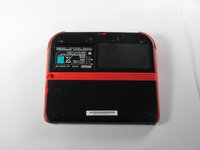
  1. Nintendo 2DS Screen Replacement, Battery: step 1, image 1 of 1
    • Remove the two Phillips captive screws securing the upper rear panel.

    • The captive screws will not completely detach from the back panel.

    Ask FixBot

    Add Comment

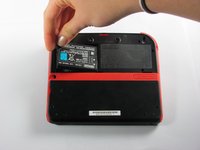
  2. Nintendo 2DS Screen Replacement: step 2, image 1 of 2 Nintendo 2DS Screen Replacement: step 2, image 2 of 2
    • Hinge the upper rear panel upwards and outwards to remove it.

    Ask FixBot

    Add Comment

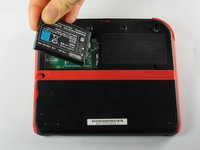
  3. Nintendo 2DS Screen Replacement: step 3, image 1 of 3 Nintendo 2DS Screen Replacement: step 3, image 2 of 3 Nintendo 2DS Screen Replacement: step 3, image 3 of 3
    • Remove the battery from its housing by lifting it up from the side closest to the outside edge.

    Ask FixBot

    Add Comment

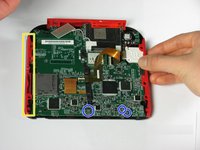
  4. Nintendo 2DS Screen Replacement, Rear Panel: step 4, image 1 of 1
    • Remove the ten Phillips screws attaching the rear panel.

    Ask FixBot

    Add Comment

  5. Nintendo 2DS Screen Replacement: step 5, image 1 of 1
    • The rear panel is attached to the motherboard by a ribbon cable, so be careful not to lift the rear panel too far from the device.

    • Carefully pull the rear panel straight up from the device.

    Ask FixBot

    Add Comment

  6. Nintendo 2DS Screen Replacement: step 6, image 1 of 1
    • Use your fingernail or the flat end of a spudger to flip up the connector securing the ribbon cable to the motherboard

    • Remove the cable from the connector

    • Take the opportunity to remove the Left and Right triggers, they have hinges that may break and springs that may jump away.

    Ask FixBot

    Add Comment

  7. Nintendo 2DS Screen Replacement, Remove Side Panels: step 7, image 1 of 2 Nintendo 2DS Screen Replacement, Remove Side Panels: step 7, image 2 of 2
    • Hold the side panels of the device's case with your fingers and pull outward to remove them.

    • The panels should come off easily with little force required.

    • There are three ribbon cables which have already been unplugged in this picture, disconnect these before disassembling the device further.

    Ask FixBot

    Add Comment

  8. Nintendo 2DS Screen Replacement, Unscrew Motherboard: step 8, image 1 of 1
    • Remove the 12 brass-colored Phillips screws securing the main board.

    • Be very careful not to strip any of these screws. Stripping can occur very easily, and may make replacement of the motherboard impossible.

    • The circle pad has disappeared in this picture. Don't worry, we'll deal with that in the next step

    Ask FixBot

    Add Comment

  9. Nintendo 2DS Screen Replacement, Remove Top Panel: step 9, image 1 of 3 Nintendo 2DS Screen Replacement, Remove Top Panel: step 9, image 2 of 3 Nintendo 2DS Screen Replacement, Remove Top Panel: step 9, image 3 of 3
    • The top panel can only be removed when the mother board is not secured.

    • There are two additional screws located on the top rail. Remove these to fully remove the buttons and top rail.

    • There are two screws holding down the joystick base that must be removed. (Be careful of the ribbon cable—it stays connected!)

    • Hold the top panel with your fingers and pull away from the device to remove it.

    • The top panel should come off easily, with very little force applied.

    Ask FixBot

    Add Comment

  10. Nintendo 2DS Screen Replacement, Remove Motherboard: step 10, image 1 of 2 Nintendo 2DS Screen Replacement, Remove Motherboard: step 10, image 2 of 2
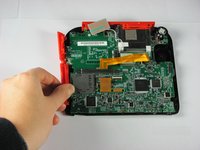
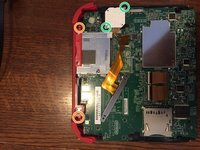
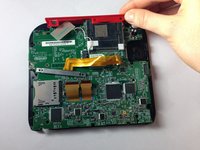
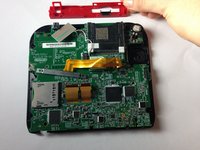
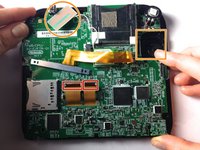
    • Detach the 2 ribbon cables by lifting the black flip connectors that hold them.

    • Lift out the rectangular board seated in the face and lift out the white square which is the joystick motor (takes a little effort). Both stay attached to the motherboard.

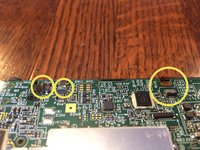
    • On some models, you'll need to remove three more tiny ribbon cables at the bottom of the screen. They are secured by flip up connectors. BE GENTLE!

    • Holding the motherboard on either side, lift to remove it.

    Ask FixBot

    Add Comment

  11. Nintendo 2DS Screen Replacement, Screen Replacement: step 11, image 1 of 1
    • Ensure that the ribbon cables connecting the screen to the motherboard have been disconnected before removing the screen from the front panel casing.

    • Grasp the screen firmly by a corner and lift it off of the front panel of the Nintendo 2DS.

    • There should be slight resistance due to the double-sided adhesive strip on the screen.

    Ask FixBot

    Add Comment

Conclusion

To reassemble your device, follow these instructions in reverse order.

Cancel: I did not complete this guide.

86 other people completed this guide.

Fina Beauchamp

Member since: 01/12/15

3,377 Reputation

6 Guides authored

Team

Cal Poly, Team 70-1, Forte Winter 2015 Member of Cal Poly, Team 70-1, Forte Winter 2015

CPSU-FORTE-W15S70G1

4 Members

36 Guides authored

31 Guide Comments

Camera ribbon cable is very brittle, be careful.

Logan Pena - Reply Share

Thank you so much, Fina! You have done a fantastic job explaining each step incredibly well! I very much appreciate all of your efforts into skillfully describing the process of disassembling the 2DS. I was able to understand your instructions and thus was able to make a lucky kiddo super happy! Thanks again!

-Skye

Skye Leah - Reply Share

P.S. To those out there who don't have a super, ridiculously tiny (#000 screwdriver or 1.587 mm Phillips head) and don't want to have to purchase one just to complete this already daunting task, I found that using a screwdriver from a glasses repair kit worked PERFECTLY! :)

Skye Leah - Reply Share

what about a new screen?

Lord Hohenheim (Sans) - Reply Share

Once you've removed your screen, what are you supposed to do with it to clean and/or repair?

Danielle Chester - Reply Share

Add Comment

View Statistics:

Past 24 Hours: 41

Past 7 Days: 360

Past 30 Days: 1,631

All Time: 189,905