Free Shipping on Domestic Orders $75+

Network card Replacement

What you need

  1. Network card Replacement, Remove battery: step 1, image 1 of 1
    • Be sure to remove the battery to prevent any electrical shortage.

    Ask FixBot

    Add Comment

  2. Network card Replacement, Remove the backpanel: step 2, image 1 of 2 Network card Replacement, Remove the backpanel: step 2, image 2 of 2
    • Loosen all four screws and remove the back panel.

    • Remove the back panel with a spudger. Start out as in the second photo to prevent the plastic from breaking. Work you're way around the panel to remove it.

    Ask FixBot

    Add Comment

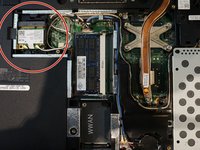
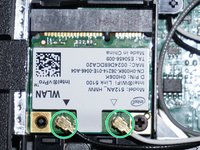
  3. Network card Replacement, Remove the antenna wires: step 3, image 1 of 2 Network card Replacement, Remove the antenna wires: step 3, image 2 of 2
    • In the red circle is the network card

    • Remove the two wires (inside the green circle)

    • the wires are very fragile and need to be removed with care

    Ask FixBot

    Add Comment

  4. Network card Replacement, Remove the network card: step 4, image 1 of 1
    • Place the spudger as shown in the photo. The network card will pop up. After that you can remove it and replace it with another one

    • The wires are very fragile, be aware!

    Ask FixBot

    Add Comment

Conclusion

To reassemble your device, follow these instructions in reverse order. Be sure to connect the wires the same as in step 3.

Cancel: I did not complete this guide.

2 other people completed this guide.

Robin Koch

Member since: 03/25/17

289 Reputation

2 Guides authored

0 Guide Comments

Add Comment

View Statistics:

Past 24 Hours: 1

Past 7 Days: 6

Past 30 Days: 29

All Time: 1,102