Free Shipping on Domestic Orders $75+

Nest Dropcam Pro LEDs Replacement

Views: 2K

View statistics:

Past 24 Hours:
2
Past 7 Days:
17
Past 30 Days:
77
All Time:
2,003
Comments: 2

2 comments on steps.

Completed: 0

No one has marked this guide "completed." Will you be the first?

Favorites: 0

No one has favorited (and subscribed to) this guide. Will you be the first?

Time Required: 2 minutes
Difficulty: Difficult
Nest Dropcam Pro LEDs Replacement

Introduction

Go to step 1 ↓

This guide is used to replace the LEDs inside the Nest Dropcam Pro in case they are broken or blown. Make sure the device is unplugged before opening.

What you need

Tools

    1. Nest Dropcam Pro LEDs Replacement, Outer Case: step 1, image 1 of 1
      • Press in the mounting clips on each side of the case to remove the camera from the mount.

      Ask FixBot

      Add Comment

    2. Nest Dropcam Pro LEDs Replacement: step 2, image 1 of 2 Nest Dropcam Pro LEDs Replacement: step 2, image 2 of 2
      • Using a Philips #0 screwdriver, remove the four 3 mm screws.

      Ask FixBot

      Add Comment

    3. Nest Dropcam Pro LEDs Replacement: step 3, image 1 of 2 Nest Dropcam Pro LEDs Replacement: step 3, image 2 of 2
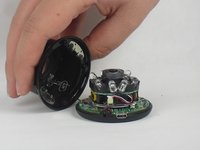
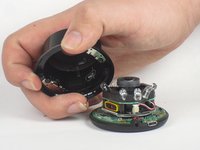
      • Lift the front of the case slowly, as there is an antenna cable attached to the motherboard.

      • Carefully disconnect the antenna cable from the motherboard. You will feel this cable "pop" out of place when disconnected.

      Ask FixBot

      Add Comment

    1. Nest Dropcam Pro LEDs Replacement, Motherboard: step 4, image 1 of 2 Nest Dropcam Pro LEDs Replacement, Motherboard: step 4, image 2 of 2
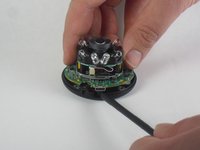
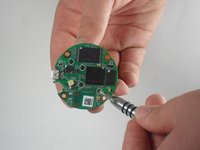
      • Insert a spudger tool under the micro-USB port and lift to separate the motherboard from the back case.

      Ask FixBot

      Add Comment

    2. Nest Dropcam Pro LEDs Replacement: step 5, image 1 of 2 Nest Dropcam Pro LEDs Replacement: step 5, image 2 of 2
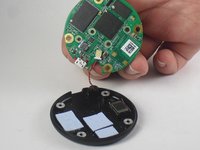
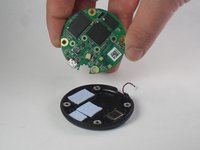
      • Pull the motherboard away from the back case.

      • Unplug the red and black cable connecting the motherboard to the back case.

      Ask FixBot

      Add Comment

    3. Nest Dropcam Pro LEDs Replacement: step 6, image 1 of 2 Nest Dropcam Pro LEDs Replacement: step 6, image 2 of 2
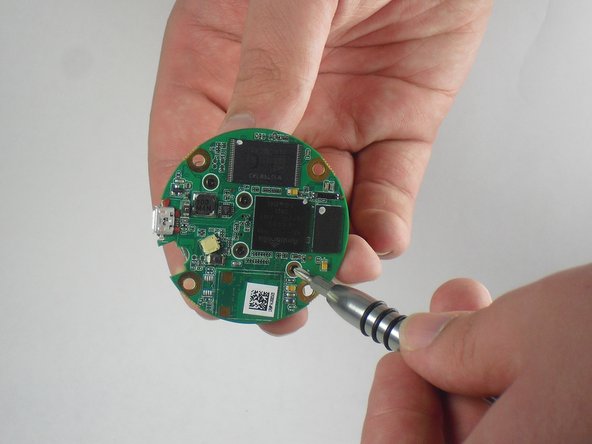
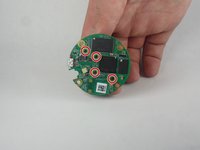
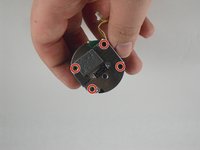
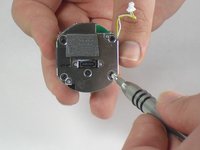
      • Using a Philips #0 screwdriver, remove the four 2 mm screws.

      Ask FixBot

      Add Comment

    4. Nest Dropcam Pro LEDs Replacement: step 7, image 1 of 2 Nest Dropcam Pro LEDs Replacement: step 7, image 2 of 2
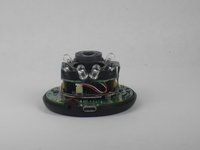
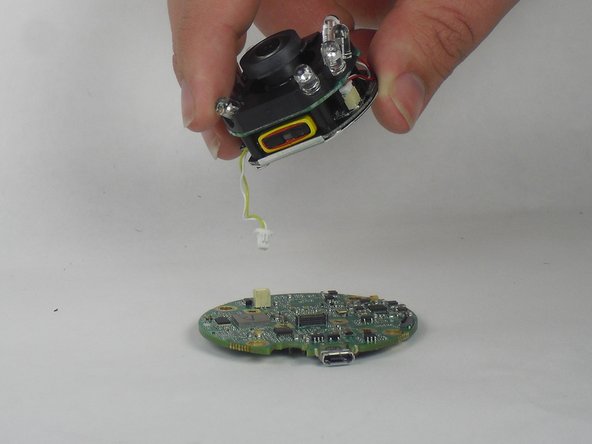
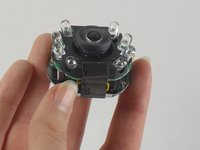
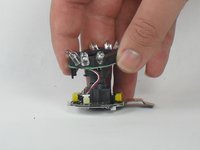
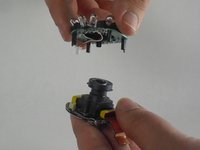
      • Lift the lens and LED assembly away from the motherboard.

      • Unplug the yellow and white cable from the motherboard.

      Ask FixBot

      Add Comment

    1. Nest Dropcam Pro LEDs Replacement, LEDs: step 8, image 1 of 2 Nest Dropcam Pro LEDs Replacement, LEDs: step 8, image 2 of 2
      • Using a Philips #0 screwdriver, remove the four 2mm screws.

      Ask FixBot

      Add Comment

    2. Nest Dropcam Pro LEDs Replacement: step 9, image 1 of 3 Nest Dropcam Pro LEDs Replacement: step 9, image 2 of 3 Nest Dropcam Pro LEDs Replacement: step 9, image 3 of 3
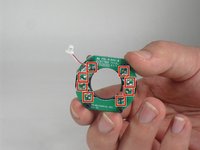
      • Peel off the paper seal holding the Lens and LEDs together.

      • Disconnect the red and white wire from the bottom board.

      Ask FixBot

      Add Comment

    3. Nest Dropcam Pro LEDs Replacement: step 10, image 1 of 2 Nest Dropcam Pro LEDs Replacement: step 10, image 2 of 2
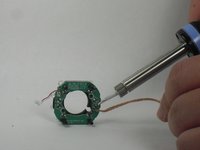
      • Using a de-soldering tool, disconnect the LEDs from the motherboard.

      • If you don't know how to solder, check out How To Solder and Desolder Connections.

      • Soldering irons are extremely hot and can burn you if you touch them!

      • If you hold the soldering iron tip at the same spot for too long, it can strip the metal from the plastic board. You may not be able to solder wire to that point again.

      Ask FixBot

      Add Comment

Conclusion

To reassemble your device, follow these instructions in reverse order.

Cancel: I did not complete this guide.

David Foens

Member since: 09/03/15

914 Reputation

6 Guides authored

Team

USF Tampa, Team 15-4, Blackwell Fall 2015 Member of USF Tampa, Team 15-4, Blackwell Fall 2015

USFT-BLACKWELL-F15S15G4

3 Members

72 Guides authored

0 Guide Comments

Add Comment

View Statistics:

Past 24 Hours: 2

Past 7 Days: 17

Past 30 Days: 77

All Time: 2,003