Motorola Moto G Power (2020) Fingerprint Sensor Replacement

  1. Motorola Moto G Power (2020) Fingerprint Sensor Replacement, Back Case: step 1, image 1 of 1
    • Position a suction cup securely on the back panel of the device.

    • Insert the opening pick into both sides of the phone and carefully slide it along to open the back panel of the device.

    • Do not fully remove the back panel; disconnect the fingerprint sensor first.

  2. Motorola Moto G Power (2020) Fingerprint Sensor Replacement: step 2, image 1 of 1
    • Apply gentle pressure to the fingerprint sensor with your finger to detach it from the back panel.

    • You may need to apply firm pressure to remove the circular sensor from the panel.

  3. Motorola Moto G Power (2020) Fingerprint Sensor Replacement: step 3, image 1 of 1
    • Fully remove the back panel from the device.

  4. Motorola Moto G Power (2020) Fingerprint Sensor Replacement, Fingerprint Sensor: step 4, image 1 of 1
    • Using a Torx T3 screwdriver, remove nine 2.2 mm screws.

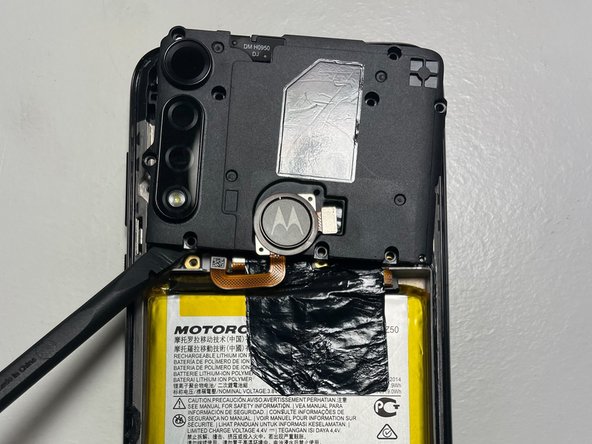
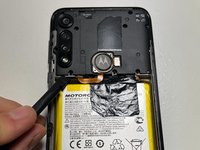
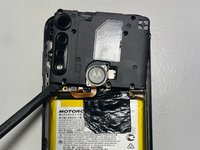
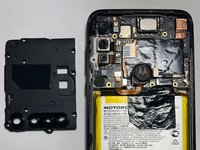
  5. Motorola Moto G Power (2020) Fingerprint Sensor Replacement: step 5, image 1 of 3 Motorola Moto G Power (2020) Fingerprint Sensor Replacement: step 5, image 2 of 3 Motorola Moto G Power (2020) Fingerprint Sensor Replacement: step 5, image 3 of 3
    • Use the spudger to gently lift the cover.

    • If needed, use the spudger's tip against a corner of the cover to help lift it.

    • Set the back cover aside.

    • DO NOT use excessive force when lifting up the back cover.

  6. Motorola Moto G Power (2020) Fingerprint Sensor Replacement: step 6, image 1 of 1
    • Carefully use the spudger to lift the sensor cable, disconnecting the fingerprint sensor from the motherboard.

    • WARNING: Handle the sensor cable with care; it can be easily damaged.

  7. Motorola Moto G Power (2020) Fingerprint Sensor Replacement: step 7, image 1 of 1
    • Carefully remove the fingerprint sensor from the device and set it aside.

    • Do not use excessive force when lifting the back cover or any other component.

Conclusion

To reassemble your device, follow these instructions in reverse order.

One other person completed this guide.

Harry Jung

Member since: 06/23/22

778 Reputation

4 Guides authored

Team

0 Guide Comments

Add Comment

View Statistics:

Past 24 Hours: 1

Past 7 Days: 7

Past 30 Days: 49

All Time: 1,421