Midframe Removal

Prerequisite Only
This is a prerequisite-only guide! This guide is part of another procedure and isn’t meant to be used alone.

What you need

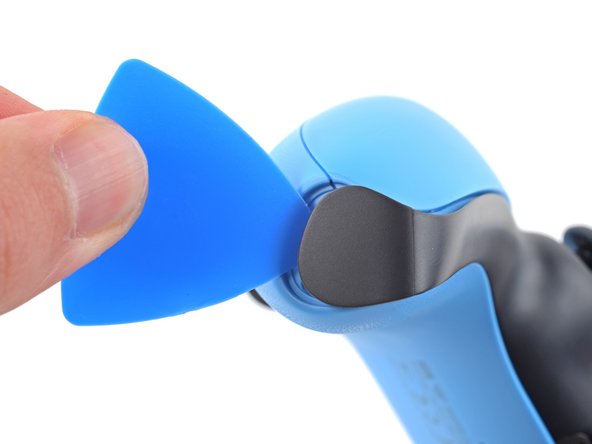
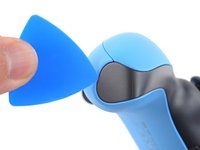
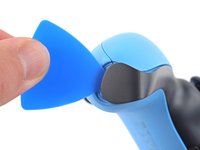
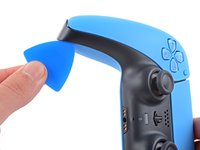
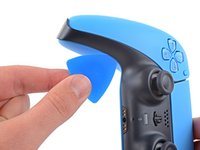
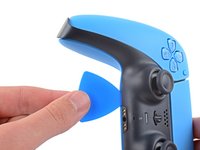
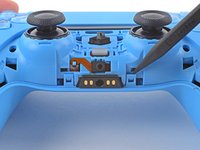
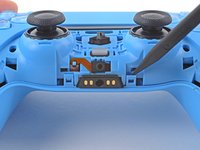
  1. Midframe Removal, Unclip the right end of the middle trim: step 1, image 1 of 2 Midframe Removal, Unclip the right end of the middle trim: step 1, image 2 of 2
    • Disconnect and power down the controller before you begin.

    • Insert an opening pick underneath the middle trim at the bottom-right corner of the controller to release the clips securing it to the case.

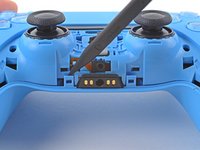
  2. Midframe Removal, Unclip the lower-right edge of the middle trim: step 2, image 1 of 3 Midframe Removal, Unclip the lower-right edge of the middle trim: step 2, image 2 of 3 Midframe Removal, Unclip the lower-right edge of the middle trim: step 2, image 3 of 3
    • Slide the opening pick along the lower-right edge of the middle trim to release the clips securing it to the case.

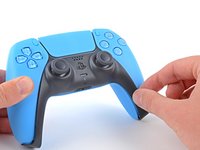
  3. Midframe Removal, Unclip the left end of the middle trim: step 3, image 1 of 2 Midframe Removal, Unclip the left end of the middle trim: step 3, image 2 of 2
    • Insert an opening pick underneath the middle trim at the bottom-left corner of the controller to release the clips securing it to the case.

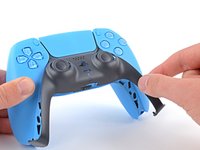
  4. Midframe Removal, Unclip the lower-left edge of the middle trim: step 4, image 1 of 3 Midframe Removal, Unclip the lower-left edge of the middle trim: step 4, image 2 of 3 Midframe Removal, Unclip the lower-left edge of the middle trim: step 4, image 3 of 3
    • Slide the opening pick along the lower-left edge of the middle trim to release the clips securing it to the case.

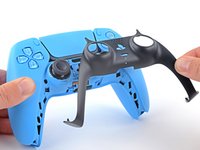
  5. Midframe Removal, Remove the middle trim: step 5, image 1 of 3 Midframe Removal, Remove the middle trim: step 5, image 2 of 3 Midframe Removal, Remove the middle trim: step 5, image 3 of 3
    • Use your fingers to lift up the bottom edge of the middle trim to release the remaining clips.

    • Lift the middle trim over the joysticks to remove it.

    • During reassembly, position the middle trim into place and press along all edges to engage the clips securing it to the controller.

  6. Midframe Removal, Remove the L1 button: step 6, image 1 of 3 Midframe Removal, Remove the L1 button: step 6, image 2 of 3 Midframe Removal, Remove the L1 button: step 6, image 3 of 3
    • Insert the flat end of a spudger into the gap above the L1 button.

    • Cover the button with your thumb to prevent it from ejecting across the room.

    • Pry the spudger upward to remove the L1 button.

  7. Midframe Removal, Remove the R1 button: step 7, image 1 of 3 Midframe Removal, Remove the R1 button: step 7, image 2 of 3 Midframe Removal, Remove the R1 button: step 7, image 3 of 3
    • Insert the flat end of a spudger into the gap above the R1 button.

    • Cover the button with your thumb to prevent it from ejecting across the room.

    • Pry the spudger upward to remove the R1 button.

  8. Midframe Removal, Remove the case screws: step 8, image 1 of 1
    • Use a Phillips screwdriver to remove the two 6.5 mm screws securing the bottom corners of the lower case.

  9. Midframe Removal: step 9, image 1 of 1
    • Use a Phillips screwdriver to remove the two 6.5 mm screws behind the L1 and R1 buttons.

  10. Midframe Removal, Unclip the rear case: step 10, image 1 of 3 Midframe Removal, Unclip the rear case: step 10, image 2 of 3 Midframe Removal, Unclip the rear case: step 10, image 3 of 3
    • Use the pointed edge of a spudger to unclip the two clips on either side of the headset jack.

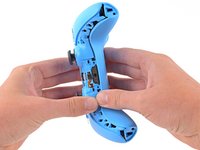
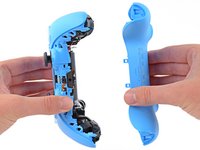
  11. Midframe Removal, Remove the rear case: step 11, image 1 of 2 Midframe Removal, Remove the rear case: step 11, image 2 of 2
    • Use your hands to carefully pull the rear case off of the controller.

    • During reassembly, make sure the red and black vibration motor wires are not pinched between the front and rear case.

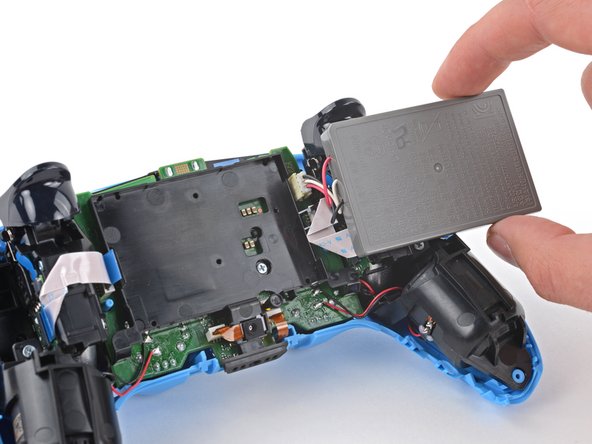
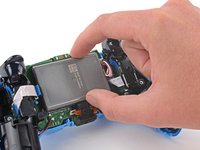
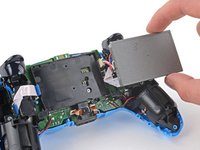
  12. Midframe Removal, Reposition the battery: step 12, image 1 of 2 Midframe Removal, Reposition the battery: step 12, image 2 of 2
    • Lift the battery out of its bracket and reposition it to the right for better access to the battery connector.

    • Don't strain the battery cables.

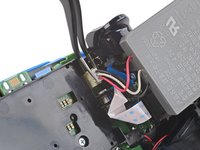
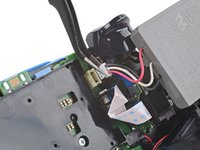
  13. Midframe Removal, Disconnect the battery: step 13, image 1 of 2 Midframe Removal, Disconnect the battery: step 13, image 2 of 2
    Tool used on this step:
    Tweezers
    $4.99
    Buy
    • Use a pair of tweezers or your fingers to disconnect the battery from the motherboard.

    • Don't pull on the wires to disconnect the battery.

  14. Midframe Removal, Remove the battery: step 14, image 1 of 1
    • Remove the battery.

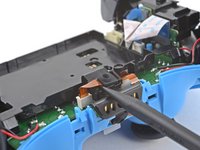
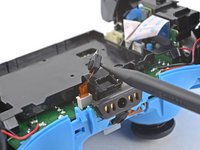
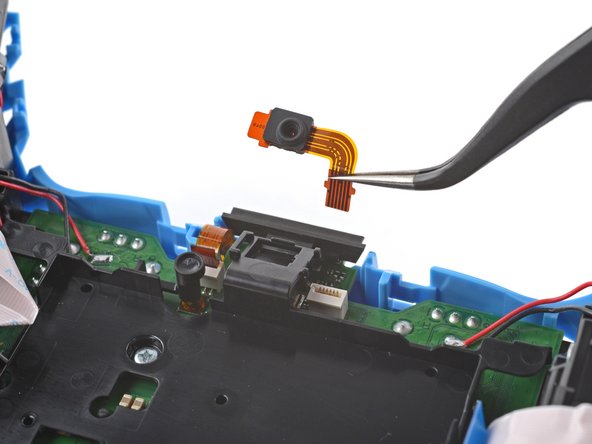
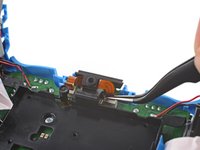
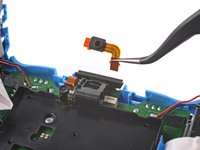
  15. Midframe Removal, Remove the lower microphone: step 15, image 1 of 2 Midframe Removal, Remove the lower microphone: step 15, image 2 of 2
    • Use the pointed end of a spudger to remove the lower microphone from its bracket next to the battery.

    • During reassembly, make sure the end of the microphone's ribbon cable is slotted into the bracket.

  16. Midframe Removal: step 16, image 1 of 2 Midframe Removal: step 16, image 2 of 2
    Tool used on this step:
    Tweezers
    $4.99
    Buy
    • Grab the lower microphone ribbon cable pull tab with your fingers or a pair of tweezers and disconnect it from the motherboard.

  17. Midframe Removal, Remove the battery bracket: step 17, image 1 of 1
    • Use a Phillips screwdriver to remove the 6.5 mm screw securing the battery bracket.

  18. Midframe Removal: step 18, image 1 of 2 Midframe Removal: step 18, image 2 of 2
    • Lift the battery bracket off of the motherboard.

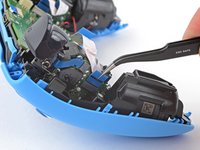
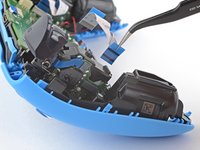
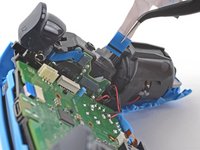
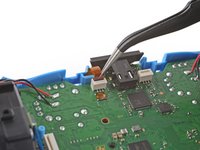
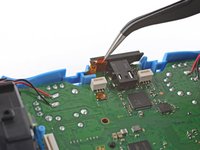
  19. Midframe Removal, Disconnect the right trigger assembly: step 19, image 1 of 2 Midframe Removal, Disconnect the right trigger assembly: step 19, image 2 of 2
    • Grip the right trigger assembly cable with a pair of tweezers or your fingers and disconnect it from the motherboard.

    • Use the pull tab to disconnect the cable. Don't pull on the cable itself.

    • Don't completely remove the ribbon cable yet.

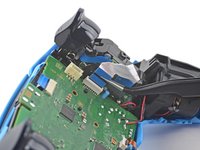
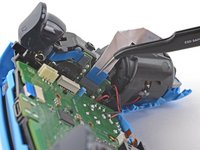
  20. Midframe Removal: step 20, image 1 of 2 Midframe Removal: step 20, image 2 of 2
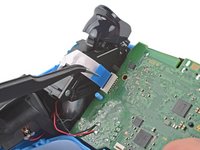
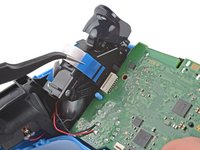
    • Grip the right trigger assembly cable with a pair of tweezers or your fingers, and disconnect it from the trigger assembly.

    • Use the pull tab to disconnect the cable. Don't pull on the cable itself.

    • Depending on the controller's model, the ribbon cable may block the motherboard from coming loose. If so, remove the cable from the trigger assembly.

  21. Midframe Removal, Disconnect the left trigger assembly: step 21, image 1 of 2 Midframe Removal, Disconnect the left trigger assembly: step 21, image 2 of 2
    • Grip the left trigger assembly cable with a pair of tweezers or your fingers to disconnect it from the motherboard.

    • Use the pull tab to disconnect the cable. Don't pull on the cable itself.

    • Don't completely remove the ribbon cable yet.

  22. Midframe Removal: step 22, image 1 of 2 Midframe Removal: step 22, image 2 of 2
    • Grip the left trigger assembly cable with a pair of tweezers or your fingers to disconnect it from the trigger assembly.

    • Use the pull tab to disconnect the cable. Don't pull on the cable itself.

    • Depending on the controller's model, the ribbon cable may block the motherboard from coming loose. If so, remove the cable from the trigger assembly.

  23. Midframe Removal, Disconnect the upper microphone: step 23, image 1 of 2 Midframe Removal, Disconnect the upper microphone: step 23, image 2 of 2
    • Use a pair of tweezers or your fingers to disconnect the upper microphone from the motherboard.

    • Use the pull tab to disconnect the cable. Don't pull on the cable itself.

    • If you're not replacing this microphone, don't remove it from the frame.

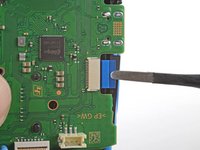
  24. Midframe Removal, Disconnect the touchpad: step 24, image 1 of 2 Midframe Removal, Disconnect the touchpad: step 24, image 2 of 2
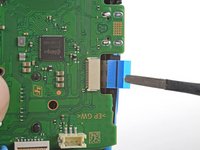
    • Use a pair of tweezers or your fingers to disconnect the touchpad cable from the motherboard.

    • Use the pull tab to disconnect the cable. Don't pull on the cable itself.

  25. Midframe Removal, Lift out the motherboard: step 25, image 1 of 3 Midframe Removal, Lift out the motherboard: step 25, image 2 of 3 Midframe Removal, Lift out the motherboard: step 25, image 3 of 3
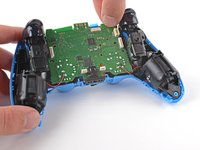
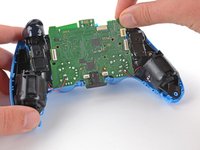
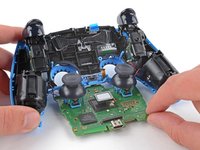
    • Carefully guide the joysticks through the front case and lift the motherboard out.

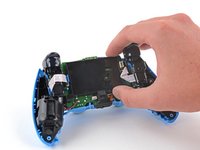
    • Don't strain the four soldered wires tethering the motherboard to the vibration motors.

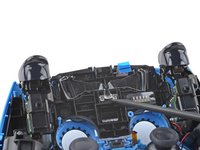
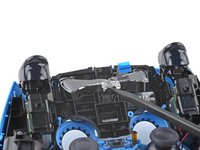
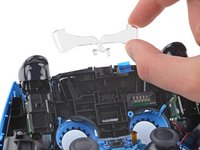
  26. Midframe Removal, Remove the light guide: step 26, image 1 of 3 Midframe Removal, Remove the light guide: step 26, image 2 of 3 Midframe Removal, Remove the light guide: step 26, image 3 of 3
    • Use the pointed end of your spudger to lift the center of the light guide out of the controller.

    • Remove the light guide.

  27. Midframe Removal, Remove the midframe: step 27, image 1 of 1
    • Use your Phillips driver to remove the two 6.5 mm screws securing the midframe to the front case.

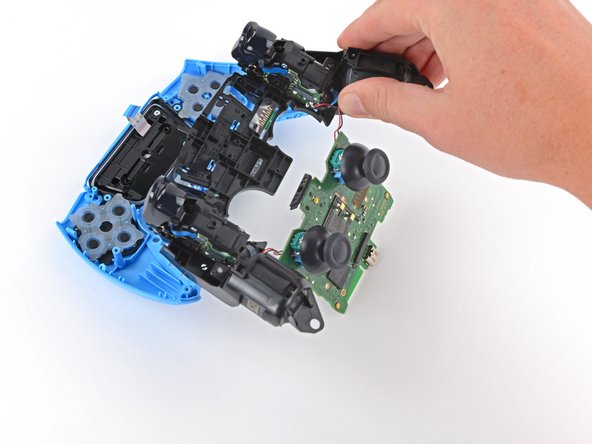
  28. Midframe Removal: step 28, image 1 of 3 Midframe Removal: step 28, image 2 of 3 Midframe Removal: step 28, image 3 of 3
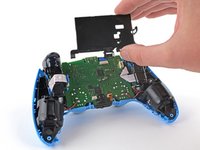
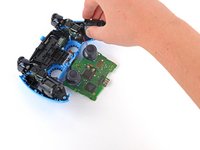
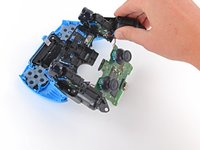
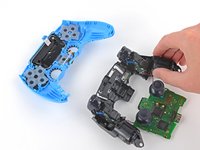
    • Carefully lift the midframe and motherboard up and out of the front case.

    • Be careful not to strain the vibrator motor wires.

    • During reassembly, feed the touchpad's ribbon cable back through its rectangular opening in the midframe.

Conclusion

To reassemble your device, follow these instructions in reverse order.

Sam Omiotek

Member since: 02/25/19

93,187 Reputation

290 Guides authored

0 Guide Comments

Add Comment

View Statistics:

Past 24 Hours: 0

Past 7 Days: 4

Past 30 Days: 8

All Time: 69