15% Off Selected iFixit Tools — Limited Time
Free Shipping on Domestic Orders $75+

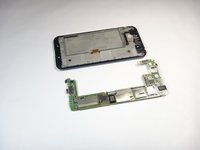
ASUS PadFone X Front Facing Camera Replacement

What you need

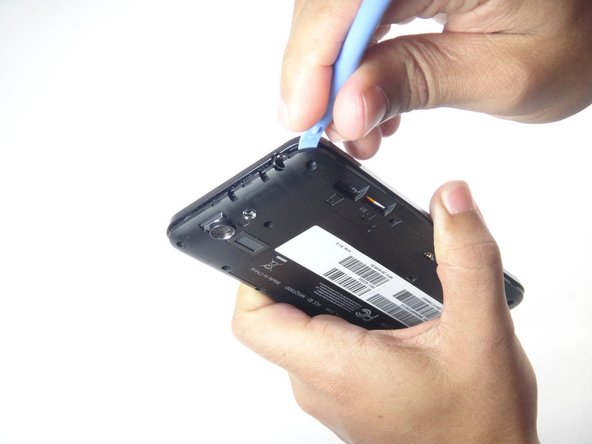
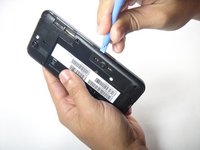
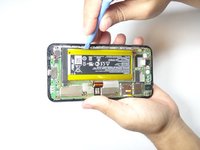
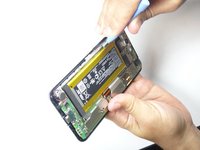
  1. ASUS PadFone X Front Facing Camera  Replacement, Motherboard: step 1, image 1 of 2 ASUS PadFone X Front Facing Camera  Replacement, Motherboard: step 1, image 2 of 2
    • Using the blue plastic opening tool, insert the tip into the crease between the back cover and the phone and pry it upwards.

    • Work your way around the phone until the entire back cover is loose.

    Ask FixBot

    Add Comment

  2. ASUS PadFone X Front Facing Camera  Replacement: step 2, image 1 of 2 ASUS PadFone X Front Facing Camera  Replacement: step 2, image 2 of 2
    • Remove the thirteen 3.6 mm screws using the Torx T5 bit in the screwdriver.

    Ask FixBot

    Add Comment

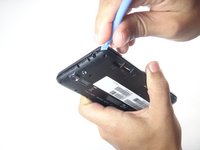
  3. ASUS PadFone X Front Facing Camera  Replacement: step 3, image 1 of 2 ASUS PadFone X Front Facing Camera  Replacement: step 3, image 2 of 2
    • Using the blue plastic opening tool, insert the tip into the crease between the mid-frame and the phone and pry it upwards.

    • Work your way around the phone until the entire back cover is loose and remove the mid-frame.

    Ask FixBot

    Add Comment

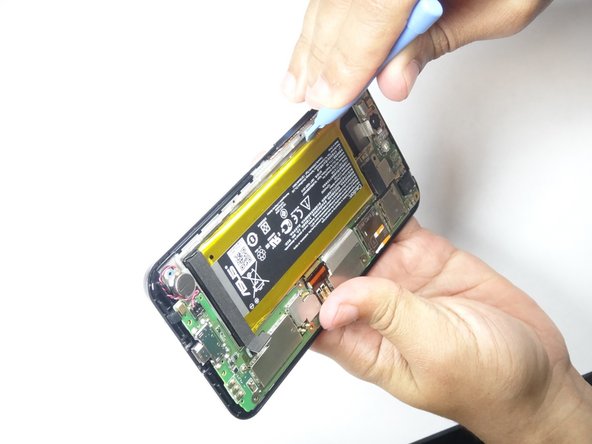
  4. ASUS PadFone X Front Facing Camera  Replacement: step 4, image 1 of 1
    • Using the plastic blue plastic opening tool, gently disconnect the battery cable from the motherboard.

    • Applying too much force will damage the connector.

    Ask FixBot

    Add Comment

  5. ASUS PadFone X Front Facing Camera  Replacement: step 5, image 1 of 2 ASUS PadFone X Front Facing Camera  Replacement: step 5, image 2 of 2
    • Use the blue plastic opening tool to pry the battery pack from the phone. Pry along edge away from the motherboard as this might damage the motherboard.

    • The battery pack is held on by double sided tape, you will have to apply some force when prying out the battery.

    Ask FixBot

    Add Comment

  6. ASUS PadFone X Front Facing Camera  Replacement: step 6, image 1 of 1
    • Using a spudger, pry the vibration motor connector from the motherboard.

    Ask FixBot

    Add Comment

  7. ASUS PadFone X Front Facing Camera  Replacement: step 7, image 1 of 1
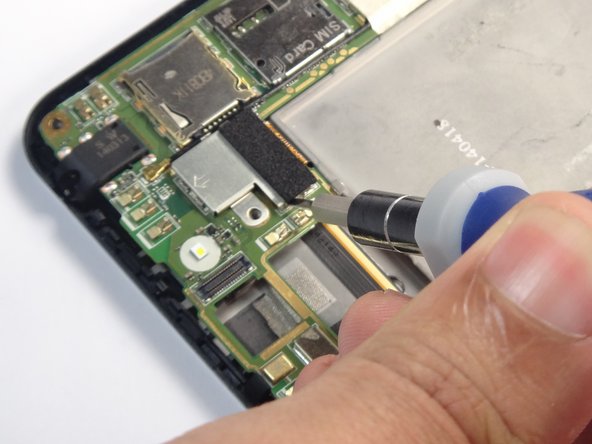
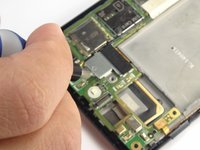
    • Use the blue plastic opening tool to gently pry the camera connector up from its socket on the motherboard.

    • Applying too much force will damage the conector

    Ask FixBot

    Add Comment

  8. ASUS PadFone X Front Facing Camera  Replacement: step 8, image 1 of 1
    Tool used on this step:
    Tweezers
    $4.99
    Buy
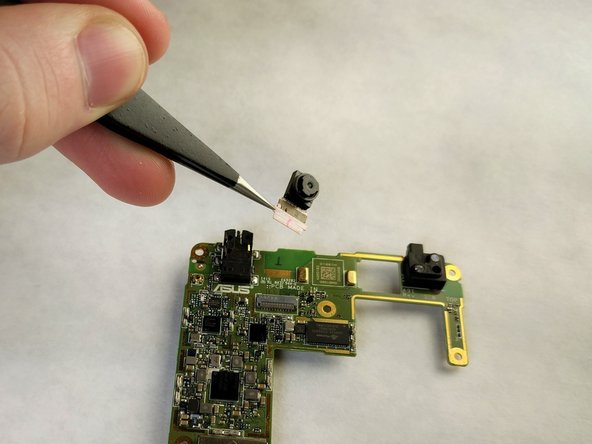
    • Using the tweezers, remove the rear camera from the Padfone X.

    • The camera is lightly glued to the motherboard. You may need to use a plastic opening tool to loosen the adhesive under the camera.

    Ask FixBot

    Add Comment

  9. ASUS PadFone X Front Facing Camera  Replacement: step 9, image 1 of 2 ASUS PadFone X Front Facing Camera  Replacement: step 9, image 2 of 2
    • Insert the tip of the flat head screwdriver between the panel and the metal clip then gently push down until the clip is slightly bent away from the panel.

    • Do this for all the clips holding the panel down.

    • After all clips are bent away, remove the panel.

    Ask FixBot

    Add Comment

  10. ASUS PadFone X Front Facing Camera  Replacement: step 10, image 1 of 2 ASUS PadFone X Front Facing Camera  Replacement: step 10, image 2 of 2
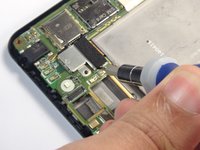
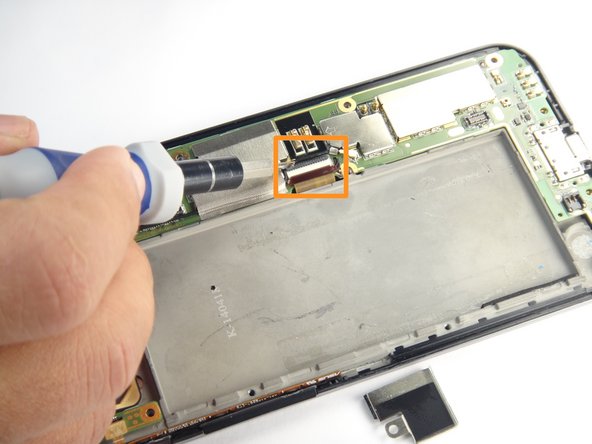
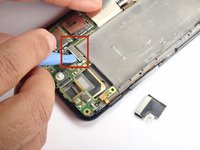
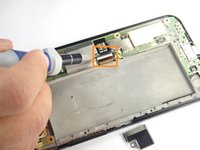
    • Disconnect the first connector by prying it upward using the blue plastic opening tool.

    • Disconnect the second connector by first lifting the lock then pulling the connector outward.

    Ask FixBot

    Add Comment

  11. ASUS PadFone X Front Facing Camera  Replacement: step 11, image 1 of 3 ASUS PadFone X Front Facing Camera  Replacement: step 11, image 2 of 3 ASUS PadFone X Front Facing Camera  Replacement: step 11, image 3 of 3
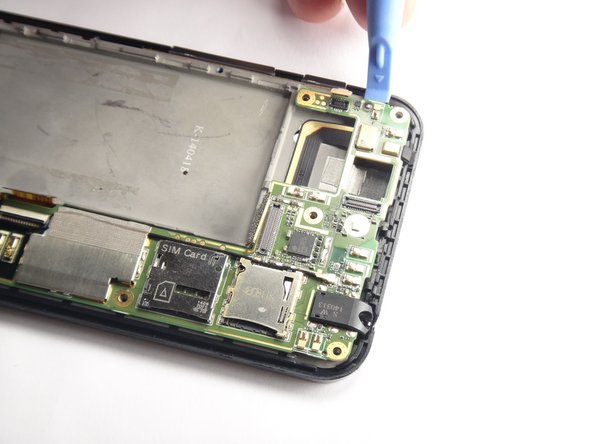
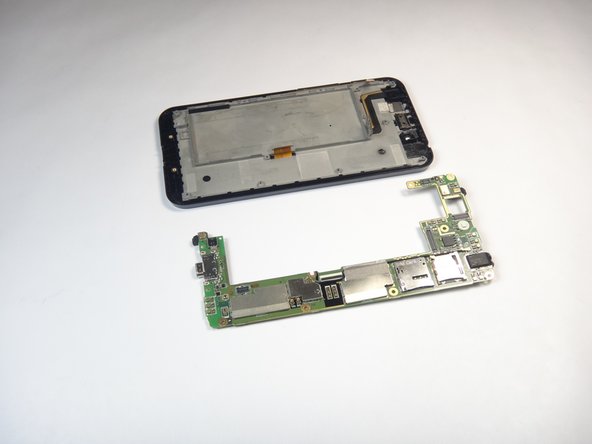
    • Insert the tip of the blue plastic opening tool under the motherboard and gently pry upward.

    • Work your way around until the motherboard is free.

    Ask FixBot

    Add Comment

  12. ASUS PadFone X Front Facing Camera  Replacement: step 12, image 1 of 1
    • Flip the motherboard over and locate the front facing camera.

    • Using the tweezers gently remove the black locking mechanism.

    • The black locking mechanism is very fragile and extreme care should be exercised during removal.

    Ask FixBot

    Add Comment

  13. ASUS PadFone X Front Facing Camera  Replacement: step 13, image 1 of 2 ASUS PadFone X Front Facing Camera  Replacement: step 13, image 2 of 2
    • Use the tweezers to gently pull on the connector to remove the camera.

    Ask FixBot

    Add Comment

Conclusion

To reassemble your device, follow these instructions in reverse order.

Cancel: I did not complete this guide.

One other person completed this guide.

Keith Cooper

Member since: 01/24/17

122 Reputation

1 Guide authored

Team

IUPUI, Team 2-1, Baechle Spring 2017 Member of IUPUI, Team 2-1, Baechle Spring 2017

IUPUI-BAECHLE-S17S2G1

4 Members

4 Guides authored

0 Guide Comments

Add Comment

View Statistics:

Past 24 Hours: 4

Past 7 Days: 10

Past 30 Days: 39

All Time: 582