
Microsoft Surface Pro 2 LCD Display Replacement

Mathew B and 6 other contributors
Last updated on Dec 22, 2021
Views: 17K
View statistics:
- Past 24 Hours:
- 5
- Past 7 Days:
- 35
- Past 30 Days:
- 125
- All Time:
- 16,580
Comments: 6
6 guide comments.
Go to guide commentsCompleted: 6 7
6 people have marked this guide "completed." Will you be next?
7 people have marked this guide "completed." Including you — great job!
Favorites: 0 1
No one has favorited (and subscribed to) this guide. Will you be the first?
1 person has favorited (and subscribed to) this guide — and that's you!
Better Introduction
Improve this guide by completing or revising its introduction.
Introduction
Go to step 1 ↓If your screen is unresponsive to touch, cracked, or flickering than placing your screen may solve these problems.
What you need


-
-
-
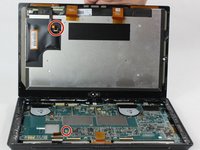
Using a heating pad or heating gun, heat the edges of the screen to soften the glue. This area extends roughly one inch from the edge of the device.
-
-
-
Using a plastic opening tool and a suction cup as needed for leverage, gently insert one edge of the opening tool under the corner of the screen.
-
Slowly work the tool around the entire edge of the screen.
-
-
-
-
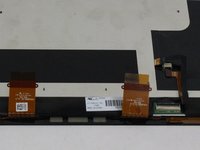
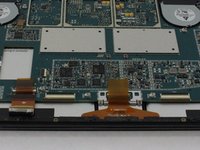
Detach the orange cables that connect the screen to the motherboard by pulling on the small tabs. Using the nylon spudger, release these cables.
-
Allow the glue to cool before letting it come into contact with any other surface.
-


 Ask FixBot


To reassemble your device, follow these instructions in reverse order.
Cancel: I did not complete this guide.
6 other people completed this guide.

Team

USF Tampa, Team 6-2, Remmell Fall 2016 Member of USF Tampa, Team 6-2, Remmell Fall 2016
USFT-REMMELL-F16S6G2
4 Members
48 Guides authored
6 Guide Comments
After replacing the screen my surface will turn on but the screen is just black.... in device manager its showing up as a 'Digital Flat Panel'
yet the screen is still black.. faulty replacement panel???
I did this procedure but i dont know why the display is not working it blink and then turnoff can somebody help me how to fix this problem
I purchased a screen replacement (LCD and Digitizer), but apparently, the flex from the motherboard to the screen (the small connector in red as well as the one on the lcd) are missing. Is there a way or place I can purchase just those flex? Or do I need to get a whole new motherboard?
Myne doesn't boot. The display is dack nothing happens. It's like it's not charging. What do I do. Thanks
