Introduction
Meural Canvas MC227 has an chronic fault due to the Wi-Fi module AMPAK AP6255 in QFN44 packaging. This issue causes Wi-Fi connection problems and sporadic Wi-Fi availability. The only solution is replacing the AP6255 module. This is a relatively easy task as long as you have skills in hot-air rework, for de-soldering and soldering. The module can be found easily on ebay and Aliexpress for around $10USD. I will not go into details of soldering, you can find these elsewhere. Once the module is replaced, the device works perfectly for many years to come (mine has been working daily for over 3 years now).
Please note, prior to starting this repair make sure your device's power adapter is working correctly. Sometimes the voltage is right but the DC output is not filtered correctly. To be on the safe side, I suggest testing your Meural Canvas with a known good 12V 2.5A power adapter first.
What you need
-
-
-
Remove all the philips screws off the rear cover.
-
Approach the mainboard, remove all the connectors and the screws and free the mainboard.
-
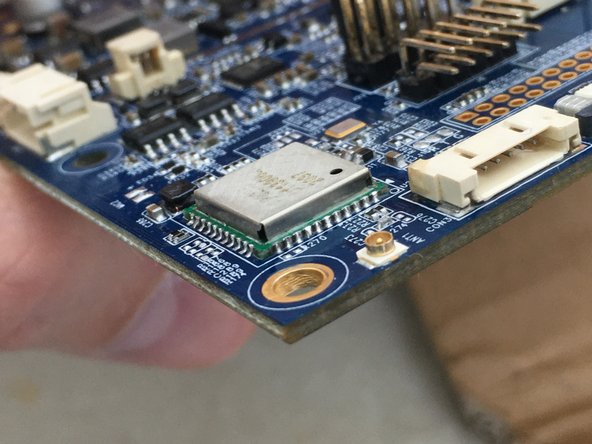
Wi-Fi module is shown in the last photo, it is AP6255.
-
You need to desolder the Wi-Fi module and replace it.
 Ask FixBot
-
-
-
Cover the rest of the board with kapton tape to prevent heat damage.
-
Using hot air gun and plenty of flux heat the module until it is moving.
-
Remove the Wi-Fi module with tweezers.
-
Clean the area with solder wick and flux.
-
Apply fresh solder on the pads.
-
-
-
-
Place the new Wi-Fi module and solder it with hot air gun and plenty of flux.
-
Pay attention to positioning the module.
-
Check the soldering from all corners and eliminate shorts.
-
Admire your work.
-
-
-
Clean and reconnect your mainboard on the device.
-
While I was there, I repainted the frame into matte white, looks way nicer.
-
Reconnect all cables and connectors.
-
Restart and connect your Meural Canvas to the network.
-
Now your Meural Canvas will have no problems connecting Wi-Fi now.
-
Enjoy beautiful art on a beautiful screen!
-
-




To reassemble your device, follow these instructions in reverse order.

