Introduction
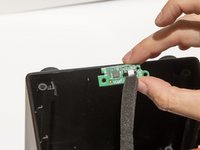
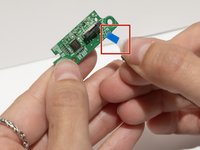
If your Marshall Uxbridge speaker (model 1005605) LED lights are not working, use this guide to replace the LED board.
The LED board controls the lights on the front of the speaker. A faulty board will cause the lights to fade or completely stop working.
Before using this guide, check your speaker for debris or dust buildup. If present, remove dust and debris using the steps found here:
Before beginning, make sure to power off your speaker completely and unplug from the power source.
What you need
-
-
Orient your speaker so that the back is facing you.
-
Use a Phillips #2 screwdriver to remove the six 19mm screws from the back plate.
-
Use an iFixit opening pick to remove and lift the back plate to expose the connected wires.
-
-
-
-
Orient the bottom of the speaker to face away from you.
-
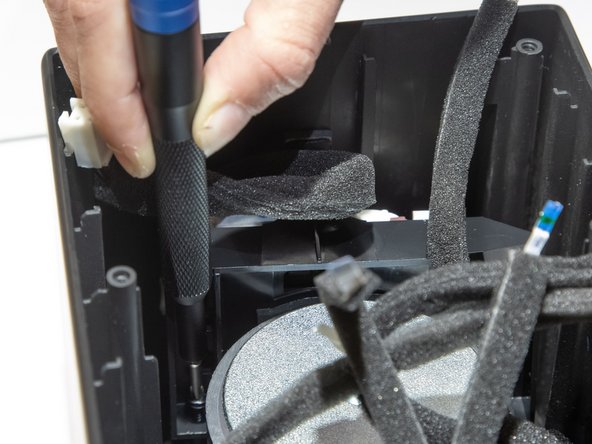
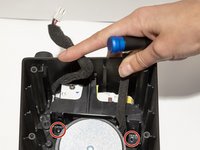
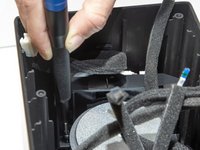
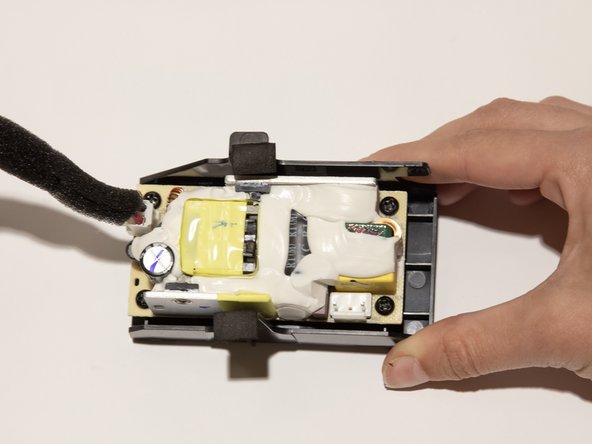
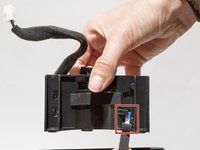
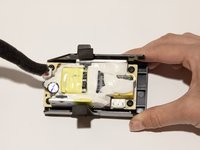
Use a Phillips #1 screwdriver to remove the two 12 mm screws holding the power relay in place.
-





To reassemble your device, follow these instructions in reverse order.



Team

Western Carolina University, Team 1-1, Virtue Fall 2024 Member of Western Carolina University, Team 1-1, Virtue Fall 2024
WCU-VIRTUE-F24S1G1
4 Members
5 Guides authored
