Free Shipping on Domestic Orders $75+

Lenovo ThinkPad X61 Battery Replacement

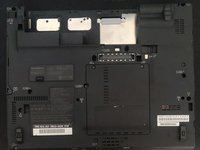
  1. Lenovo ThinkPad X61 Battery Replacement, Battery: step 1, image 1 of 1
    • Lay the laptop on it´s front cover so that you are facing the back cover.

    Ask FixBot

    Add Comment

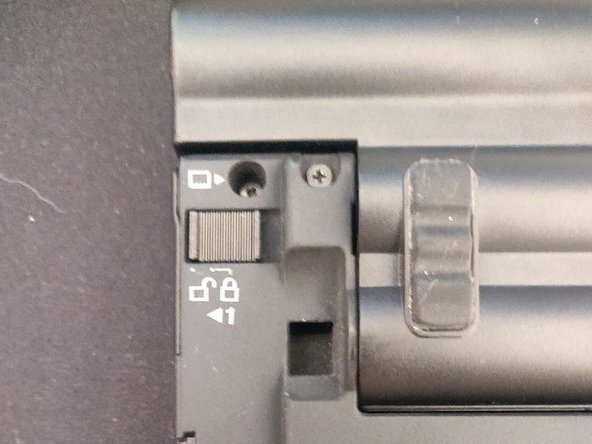
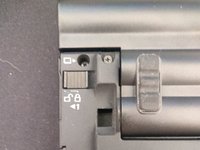
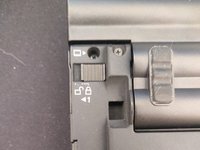
  2. Lenovo ThinkPad X61 Battery Replacement: step 2, image 1 of 2 Lenovo ThinkPad X61 Battery Replacement: step 2, image 2 of 2
    • Unlock battery mechanism on the top left corner.

    Ask FixBot

    Add Comment

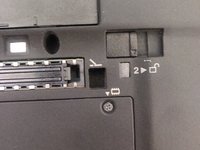
  3. Lenovo ThinkPad X61 Battery Replacement: step 3, image 1 of 2 Lenovo ThinkPad X61 Battery Replacement: step 3, image 2 of 2
    • Pull the second battery mechanism with your right hand. Keep doing it while you slide upwards the battery with your left hand.

    Ask FixBot

    Add Comment

  4. Lenovo ThinkPad X61 Battery Replacement: step 4, image 1 of 1
    • Insert the new battery pushing downwards until you hear a clicking noise.

    Ask FixBot

    Add Comment

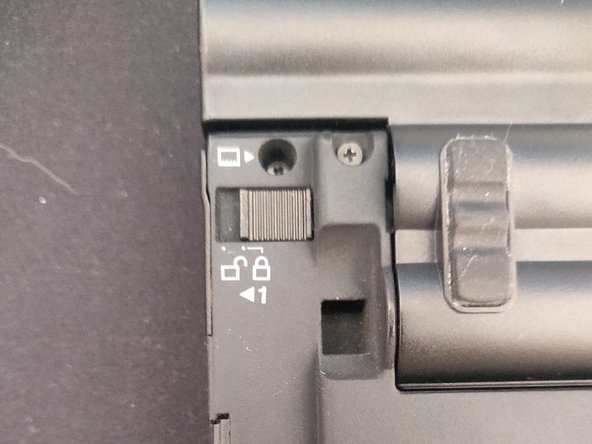
  5. Lenovo ThinkPad X61 Battery Replacement: step 5, image 1 of 2 Lenovo ThinkPad X61 Battery Replacement: step 5, image 2 of 2
    • Lock the first battery mechanism.

    Ask FixBot

    Add Comment

  6. Lenovo ThinkPad X61 Battery Replacement: step 6, image 1 of 1
    • New battery is now installed.

    Ask FixBot

    Add Comment

Finish Line

Cancel: I did not complete this guide.

One other person completed this guide.

Nacho Buendia

Member since: 10/23/20

160 Reputation

1 Guide authored

0 Guide Comments

Add Comment

View Statistics:

Past 24 Hours: 2

Past 7 Days: 5

Past 30 Days: 35

All Time: 615