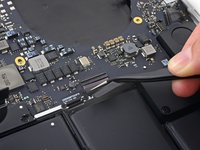
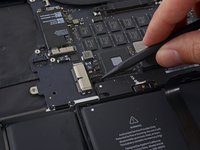
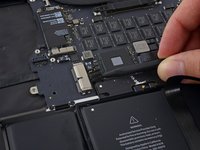
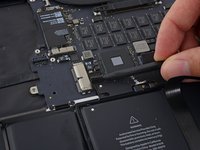
Free Shipping on Domestic Orders $75+

MacBook Pro 15" Retina Display Mid 2015 Upper Case Assembly Replacement

What you need

  1. MacBook Pro 15" Retina Display Mid 2015 Upper Case Assembly Replacement, Lower Case: step 1, image 1 of 1
    • Remove the following P5 pentalobe screws securing the lower case to the MacBook Pro:

    • Eight 3.1 mm

    • Two 2.3 mm

    Ask FixBot
  2. MacBook Pro 15" Retina Display Mid 2015 Upper Case Assembly Replacement: step 2, image 1 of 2 MacBook Pro 15" Retina Display Mid 2015 Upper Case Assembly Replacement: step 2, image 2 of 2
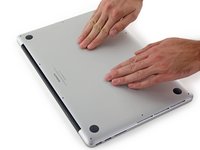
    • Lifting from the edge nearest the clutch cover, lift the lower case off the MacBook Pro.

    Ask FixBot
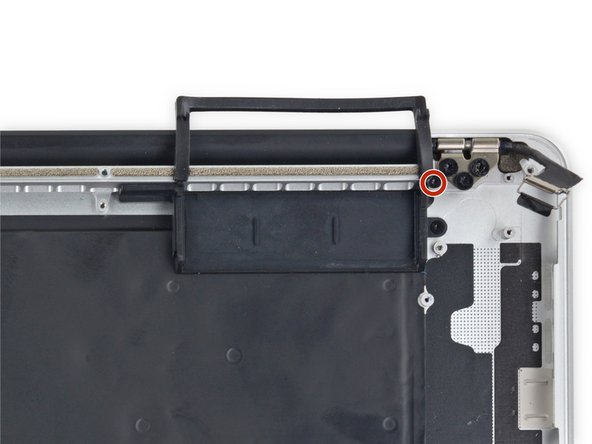
  3. MacBook Pro 15" Retina Display Mid 2015 Upper Case Assembly Replacement: step 3, image 1 of 3 MacBook Pro 15" Retina Display Mid 2015 Upper Case Assembly Replacement: step 3, image 2 of 3 MacBook Pro 15" Retina Display Mid 2015 Upper Case Assembly Replacement: step 3, image 3 of 3
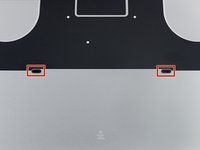
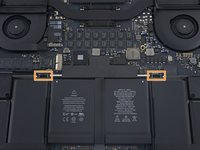
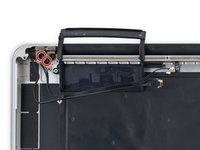
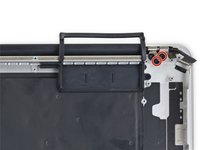
    • The lower case has two plastic pegs (red) that fit into plastic clips in the upper case (orange).

    • During reassembly, gently push down the center of the lower case to reattach the case to its two plastic clips.

    Ask FixBot
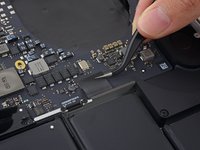
  4. MacBook Pro 15" Retina Display Mid 2015 Upper Case Assembly Replacement, Battery Connector: step 4, image 1 of 1
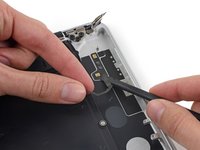
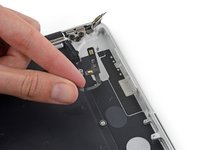
    • Peel back the sticker covering the battery connector.

    Ask FixBot
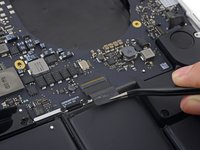
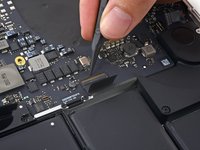
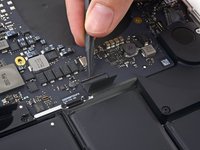
  5. MacBook Pro 15" Retina Display Mid 2015 Upper Case Assembly Replacement: step 5, image 1 of 3 MacBook Pro 15" Retina Display Mid 2015 Upper Case Assembly Replacement: step 5, image 2 of 3 MacBook Pro 15" Retina Display Mid 2015 Upper Case Assembly Replacement: step 5, image 3 of 3
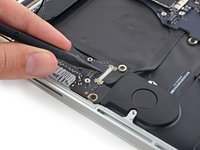
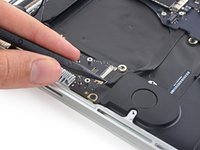
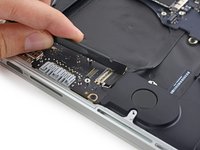
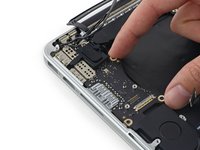
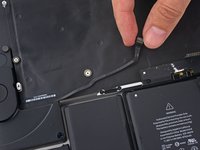
    • Gently lift each side of the battery connector to pry the connector out of its socket on the logic board.

    • Bend the connector back toward the battery, ensuring that the battery connector doesn't accidentally make contact with the logic board.

    Ask FixBot
  6. MacBook Pro 15" Retina Display Mid 2015 Upper Case Assembly Replacement, AirPort/Camera Cables: step 6, image 1 of 3 MacBook Pro 15" Retina Display Mid 2015 Upper Case Assembly Replacement, AirPort/Camera Cables: step 6, image 2 of 3 MacBook Pro 15" Retina Display Mid 2015 Upper Case Assembly Replacement, AirPort/Camera Cables: step 6, image 3 of 3
    Tool used on this step:
    Tweezers
    $4.99
    Buy
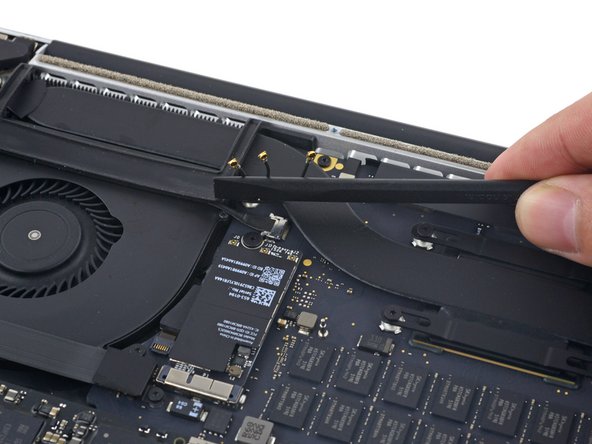
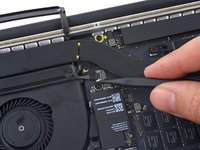
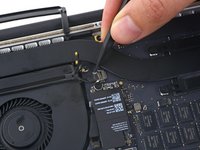
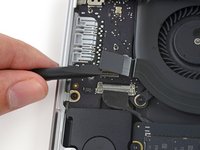
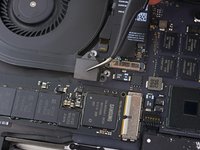
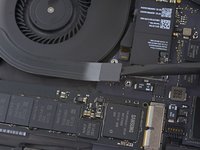
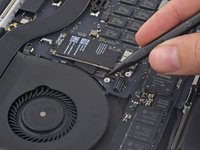
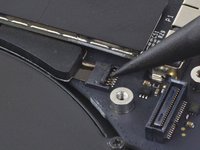
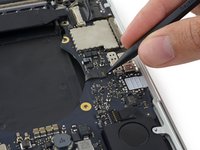
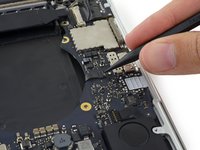
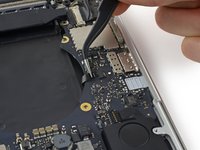
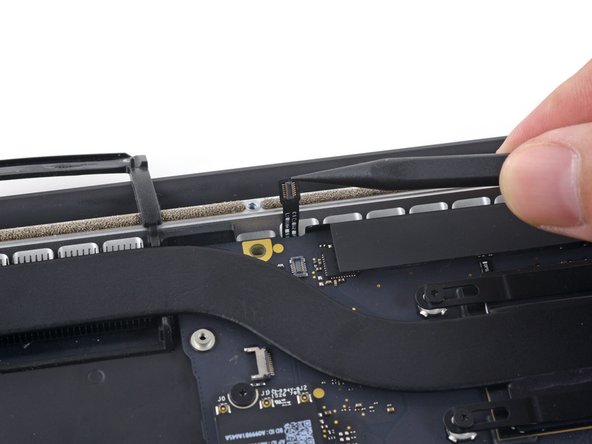
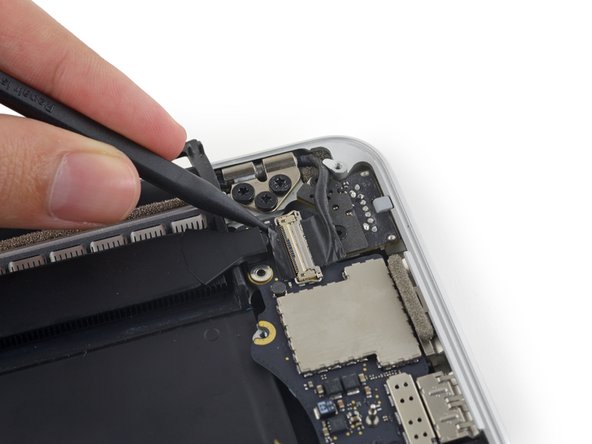
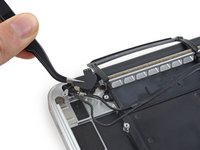
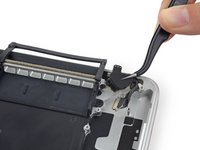
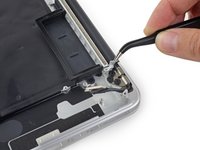
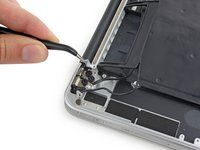
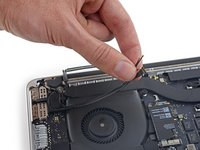
    • Use a spudger or tweezers to pry the three AirPort antenna cables straight up off of their sockets on the AirPort board, and bend them up and out of the way.

    • The cable connection points are very fragile. Be careful to lift only on the connector, and not on the socket or cable.

    • To reconnect, align the connector carefully into position over the socket, and press it down firmly with the flat of your spudger.

    Ask FixBot
  7. MacBook Pro 15" Retina Display Mid 2015 Upper Case Assembly Replacement: step 7, image 1 of 2 MacBook Pro 15" Retina Display Mid 2015 Upper Case Assembly Replacement: step 7, image 2 of 2
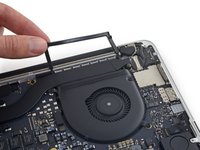
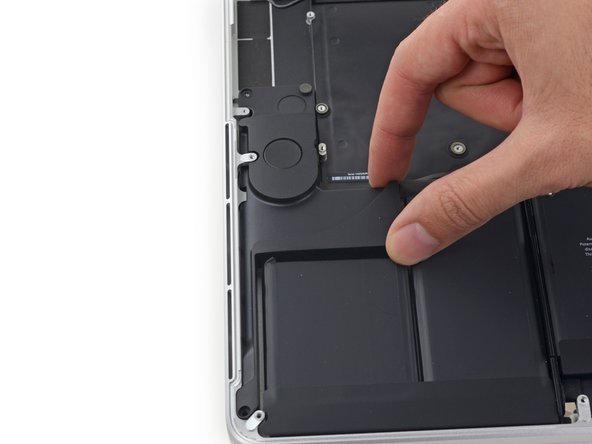
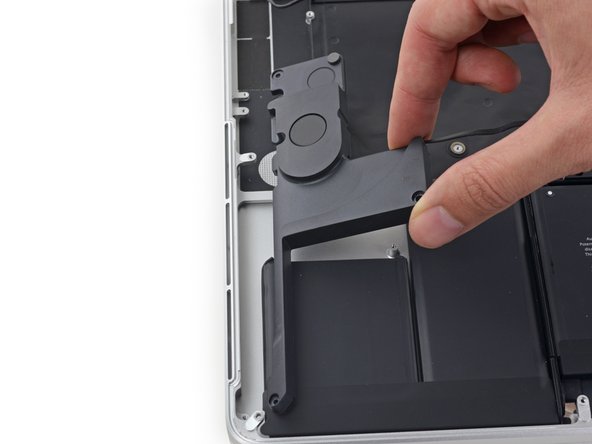
    • Peel the right rubber cover up off the fan and fold it out of the way.

    Ask FixBot
  8. MacBook Pro 15" Retina Display Mid 2015 Upper Case Assembly Replacement: step 8, image 1 of 2 MacBook Pro 15" Retina Display Mid 2015 Upper Case Assembly Replacement: step 8, image 2 of 2
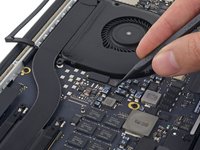
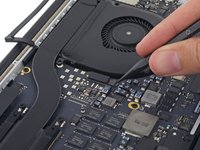
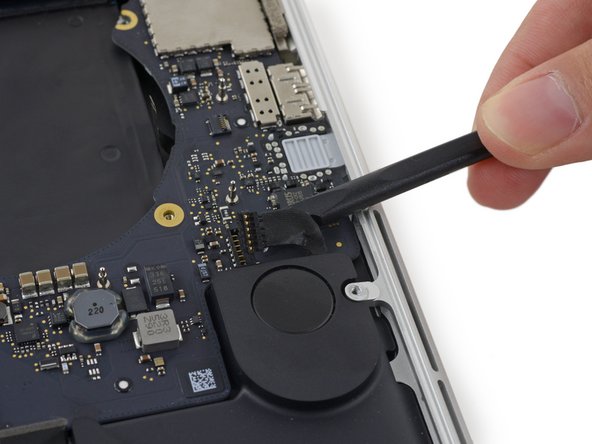
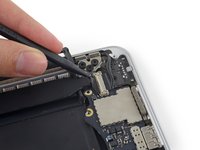
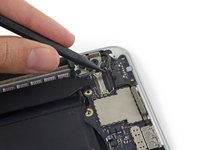
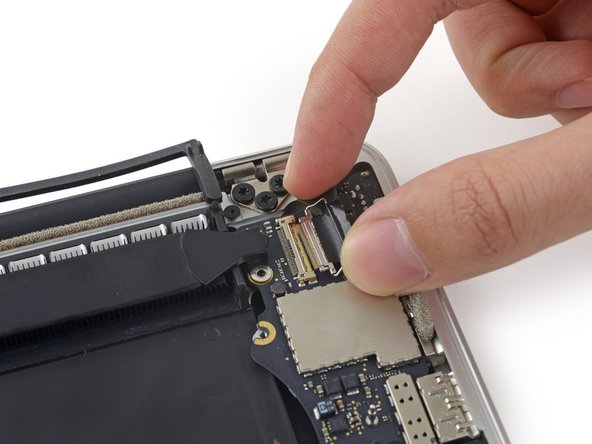
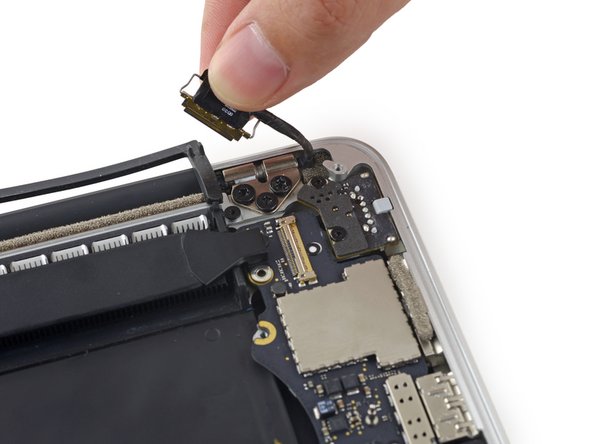
    • Use the tip of a spudger to push the camera cable connector out of its socket on the logic board.

    • Be sure to push parallel to the board, pushing first on one side, then the other to "walk" the connector out of its socket.

    Ask FixBot
  9. MacBook Pro 15" Retina Display Mid 2015 Upper Case Assembly Replacement: step 9, image 1 of 3 MacBook Pro 15" Retina Display Mid 2015 Upper Case Assembly Replacement: step 9, image 2 of 3 MacBook Pro 15" Retina Display Mid 2015 Upper Case Assembly Replacement: step 9, image 3 of 3
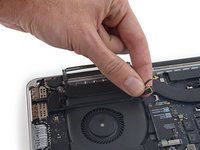
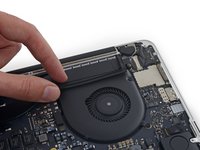
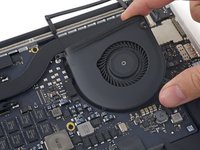
    • Use your fingers to pull the AirPort/Camera cables up off the fan.

    • The cables are adhered to the fan, so peel them up carefully to avoid damaging them.

    • Carefully de-route the cables from the plastic cable guide.

    • On reassembly, there should be enough adhesive still on these cables to stick them back down to the fan.

    Ask FixBot
  10. MacBook Pro 15" Retina Display Mid 2015 Upper Case Assembly Replacement, I/O Board Cable (Top): step 10, image 1 of 1
    • Remove the four 2.2 mm T5 Torx screws securing the I/O board cable connector covers.

    Ask FixBot
  11. MacBook Pro 15" Retina Display Mid 2015 Upper Case Assembly Replacement: step 11, image 1 of 2 MacBook Pro 15" Retina Display Mid 2015 Upper Case Assembly Replacement: step 11, image 2 of 2
    • Remove the left connector cover.

    • Use the flat end of a spudger to pry the left end of the I/O board cable up from its socket on the logic board.

    Ask FixBot
  12. MacBook Pro 15" Retina Display Mid 2015 Upper Case Assembly Replacement: step 12, image 1 of 2 MacBook Pro 15" Retina Display Mid 2015 Upper Case Assembly Replacement: step 12, image 2 of 2
    • Remove the right connector cover.

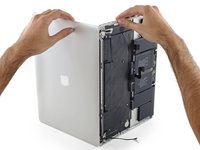
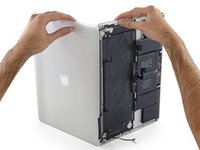
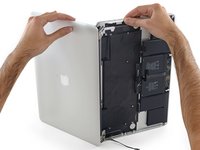
    • Use the flat end of a spudger to pry the right end of the I/O board cable up from its socket on the logic board.

    Ask FixBot
  13. MacBook Pro 15" Retina Display Mid 2015 Upper Case Assembly Replacement: step 13, image 1 of 1
    • Peel the I/O board cable up from the adhesive securing it to the fan.

    • Remove the cable.

    Ask FixBot
  14. MacBook Pro 15" Retina Display Mid 2015 Upper Case Assembly Replacement, Right Fan: step 14, image 1 of 1
    • Use a T5 Torx driver to remove the following three screws securing the right fan to the logic board:

    • One 5.0 mm screw with a 2.0 mm long shoulder

    • One 4.0 mm screw with a wide head

    • One 4.4 mm screw

    Ask FixBot
  15. MacBook Pro 15" Retina Display Mid 2015 Upper Case Assembly Replacement: step 15, image 1 of 3 MacBook Pro 15" Retina Display Mid 2015 Upper Case Assembly Replacement: step 15, image 2 of 3 MacBook Pro 15" Retina Display Mid 2015 Upper Case Assembly Replacement: step 15, image 3 of 3
    • Use the tip of a spudger to flip up the retaining flap on the right fan ribbon cable ZIF socket.

    • Be sure you are prying up on the hinged retaining flap, not the socket itself.

    Ask FixBot
  16. MacBook Pro 15" Retina Display Mid 2015 Upper Case Assembly Replacement: step 16, image 1 of 2 MacBook Pro 15" Retina Display Mid 2015 Upper Case Assembly Replacement: step 16, image 2 of 2
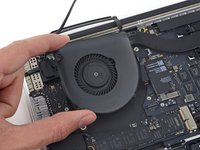
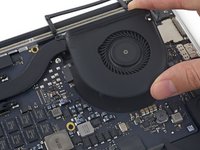
    • Lift the fan and push it gently towards the back edge of the MacBook to free the fan cable from its socket.

    • The fan cable may be adhered to the logic board—to avoid tearing the cable, gently peel it up while lifting the fan.

    • Remove the fan.

    Ask FixBot
  17. MacBook Pro 15" Retina Display Mid 2015 Upper Case Assembly Replacement, Left Fan: step 17, image 1 of 2 MacBook Pro 15" Retina Display Mid 2015 Upper Case Assembly Replacement, Left Fan: step 17, image 2 of 2
    • Peel the left rubber cover up off the fan and fold it out of the way.

    Ask FixBot
  18. MacBook Pro 15" Retina Display Mid 2015 Upper Case Assembly Replacement: step 18, image 1 of 1
    • Remove the following three screws securing the left fan to the logic board:

    • One 3.6 mm T5 Torx screw with a wide head

    • One 5.0 mm T5 Torx screw with a 2.0 mm long shoulder

    • One 4.4 mm T5 Torx screw

    Ask FixBot
  19. MacBook Pro 15" Retina Display Mid 2015 Upper Case Assembly Replacement: step 19, image 1 of 2 MacBook Pro 15" Retina Display Mid 2015 Upper Case Assembly Replacement: step 19, image 2 of 2
    • Use the tip of a spudger to flip up the retaining flap on the left fan ribbon cable ZIF socket.

    • Be sure you are prying up on the hinged retaining flap, not the socket itself.

    Ask FixBot
  20. MacBook Pro 15" Retina Display Mid 2015 Upper Case Assembly Replacement: step 20, image 1 of 2 MacBook Pro 15" Retina Display Mid 2015 Upper Case Assembly Replacement: step 20, image 2 of 2
    • Lift the fan and push it gently towards the back edge of the MacBook to free the fan cable from its socket.

    • The fan cable may be adhered to the logic board—to avoid tearing the cable, gently peel it up while lifting the fan.

    • Remove the fan.

    Ask FixBot
  21. MacBook Pro 15" Retina Display Mid 2015 Upper Case Assembly Replacement, SSD: step 21, image 1 of 1
    • Remove the single 2.9 mm T5 Torx screw securing the SSD to the logic board.

    Ask FixBot
  22. MacBook Pro 15" Retina Display Mid 2015 Upper Case Assembly Replacement: step 22, image 1 of 3 MacBook Pro 15" Retina Display Mid 2015 Upper Case Assembly Replacement: step 22, image 2 of 3 MacBook Pro 15" Retina Display Mid 2015 Upper Case Assembly Replacement: step 22, image 3 of 3
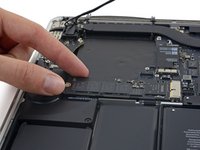
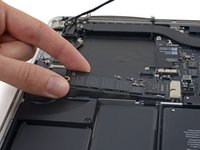
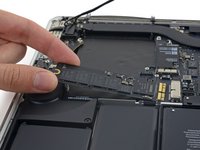
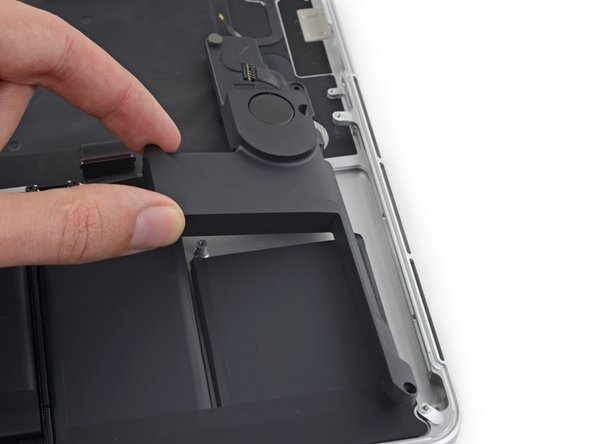
    • Lift the end of the SSD up enough to pass over the speaker directly behind it.

    • Do not lift the SSD too high, or you could damage the contacts or socket.

    • Pull the SSD straight out of its socket on the logic board.

    Ask FixBot
  23. MacBook Pro 15" Retina Display Mid 2015 Upper Case Assembly Replacement: step 23, image 1 of 3 MacBook Pro 15" Retina Display Mid 2015 Upper Case Assembly Replacement: step 23, image 2 of 3 MacBook Pro 15" Retina Display Mid 2015 Upper Case Assembly Replacement: step 23, image 3 of 3
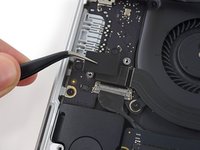
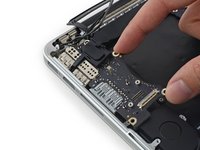
    • Use the point of a spudger to flip up the locking mechanism on the I/O board connector.

    • Flip the spudger around and use the flat end to slide the I/O cable out of the connector.

    • Push on the opened locking mechanism for an easy way to slide the I/O cable out of the connector. This could help prevent accidental damage to the cable or connector contacts.

    Ask FixBot
  24. MacBook Pro 15" Retina Display Mid 2015 Upper Case Assembly Replacement: step 24, image 1 of 1
    • Remove the two 3.1 mm T5 Torx screws from the I/O board.

    Ask FixBot
  25. MacBook Pro 15" Retina Display Mid 2015 Upper Case Assembly Replacement: step 25, image 1 of 2 MacBook Pro 15" Retina Display Mid 2015 Upper Case Assembly Replacement: step 25, image 2 of 2
    • Slightly lift the interior edge of the I/O board and pull it toward the center of the MacBook, away from the side of the case.

    • Remove the I/O board.

    Ask FixBot
  26. MacBook Pro 15" Retina Display Mid 2015 Upper Case Assembly Replacement, Logic Board Assembly: step 26, image 1 of 2 MacBook Pro 15" Retina Display Mid 2015 Upper Case Assembly Replacement, Logic Board Assembly: step 26, image 2 of 2
    • Remove the two 2.2 mm Torx T5 screws securing the touchpad cable connector cover to the logic board.

    • Remove the cover.

    Ask FixBot
  27. MacBook Pro 15" Retina Display Mid 2015 Upper Case Assembly Replacement: step 27, image 1 of 3 MacBook Pro 15" Retina Display Mid 2015 Upper Case Assembly Replacement: step 27, image 2 of 3 MacBook Pro 15" Retina Display Mid 2015 Upper Case Assembly Replacement: step 27, image 3 of 3
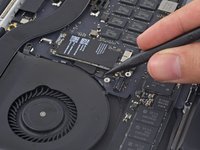
    • Use the flat end of a spudger to disconnect the touchpad cable connector from its socket in the logic board.

    • Slightly twisting the flat end of a spudger is an easy way to pry up the cable connector from these types of sockets.

    • Be careful to only pry up against the connector, and not the logic board socket.

    Ask FixBot
  28. MacBook Pro 15" Retina Display Mid 2015 Upper Case Assembly Replacement: step 28, image 1 of 1
    • Remove a small rubber cap off the screw at the end of the heat sink.

    Ask FixBot
  29. MacBook Pro 15" Retina Display Mid 2015 Upper Case Assembly Replacement: step 29, image 1 of 1
    • Remove the following six screws securing the logic board assembly to the upper case.

    • One 3.8 mm T5 Torx screw

    • Two 5.7 mm T5 Torx screws

    • One 5.6 mm T5 Torx screw (this one is silver and has a taller head than the others)

    • One 2.6 mm T5 Torx screw

    • One 3.2 mm T5 Torx screw

    • On reassembly, start all six screws but do not tighten any of them. Move the logic board around until all of the screws are centered in their holes and the ports are lined up with their openings in the side of the upper case. Then tighten all of the screws.

    Ask FixBot
  30. MacBook Pro 15" Retina Display Mid 2015 Upper Case Assembly Replacement: step 30, image 1 of 1
    • The following steps will detail disconnecting these six connectors. Be sure to read each step, as these connectors come in different styles that disconnect differently.

    • Microphone cable

    • Left speaker cable

    • Keyboard data cable

    • Right speaker cable

    • Keyboard backlight cable

    • Display data cable

    • On reassembly, check to make sure all of these connectors are connected and fully seated in their sockets.

    Ask FixBot
  31. MacBook Pro 15" Retina Display Mid 2015 Upper Case Assembly Replacement: step 31, image 1 of 3 MacBook Pro 15" Retina Display Mid 2015 Upper Case Assembly Replacement: step 31, image 2 of 3 MacBook Pro 15" Retina Display Mid 2015 Upper Case Assembly Replacement: step 31, image 3 of 3
    • Use the tip of a spudger to flip up the retaining flap on the microphone ribbon cable ZIF socket.

    • Pull the microphone ribbon cable out of its socket, parallel to the logic board.

    Ask FixBot
  32. MacBook Pro 15" Retina Display Mid 2015 Upper Case Assembly Replacement: step 32, image 1 of 3 MacBook Pro 15" Retina Display Mid 2015 Upper Case Assembly Replacement: step 32, image 2 of 3 MacBook Pro 15" Retina Display Mid 2015 Upper Case Assembly Replacement: step 32, image 3 of 3
    • Use the flat end of a spudger to pry the left speaker connector up and out of its socket on the logic board.

    • Be sure to pry on the cable connector and not on the socket on the logic board. Prying on the socket may cause it to separate from the logic board.

    • Gently fold the cable up and out of the way of the logic board.

    Ask FixBot
  33. MacBook Pro 15" Retina Display Mid 2015 Upper Case Assembly Replacement: step 33, image 1 of 2 MacBook Pro 15" Retina Display Mid 2015 Upper Case Assembly Replacement: step 33, image 2 of 2
    • Peel back the tape covering the top of the keyboard data cable connector.

    Ask FixBot
  34. MacBook Pro 15" Retina Display Mid 2015 Upper Case Assembly Replacement: step 34, image 1 of 3 MacBook Pro 15" Retina Display Mid 2015 Upper Case Assembly Replacement: step 34, image 2 of 3 MacBook Pro 15" Retina Display Mid 2015 Upper Case Assembly Replacement: step 34, image 3 of 3
    • Use the tip of a spudger to flip up the retaining flap on the keyboard data cable ZIF socket.

    • Be sure you are prying up on the hinged retaining flap, not the socket itself.

    • Pull the keyboard data cable out of its ZIF socket. Be sure to pull parallel to the logic board, and not straight up.

    Ask FixBot
  35. MacBook Pro 15" Retina Display Mid 2015 Upper Case Assembly Replacement: step 35, image 1 of 3 MacBook Pro 15" Retina Display Mid 2015 Upper Case Assembly Replacement: step 35, image 2 of 3 MacBook Pro 15" Retina Display Mid 2015 Upper Case Assembly Replacement: step 35, image 3 of 3
    • Use the tip of a spudger to pry the right speaker connector up and out of its socket on the logic board.

    • Be sure to pry on the cable connector and not on the socket on the logic board. Prying on the socket may cause it to separate from the logic board.

    • Gently fold the cable up and out of the way of the logic board.

    Ask FixBot
  36. MacBook Pro 15" Retina Display Mid 2015 Upper Case Assembly Replacement: step 36, image 1 of 2 MacBook Pro 15" Retina Display Mid 2015 Upper Case Assembly Replacement: step 36, image 2 of 2
    • Use the point of a spudger to pry the keyboard backlight connector up from its socket on the logic board.

    Ask FixBot
  37. MacBook Pro 15" Retina Display Mid 2015 Upper Case Assembly Replacement: step 37, image 1 of 2 MacBook Pro 15" Retina Display Mid 2015 Upper Case Assembly Replacement: step 37, image 2 of 2
    • Use the tip of a spudger to flip up the display data cable lock and rotate it toward the MagSafe 2 power port side of the computer.

    Ask FixBot
  38. MacBook Pro 15" Retina Display Mid 2015 Upper Case Assembly Replacement: step 38, image 1 of 3 MacBook Pro 15" Retina Display Mid 2015 Upper Case Assembly Replacement: step 38, image 2 of 3 MacBook Pro 15" Retina Display Mid 2015 Upper Case Assembly Replacement: step 38, image 3 of 3
    • Pull the display data cable straight out of its socket on the logic board.

    • Do not lift up on the display data cable, as its socket is very fragile. Pull the cable parallel to the face of the logic board.

    • Do not touch the contacts on the data connector or its socket with your fingers or any tools, as you may deposit oils or damage the pins.

    • Gently bend the display data cable toward the display hinge, to expose the screws on the MagSafe 2 board.

    Ask FixBot
  39. MacBook Pro 15" Retina Display Mid 2015 Upper Case Assembly Replacement: step 39, image 1 of 1
    • Remove the two 4.0 mm T5 Torx screws from the MagSafe 2 board.

    Ask FixBot
  40. MacBook Pro 15" Retina Display Mid 2015 Upper Case Assembly Replacement: step 40, image 1 of 3 MacBook Pro 15" Retina Display Mid 2015 Upper Case Assembly Replacement: step 40, image 2 of 3 MacBook Pro 15" Retina Display Mid 2015 Upper Case Assembly Replacement: step 40, image 3 of 3
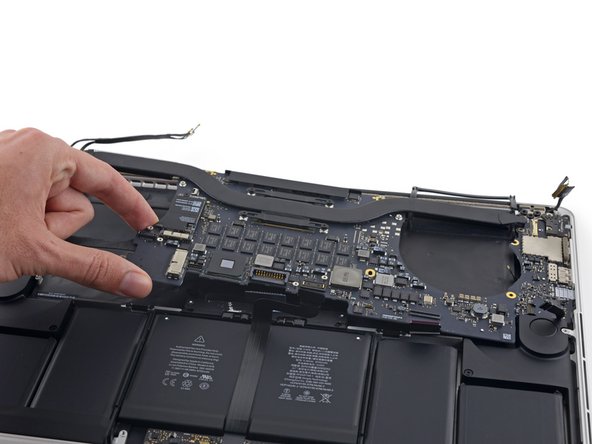
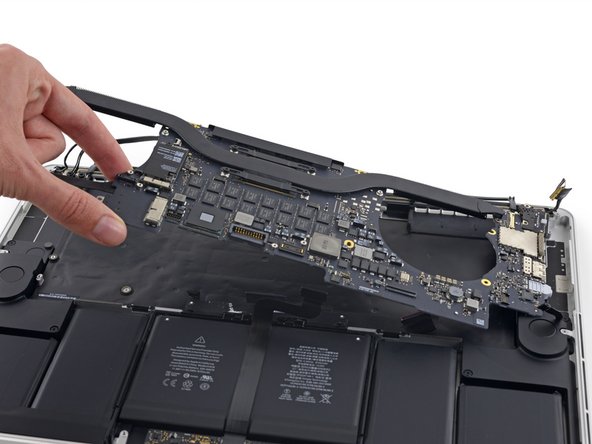
    • Lift and pull the entire logic board assembly away from the wall of the upper case.

    • When reassembling, be sure to line up the ports with their cutouts in the upper case.

    Ask FixBot
  41. MacBook Pro 15" Retina Display Mid 2015 Upper Case Assembly Replacement, Left Speaker: step 41, image 1 of 1
    • Remove the following screws securing the left speaker to the upper case:

    • 2.7 mm T5 Torx screw

    • 6.9 mm T5 Torx screw (with 4.5 mm shoulder)

    • 5.6 mm T5 Torx screw

    Ask FixBot
  42. MacBook Pro 15" Retina Display Mid 2015 Upper Case Assembly Replacement: step 42, image 1 of 2 MacBook Pro 15" Retina Display Mid 2015 Upper Case Assembly Replacement: step 42, image 2 of 2
    • Remove the left speaker by pulling it slightly away from the side of the upper case, and out from under the aluminum tab blocking it in.

    Ask FixBot
  43. MacBook Pro 15" Retina Display Mid 2015 Upper Case Assembly Replacement, Right Speaker: step 43, image 1 of 1
    • Remove the following screws securing the right speaker to the upper case:

    • 2.7 mm T5 Torx screw

    • 6.9 mm T5 Torx screw (with 4.5 mm shoulder)

    • 5.6 mm T5 Torx screw

    Ask FixBot
  44. MacBook Pro 15" Retina Display Mid 2015 Upper Case Assembly Replacement: step 44, image 1 of 2 MacBook Pro 15" Retina Display Mid 2015 Upper Case Assembly Replacement: step 44, image 2 of 2
    • The right speaker cable is lightly adhered to the upper case.

    • Peel the right speaker cable up to free it from the upper case.

    • On reassembly, tuck the cable up against the aluminum frame above the battery.

    Ask FixBot
  45. MacBook Pro 15" Retina Display Mid 2015 Upper Case Assembly Replacement: step 45, image 1 of 2 MacBook Pro 15" Retina Display Mid 2015 Upper Case Assembly Replacement: step 45, image 2 of 2
    • Remove the right speaker by pulling it slightly away from the side of the upper case, and out from under the aluminum tab blocking it in.

    Ask FixBot
  46. MacBook Pro 15" Retina Display Mid 2015 Upper Case Assembly Replacement, Microphones: step 46, image 1 of 3 MacBook Pro 15" Retina Display Mid 2015 Upper Case Assembly Replacement, Microphones: step 46, image 2 of 3 MacBook Pro 15" Retina Display Mid 2015 Upper Case Assembly Replacement, Microphones: step 46, image 3 of 3
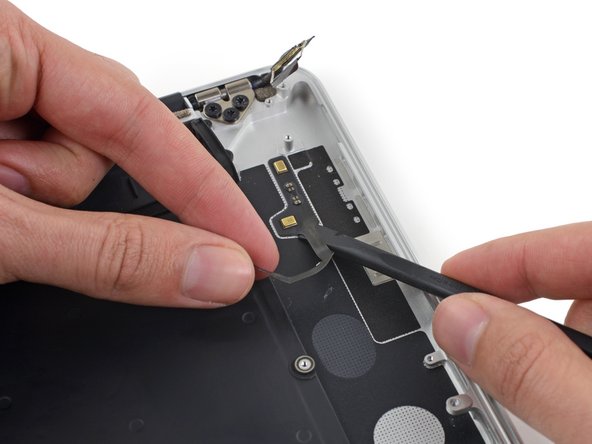
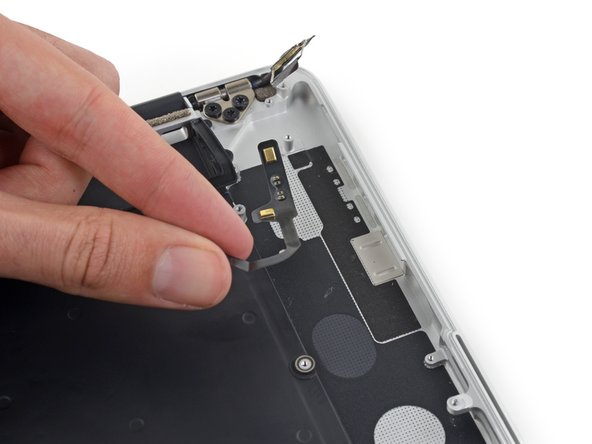
    • While gently pulling up on the microphone cable, push the flat end of a spudger underneath the cable, to cut the adhesive securing it to the upper case.

    • Remove the microphone cable.

    Ask FixBot
  47. MacBook Pro 15" Retina Display Mid 2015 Upper Case Assembly Replacement, Upper Case Assembly: step 47, image 1 of 2 MacBook Pro 15" Retina Display Mid 2015 Upper Case Assembly Replacement, Upper Case Assembly: step 47, image 2 of 2
    • Remove the two rubber hinge covers.

    Ask FixBot
  48. MacBook Pro 15" Retina Display Mid 2015 Upper Case Assembly Replacement: step 48, image 1 of 2 MacBook Pro 15" Retina Display Mid 2015 Upper Case Assembly Replacement: step 48, image 2 of 2
    • Remove the two 3.2 mm T5 Torx screws securing the aluminum hinge covers to the upper case.

    Ask FixBot
  49. MacBook Pro 15" Retina Display Mid 2015 Upper Case Assembly Replacement: step 49, image 1 of 3 MacBook Pro 15" Retina Display Mid 2015 Upper Case Assembly Replacement: step 49, image 2 of 3 MacBook Pro 15" Retina Display Mid 2015 Upper Case Assembly Replacement: step 49, image 3 of 3
    • Remove the two aluminum hinge covers from the MacBook Pro.

    Ask FixBot
  50. MacBook Pro 15" Retina Display Mid 2015 Upper Case Assembly Replacement: step 50, image 1 of 2 MacBook Pro 15" Retina Display Mid 2015 Upper Case Assembly Replacement: step 50, image 2 of 2
    • Remove four out of the six 5.3 mm T8 Torx screws securing the display to the upper case.

    • Leave the innermost screws (one from each hinge) in place.

    • When reassembling, be sure the two screws going back into the hinge on the left go back through the webcam/AirPort cable bracket.

    Ask FixBot
  51. MacBook Pro 15" Retina Display Mid 2015 Upper Case Assembly Replacement: step 51, image 1 of 1
    • Open the MacBook Pro approximately 110 degrees, and place it sideways on the table, as shown.

    Ask FixBot
  52. MacBook Pro 15" Retina Display Mid 2015 Upper Case Assembly Replacement: step 52, image 1 of 1
    • While holding the display and upper case together with your left hand, remove the remaining T8 Torx screw from the lower (closer to the table) display bracket.

    Ask FixBot
  53. MacBook Pro 15" Retina Display Mid 2015 Upper Case Assembly Replacement: step 53, image 1 of 1
    • Be sure to hold the display and upper case together with your left hand. Failure to do so may cause the freed display/upper case to fall, potentially damaging each component.

    • While holding the display and upper case together with your left hand, remove the remaining T8 Torx screw from the upper display bracket.

    Ask FixBot
  54. MacBook Pro 15" Retina Display Mid 2015 Upper Case Assembly Replacement: step 54, image 1 of 3 MacBook Pro 15" Retina Display Mid 2015 Upper Case Assembly Replacement: step 54, image 2 of 3 MacBook Pro 15" Retina Display Mid 2015 Upper Case Assembly Replacement: step 54, image 3 of 3
    • Grip both halves of the device, one in each hand.

    • Gently push forward on the bottom half of the device to detach it from the display assembly.

    • Carefully set each component aside, making sure to set down the bottom half keyboard-side down to avoid damaging internal components.

    Ask FixBot
Conclusion

To reassemble your device, follow these instructions in reverse order.

41 other people completed this guide.

Andrew Optimus Goldheart

Member since: 10/17/09

514,949 Reputation

407 Guides authored

Team

iFixit Member of iFixit

Staff

123 Members

25,802 Guides authored

3 Guide Comments

Excellent instructions with great photos. After damaging my keyboard with coca-cola, I didnt know should I get a new keyboard or complete upper case. I went ahead and got complete case. This tutorial was very handy, better than any youtube video. Took me 5 hours to do it and now I am typing using the new keyboard. Thanks a lot.

Sam - Reply Share
Nicely done. Warnings much appreciated!

Richard Tayrien - Reply Share
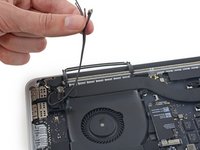
This guide was an absolute lifesaver! My older MacBook Pro suffered a cracked screen, rendering it practically unusable. A couple of weeks ago, I stumbled upon a discarded, broken MacBook from the same year with an intact Retina display. Thanks to this iFixit guide, I was able to breathe new life into it. Combined with the incredible work of the OpenCore Legacy Patcher team, I'm now happily running Mac OS Sequoia on my mid-2015 MacBook Pro in 2024. This guide made a complex repair accessible, and I'm incredibly grateful to the iFixit community for sharing their expertise.

David Babb - Reply Share

Add Comment

View Statistics:

Past 24 Hours: 5

Past 7 Days: 30

Past 30 Days: 194

All Time: 52,313