Shop the Holiday Gift Guide
Free Shipping on Domestic Orders $75+

MacBook Pro 15" Core Duo Model A1150 Hard Drive Cable Replacement

Views: 23K

View statistics:

Past 24 Hours:
2
Past 7 Days:
23
Past 30 Days:
88
All Time:
23,044
Comments: 31

31 comments on steps.

Completed: 13

13 people have marked this guide "completed." Will you be next?

Favorites: 3

3 people have favorited (and subscribed to) this guide. Will you be next?

Time Required: No estimate
Difficulty: Moderate
MacBook Pro 15" Core Duo Model A1150 Hard Drive Cable Replacement

Introduction

Go to step 1 ↓

This connects the hard drive to the logic board.

What you need

Parts

Tools

    1. MacBook Pro 15" Core Duo Model A1150 Hard Drive Cable Replacement, Battery: step 1, image 1 of 1
      • Use your fingers to push both battery release tabs away from the battery, and lift the battery out of the computer.

      Ask FixBot

      Add Comment

    1. MacBook Pro 15" Core Duo Model A1150 Hard Drive Cable Replacement, Memory Door: step 2, image 1 of 1
      • Remove the three identical Phillips screws from the memory door.

      • Make sure to record which sets of screws came from where. This will help when re-assembling.

      Ask FixBot

      Add Comment

    2. MacBook Pro 15" Core Duo Model A1150 Hard Drive Cable Replacement: step 3, image 1 of 1
      • Lift the memory door up enough to get a grip on it, and slide it toward you, pulling it away from the casing.

      Ask FixBot

      Add Comment

    1. MacBook Pro 15" Core Duo Model A1150 Hard Drive Cable Replacement, Upper Case: step 4, image 1 of 1
      • Remove the two Phillips screws in the battery compartment near the latch.

      Ask FixBot

      Add Comment

    2. MacBook Pro 15" Core Duo Model A1150 Hard Drive Cable Replacement: step 5, image 1 of 1
      • Remove the following 6 screws:

      • Two 10 mm T6 Torx screws on either side of the RAM slot.

      • Four 14.5 mm Phillips screws along the hinge.

      Ask FixBot

      Add Comment

    3. MacBook Pro 15" Core Duo Model A1150 Hard Drive Cable Replacement: step 6, image 1 of 1
      • Remove the four Phillips screws on the port side of the computer.

      Ask FixBot

      Add Comment

    4. MacBook Pro 15" Core Duo Model A1150 Hard Drive Cable Replacement: step 7, image 1 of 1
      • Rotate the computer 90 degrees and remove the two Phillips screws from the rear of the computer.

      Ask FixBot

      Add Comment

    5. MacBook Pro 15" Core Duo Model A1150 Hard Drive Cable Replacement: step 8, image 1 of 1
      • Rotate the computer 90 degrees again and remove the four Phillips screws from the side of the computer.

      Ask FixBot

      Add Comment

    6. MacBook Pro 15" Core Duo Model A1150 Hard Drive Cable Replacement: step 9, image 1 of 1
      • Do not yank the upper case off quickly. The case is attached to the logic board via a ribbon cable.

      • Lift up at the rear of the case and work your fingers along the sides, freeing the case as you go. Once you have freed the sides, you may need to rock the case up and down to free the front of the upper case. This stage can be quite tricky. Over the DVD reader are 4 tabs set back which pull out vertically.

      • Note that the two small tongues on the left hand front of the upper case may bend while you remove the upper case. When re-installing, you may need to bend them back to fit in the grooves in the lower case.

      Ask FixBot

      Add Comment

    7. MacBook Pro 15" Core Duo Model A1150 Hard Drive Cable Replacement: step 10, image 1 of 1
      • Disconnect the trackpad and keyboard ribbon cable from the logic board, removing tape as necessary.

      • Remove the upper case.

      Ask FixBot

      Add Comment

    1. MacBook Pro 15" Core Duo Model A1150 Hard Drive Cable Replacement, Hard Drive Cable: step 11, image 1 of 1
      • Lift the Bluetooth board out of its slot next to the hard drive and use a spudger to disconnect the Bluetooth antenna cable.

      Ask FixBot

      Add Comment

    2. MacBook Pro 15" Core Duo Model A1150 Hard Drive Cable Replacement: step 12, image 1 of 1
      • Disconnect the sleep light and IR sensor cable from the orange hard drive ribbon cable.

      Ask FixBot

      Add Comment

    3. MacBook Pro 15" Core Duo Model A1150 Hard Drive Cable Replacement: step 13, image 1 of 1
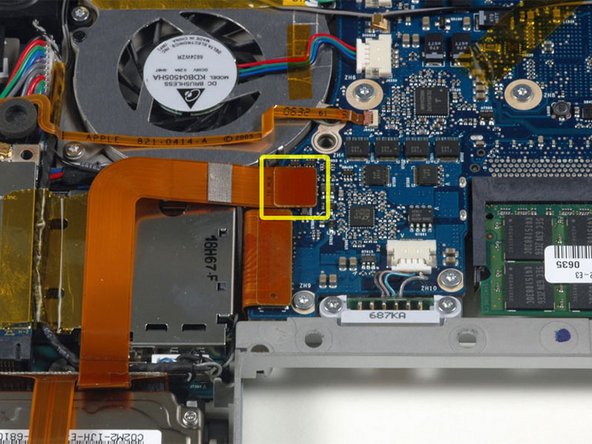
      • Disconnect the orange hard drive ribbon cable from the logic board.

      Ask FixBot

      Add Comment

    4. MacBook Pro 15" Core Duo Model A1150 Hard Drive Cable Replacement: step 14, image 1 of 1
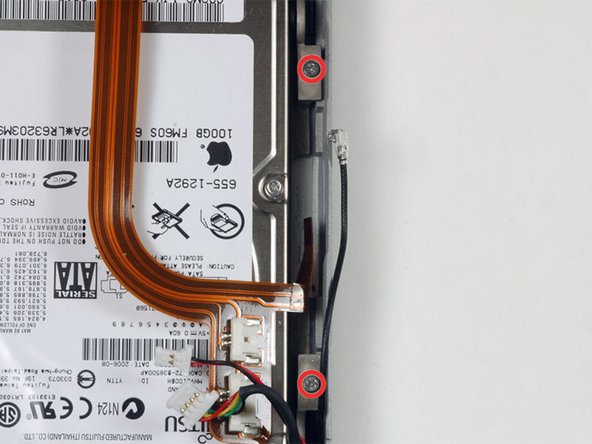
      • Remove the two silver Phillips screws securing the hard drive retaining bracket to the lower case.

      Ask FixBot

      Add Comment

    5. MacBook Pro 15" Core Duo Model A1150 Hard Drive Cable Replacement: step 15, image 1 of 1
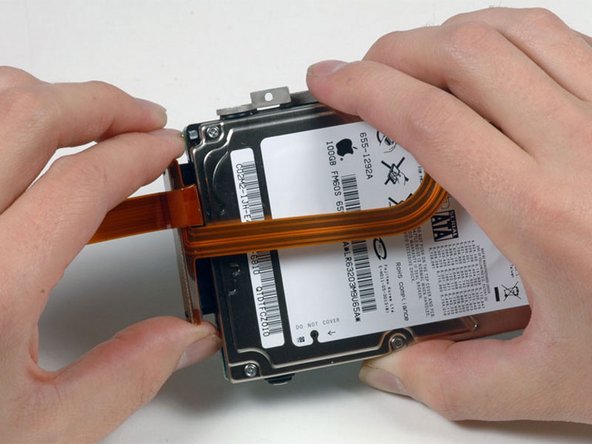
      • Lift the hard drive out of the computer and disconnect the orange ribbon cable from the drive.

      Ask FixBot

      Add Comment

Conclusion

To reassemble your device, follow these instructions in reverse order.

Cancel: I did not complete this guide.

13 other people completed this guide.

Author

with

iRobot

Member since: 09/24/09

1 Reputation

632 Guides authored

0 Guide Comments

Add Comment

View Statistics:

Past 24 Hours: 2

Past 7 Days: 23

Past 30 Days: 88

All Time: 23,044