Free Shipping on Domestic Orders $75+

MacBook Pro 13" Function Keys 2017 Screen Assembly Replacement

Archived Guide
This guide is retained solely for historical purposes. Use the updated version of the guide to perform your repair.

What you need

  1. MacBook Pro 13" Function Keys 2017 Screen Assembly Replacement, Screen Assembly: step 1, image 1 of 1
    • The screen assembly arrived encased in foam, bubble wrap and styrophome.

  2. MacBook Pro 13" Function Keys 2017 Screen Assembly Replacement: step 2, image 1 of 1
    • You will need Pentalobe sizes P2 (0.8mm) and P5 (1.2mm) and Torx T3, T4 and T8 bits.

  3. MacBook Pro 13" Function Keys 2017 Screen Assembly Replacement: step 3, image 1 of 3 MacBook Pro 13" Function Keys 2017 Screen Assembly Replacement: step 3, image 2 of 3 MacBook Pro 13" Function Keys 2017 Screen Assembly Replacement: step 3, image 3 of 3
    • First remove the 4 corner screws. Next remove the two longer center screws and keep them separate. Finally remove the two center screws, which are the shortest. Keep in mind the different lengths when reassembling the MacBook

  4. MacBook Pro 13" Function Keys 2017 Screen Assembly Replacement: step 4, image 1 of 1
    • Use a suction cup to remove the rear cover. This may take slightly more force but is safer than using a splugger around the edges.

  5. MacBook Pro 13" Function Keys 2017 Screen Assembly Replacement: step 5, image 1 of 1
    • View of the internals after rear cover removed.

  6. MacBook Pro 13" Function Keys 2017 Screen Assembly Replacement: step 6, image 1 of 2 MacBook Pro 13" Function Keys 2017 Screen Assembly Replacement: step 6, image 2 of 2
    • Next, use a Torx T3 to remove the 2 screws from each hinge cap cover.

  7. MacBook Pro 13" Function Keys 2017 Screen Assembly Replacement: step 7, image 1 of 2 MacBook Pro 13" Function Keys 2017 Screen Assembly Replacement: step 7, image 2 of 2
    • Disconnect the battery before proceeding.

    • Use a Pentalobe P5 to remove the hinge cap screws. Pry the hinge caps off. .

    • Use a T8 bit to remove the hinge screws.

  8. MacBook Pro 13" Function Keys 2017 Screen Assembly Replacement: step 8, image 1 of 3 MacBook Pro 13" Function Keys 2017 Screen Assembly Replacement: step 8, image 2 of 3 MacBook Pro 13" Function Keys 2017 Screen Assembly Replacement: step 8, image 3 of 3
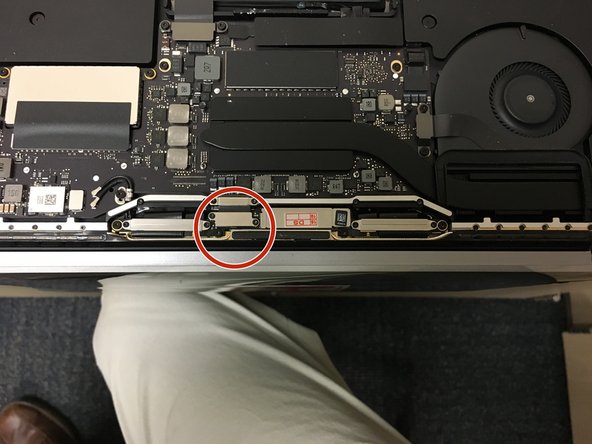
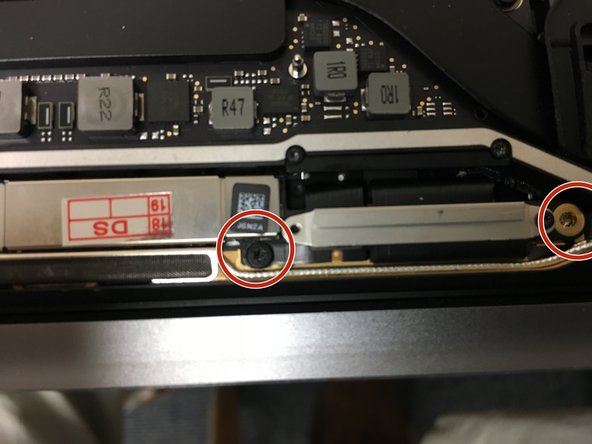
    • Remove the video cable cover. Use a plastic splugger to disconnect video cable.

  9. MacBook Pro 13" Function Keys 2017 Screen Assembly Replacement: step 9, image 1 of 3 MacBook Pro 13" Function Keys 2017 Screen Assembly Replacement: step 9, image 2 of 3 MacBook Pro 13" Function Keys 2017 Screen Assembly Replacement: step 9, image 3 of 3
    • Use a Pentalobe P2 to remove the screws along on both sides.

  10. MacBook Pro 13" Function Keys 2017 Screen Assembly Replacement: step 10, image 1 of 3 MacBook Pro 13" Function Keys 2017 Screen Assembly Replacement: step 10, image 2 of 3 MacBook Pro 13" Function Keys 2017 Screen Assembly Replacement: step 10, image 3 of 3
    • Use a Torx 5 to remove the two screws highlighted. The screw nearest the centre is shorter. Repeat for opposite side .

  11. MacBook Pro 13" Function Keys 2017 Screen Assembly Replacement: step 11, image 1 of 3 MacBook Pro 13" Function Keys 2017 Screen Assembly Replacement: step 11, image 2 of 3 MacBook Pro 13" Function Keys 2017 Screen Assembly Replacement: step 11, image 3 of 3
    • Remove the two cables underneath. They have small hinges that need to be disconnected.

  12. MacBook Pro 13" Function Keys 2017 Screen Assembly Replacement: step 12, image 1 of 2 MacBook Pro 13" Function Keys 2017 Screen Assembly Replacement: step 12, image 2 of 2
    • Time to wiggle all the cables out from under the vent bar we detached (the one with all the tiny screws).

    • Once this is done you can remove the screen assembly from the bottom kit.

  13. MacBook Pro 13" Function Keys 2017 Screen Assembly Replacement: step 13, image 1 of 1
    • And there it is. Not too bad. Total repair time for me was about 10-15 minutes. But then I have a hard time with the tiny screws.

    • Just reverse the steps and you should be good to go.

Conclusion

To reassemble your device, follow these instructions in reverse order.

bwatts

Member since: 10/04/13

2,268 Reputation

2 Guides authored

Team

Cheney USD 268 Member of Cheney USD 268

Business

1 Member

2 Guides authored

0 Guide Comments

Add Comment

View Statistics:

Past 24 Hours: 0

Past 7 Days: 8

Past 30 Days: 19

All Time: 368