Free Shipping on Domestic Orders $75+

MacBook Neo Battery Removal

Prerequisite Only
This is a prerequisite-only guide! This guide is part of another procedure and isn’t meant to be used alone.

What you need

    1. MacBook Neo Battery Removal, Disconnect the headphone jack and left speaker: step 1, image 1 of 3 MacBook Neo Battery Removal, Disconnect the headphone jack and left speaker: step 1, image 2 of 3 MacBook Neo Battery Removal, Disconnect the headphone jack and left speaker: step 1, image 3 of 3
      • Insert the point of a spudger beneath the headphone jack connector, located on the right side of the logic board directly above the battery, and pry it straight up to disconnect it.

      • Repeat to disconnect the left speaker connector, adjacent to the headphone jack connector.

      Ask FixBot

      Add Comment

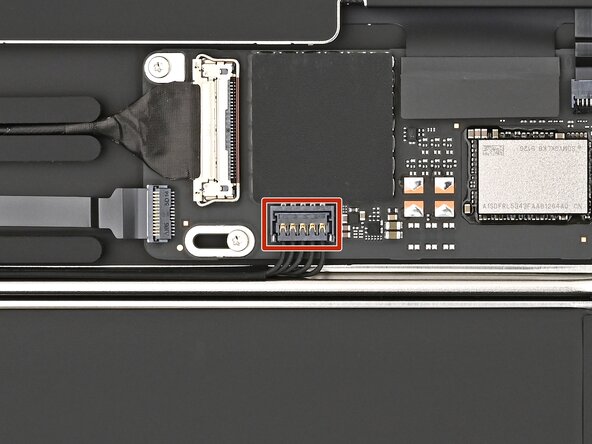
    2. MacBook Neo Battery Removal, Disconnect the right speaker: step 2, image 1 of 3 MacBook Neo Battery Removal, Disconnect the right speaker: step 2, image 2 of 3 MacBook Neo Battery Removal, Disconnect the right speaker: step 2, image 3 of 3
      • Disconnect the right speaker connector, located on the opposite end of the logic board.

      • To reconnect, align the connector over its socket and gently press down with your fingertip or the flat end of a spudger until it sits flush.

      Ask FixBot

      Add Comment

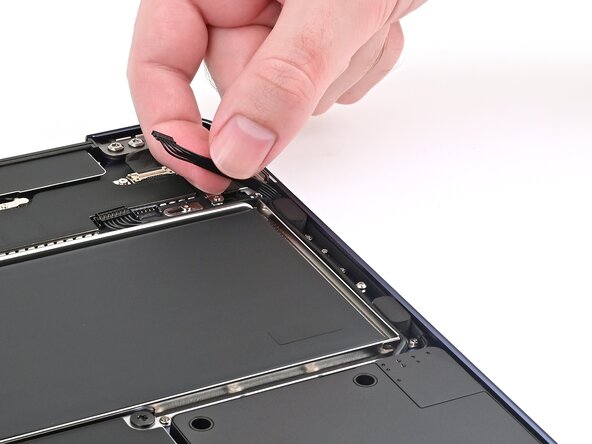
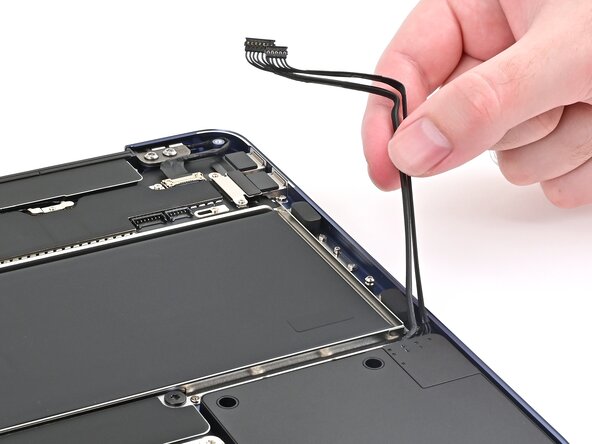
    3. MacBook Neo Battery Removal, Free the right speaker cable: step 3, image 1 of 3 MacBook Neo Battery Removal, Free the right speaker cable: step 3, image 2 of 3 MacBook Neo Battery Removal, Free the right speaker cable: step 3, image 3 of 3
      • Gently lift the right speaker cable out of its channel around the battery.

      Ask FixBot

      Add Comment

    4. MacBook Neo Battery Removal, Free the left speaker cable: step 4, image 1 of 3 MacBook Neo Battery Removal, Free the left speaker cable: step 4, image 2 of 3 MacBook Neo Battery Removal, Free the left speaker cable: step 4, image 3 of 3
      • Repeat this procedure to free the left speaker cable.

      Ask FixBot

      Add Comment

    5. MacBook Neo Battery Removal, Free the headphone jack cable: step 5, image 1 of 3 MacBook Neo Battery Removal, Free the headphone jack cable: step 5, image 2 of 3 MacBook Neo Battery Removal, Free the headphone jack cable: step 5, image 3 of 3
      • The headphone jack cable is secured to the battery with adhesive.

      • Gently peel up the headphone jack cable and lift it out of its channel around the battery.

      Ask FixBot

      Add Comment

    6. MacBook Neo Battery Removal, Remove the battery screws: step 6, image 1 of 1
      • Ensure the cables freed from around the battery are out of the way of the screws securing it.

      • Use a Torx Plus 5IP driver to remove the eighteen 2.8 mm‑long screws securing the battery.

      • Don't remove the four tall screws marked in yellow.

      • During reassembly, install the screws on the top‑left and bottom‑right corners of the battery first to align it. Then, install the remaining screws.

      Ask FixBot

      Add Comment

    7. MacBook Neo Battery Removal, Lift the battery: step 7, image 1 of 2 MacBook Neo Battery Removal, Lift the battery: step 7, image 2 of 2
      • Insert the flat end of a spudger beneath the battery's left edge and lift it until you can grab it with your fingers.

      Ask FixBot

      Add Comment

    8. MacBook Neo Battery Removal, Remove the battery: step 8, image 1 of 3 MacBook Neo Battery Removal, Remove the battery: step 8, image 2 of 3 MacBook Neo Battery Removal, Remove the battery: step 8, image 3 of 3
      • Be careful not to pinch the cables near the bottom edge of the battery.

      • Tilt the battery upwards to a roughly 45‑degree angle and remove it.

      • During reassembly, insert the bottom edge of the battery first. Lower the top edge, then wiggle it into place so the standoff screws in the frame slot through their holes on the battery.

      Ask FixBot

      Add Comment

Finish Line

Cancel: I did not complete this guide.

Nick Schultz

Member since: 03/24/24

65,500 Reputation

343 Guides authored

0 Guide Comments

Add Comment

View Statistics:

Past 24 Hours: 0

Past 7 Days: 3

Past 30 Days: 11

All Time: 151