
MacBook Pro 17" Models A1151 A1212 A1229 and A1261 RAM Replacement

iRobot and 6 other contributors
Last updated on Mar 28, 2018
Views: 64K
View statistics:
- Past 24 Hours:
- 7
- Past 7 Days:
- 37
- Past 30 Days:
- 143
- All Time:
- 63,792
Comments: 10
8 comments on steps, 2 guide comments.
Go to guide commentsCompleted: 113 114
113 people have marked this guide "completed." Will you be next?
114 people have marked this guide "completed." Including you — great job!
Favorites: 18 19
18 people have favorited (and subscribed to) this guide. Will you be next?
19 people have favorited (and subscribed to) this guide — including you!
Featured Guide
This guide has been found to be exceptionally cool by the iFixit staff.
Introduction
Go to step 1 ↓Two RAM slots allow up to 2 GB of PC2-5300 RAM.
What you need
Fix Kits
These kits contain all the parts and tools needed to complete this guide.


Parts


Tools

-
-
-
Use your fingers to push both battery release tabs away from the battery and lift the battery out of the computer.
 Ask FixBot
-
-
-
-
-
Remove the four identical Phillips 3.4 mm screws from the memory door. These screws have 4 mm diameter heads rather than the 3 mm heads on the body screws.
-
-
-
Lift the memory door up enough to get a grip on it, and slide it toward you, pulling it away from the casing.
-
-
-
-
-
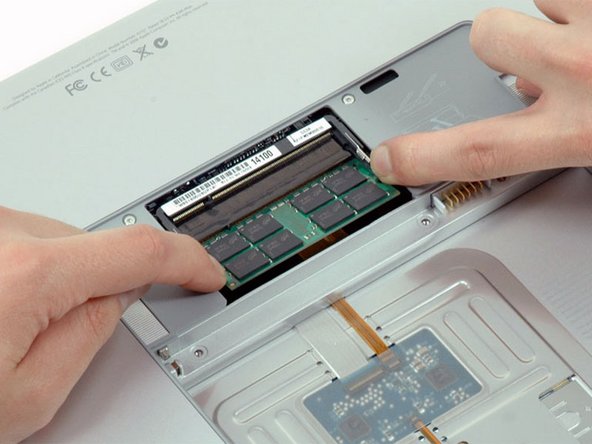
Release the tabs on each side of the RAM chip at the same time. These tabs lock the chip in place and releasing them will cause the chip to "pop" up.
-
-
-
-
Pull the chip directly out from its connector.
-
If there are two RAM chips installed, repeat the above procedure for the second chip.
-
-



To reassemble your device, follow these instructions in reverse order.
Cancel: I did not complete this guide.
113 other people completed this guide.

2 Guide Comments
My 1261 came w/2 of the 2gig sticks and If I understand things I'read here, I buy a 4 gig stick and replace one of the already installed 2 gig sticks and the machine will see and use 6. Is this about it?
Jim in Chicago
Yes Jim, that is it.
