Free Shipping on Domestic Orders $75+

Mac mini Late 2014 PCIe SSD Cable Replacement

What you need

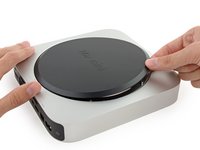
  1. Mac mini Late 2014 PCIe SSD Cable Replacement, Bottom Cover: step 1, image 1 of 1
    • The bottom cover is clipped onto three screw posts.

    • Pry near, but not right on the screw posts.

    Ask FixBot

    Add Comment

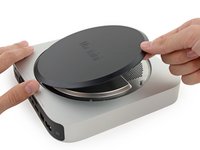
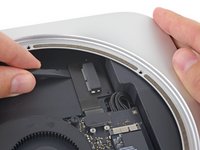
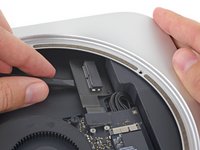
  2. Mac mini Late 2014 PCIe SSD Cable Replacement: step 2, image 1 of 3 Mac mini Late 2014 PCIe SSD Cable Replacement: step 2, image 2 of 3 Mac mini Late 2014 PCIe SSD Cable Replacement: step 2, image 3 of 3
    • Use the plastic opening tool to pry the bottom cover up off of the Mac mini.

    Ask FixBot

    Add Comment

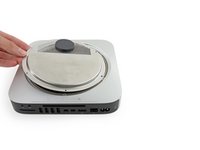
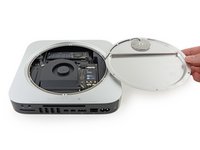
  3. Mac mini Late 2014 PCIe SSD Cable Replacement: step 3, image 1 of 2 Mac mini Late 2014 PCIe SSD Cable Replacement: step 3, image 2 of 2
    • Lift and remove the bottom cover.

    Ask FixBot

    Add Comment

  4. Mac mini Late 2014 PCIe SSD Cable Replacement, Antenna Plate: step 4, image 1 of 1
    • Remove the following TR6 screws from the antenna plate:

    • Three 4.1 mm screws

    • Three 1.9 mm screws

    Ask FixBot

    Add Comment

  5. Mac mini Late 2014 PCIe SSD Cable Replacement: step 5, image 1 of 2 Mac mini Late 2014 PCIe SSD Cable Replacement: step 5, image 2 of 2
    • Do not completely remove the antenna plate; it is still connected to the Mac mini by an antenna cable.

    • With the I/O ports facing you, flip the antenna plate to the right to allow access to the antenna cable connector.

    Ask FixBot

    Add Comment

  6. Mac mini Late 2014 PCIe SSD Cable Replacement: step 6, image 1 of 1
    • Remove the single 3.4 mm T6 screw and washer from the antenna cable.

    • Be careful not to lose the washer when removing the screw.

    Ask FixBot

    Add Comment

  7. Mac mini Late 2014 PCIe SSD Cable Replacement: step 7, image 1 of 2 Mac mini Late 2014 PCIe SSD Cable Replacement: step 7, image 2 of 2
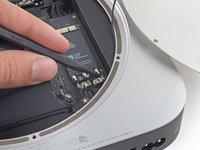
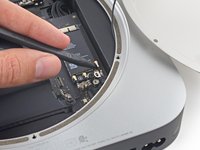
    • Use the point of a spudger to lift the antenna connector straight up off its socket on the airport card.

    Ask FixBot

    Add Comment

  8. Mac mini Late 2014 PCIe SSD Cable Replacement: step 8, image 1 of 2 Mac mini Late 2014 PCIe SSD Cable Replacement: step 8, image 2 of 2
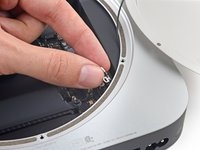
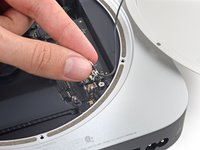
    • Carefully pull the antenna cable out from the gap between the power supply and case.

    Ask FixBot

    Add Comment

  9. Mac mini Late 2014 PCIe SSD Cable Replacement: step 9, image 1 of 1
    • Remove the antenna plate from the Mac mini.

    Ask FixBot

    Add Comment

  10. Mac mini Late 2014 PCIe SSD Cable Replacement, SSD: step 10, image 1 of 1
    • Remove the 5 mm T5 screw securing the SSD.

    Ask FixBot

    Add Comment

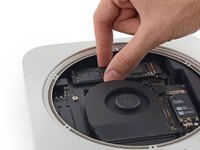
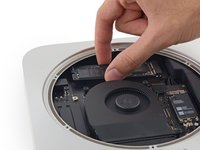
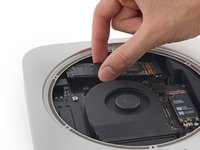
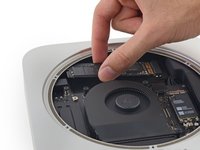
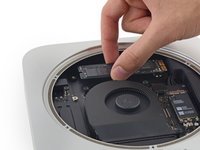
  11. Mac mini Late 2014 PCIe SSD Cable Replacement: step 11, image 1 of 3 Mac mini Late 2014 PCIe SSD Cable Replacement: step 11, image 2 of 3 Mac mini Late 2014 PCIe SSD Cable Replacement: step 11, image 3 of 3
    • Lift the free end of the SSD up slightly and pull it out of its socket.

    Ask FixBot

    Add Comment

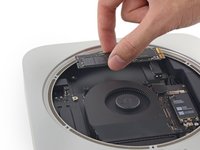
  12. Mac mini Late 2014 PCIe SSD Cable Replacement: step 12, image 1 of 3 Mac mini Late 2014 PCIe SSD Cable Replacement: step 12, image 2 of 3 Mac mini Late 2014 PCIe SSD Cable Replacement: step 12, image 3 of 3
    • Carefully lift the SSD out of the case without scratching or touching the gold contacts.

    Ask FixBot

    Add Comment

  13. Mac mini Late 2014 PCIe SSD Cable Replacement, PCIe SSD Cable: step 13, image 1 of 1
    • Remove the two 2.6 mm T6 screws securing the PCIe SSD cable bracket.

    Ask FixBot

    Add Comment

  14. Mac mini Late 2014 PCIe SSD Cable Replacement: step 14, image 1 of 2 Mac mini Late 2014 PCIe SSD Cable Replacement: step 14, image 2 of 2
    • Remove the PCIe SSD cable bracket.

    Ask FixBot

    Add Comment

  15. Mac mini Late 2014 PCIe SSD Cable Replacement: step 15, image 1 of 2 Mac mini Late 2014 PCIe SSD Cable Replacement: step 15, image 2 of 2
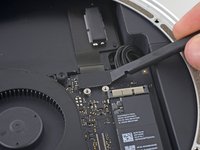
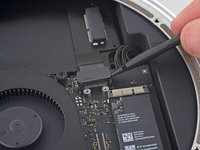
    • Use the flat end of a spudger to lift the PCIe SSD connector straight up off of its connector on the logic board.

    • Be careful not to pry up on the socket itself.

    Ask FixBot

    Add Comment

  16. Mac mini Late 2014 PCIe SSD Cable Replacement: step 16, image 1 of 2 Mac mini Late 2014 PCIe SSD Cable Replacement: step 16, image 2 of 2
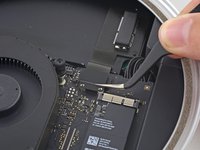
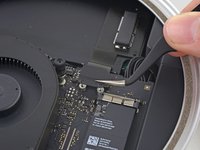
    • Slip the flat end of a spudger under the SSD cable to lift it off the adhesive holding it to the Mac mini.

    Ask FixBot

    Add Comment

  17. Mac mini Late 2014 PCIe SSD Cable Replacement: step 17, image 1 of 1
    • Remove the PCIe SSD cable from the Mac mini.

    Ask FixBot

    Add Comment

Conclusion

To reassemble your device, follow these instructions in reverse order.

Cancel: I did not complete this guide.

29 other people completed this guide.

Sam Goldheart

Member since: 10/18/12

477,627 Reputation

538 Guides authored

Team

iFixit Member of iFixit

Staff

122 Members

26,665 Guides authored

8 Guide Comments

Where i can buy the PCIe SSD card?

melvin suarez - Reply Share
Where i can buy the PCIe SSD card, someone?

Claudio Vargas - Reply Share
I can supply these cables. Please reply to this thread.

Thomas Hall - Reply Share

I found the ssd kit on eBay for $69ish. However, it doesn't include the ssd. Is it mPCI-e or is it an M.2 module?

Angelo - Reply Share

The SSD is neither, I believe. It is the same as the SSDs in the 2014 and up MacBook Pros. Pin format is 12+16

Daniel Abdulla - Reply Share

Add Comment

View Statistics:

Past 24 Hours: 3

Past 7 Days: 42

Past 30 Days: 193

All Time: 65,240