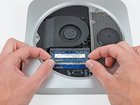
Mac mini Late 2012 RAM Replacement

Andrew Optimus Goldheart and 6 other contributors
Last updated on Jun 27, 2018
Views: 152K
View statistics:
- Past 24 Hours:
- 8
- Past 7 Days:
- 65
- Past 30 Days:
- 284
- All Time:
- 152,463
Comments: 28
21 comments on steps, 7 guide comments.
Go to guide commentsCompleted: 186 187
186 people have marked this guide "completed." Will you be next?
187 people have marked this guide "completed." Including you — great job!
Favorites: 75 76
75 people have favorited (and subscribed to) this guide. Will you be next?
76 people have favorited (and subscribed to) this guide — including you!
Featured Guide
This guide has been found to be exceptionally cool by the iFixit staff.
Introduction
Go to step 1 ↓Removing the RAM is an easy task that requires no tools.
What you need
Fix Kit
This kit contains all the parts and tools needed to complete this guide.

Parts
-
PC3-12800 2 GB RAM Chip$25.99
-
-


-
-
-
Place your thumbs in the depressions cut into the bottom cover.
-
Rotate the bottom cover counter-clockwise until the white dot painted on the bottom cover is aligned with the ring inscribed on the outer case.
 Ask FixBot
-
-
-
Tilt the mini enough to allow the bottom cover to fall away from the outer case.
-
Remove the bottom cover and set it aside.
-
-
-
-
-
-
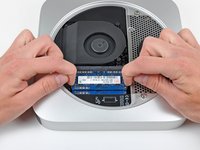
Release the tabs on each side of the RAM chip by simultaneously pushing each tab away from the chip.
-
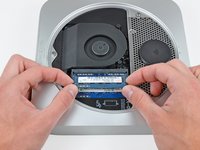
After the RAM chip has popped up, pull it straight out of its socket.
-
-


To reassemble your device, follow these instructions in reverse order.
Cancel: I did not complete this guide.
186 other people completed this guide.


7 Guide Comments
Dear everyone,
Does this mac mini accept :
KINGSTON DDR3 PC3-12800 - 2 x 4 Go (8 Go) 1600 MHZ - CAS 10 - HyperX Fury Black Series
Thank you.
I always consult Crucial's memory configuration tool. For a late-2012 Mac mini, see http://www.crucial.com/usa/en/compatible....
According to them, this Mac can go up to 16GB (2 SO-DIMMs of 8GB each). The SO-DIMMs should be DDRL3L-1600 (DDR3L PC3L-12800, CL=11, unbuffered, non-ECC, DDR3L-1600, 1.35v)
The SO-DIMMs you mentioned seem like they should be compatible (CL=10 should work fine in a computer that can accept CL=11). But I would only buy from a vendor that has a compatibility guarantee. If there's a problem, I would want to be able to return them for a refund.
The SODIMMs don't need to be low voltage DDR3L (i.e. 1.35 volt). In fact Apple recommends (https://support.apple.com/en-gb/HT202593) regular 1.5 volt DDR3 and most late 2012 Mac Minis were shipped with it. So is Crucial wrong? The truth is that either will work.
