
Mac Pro 2009-2012 CPU Replacement

Branning Goody and 4 other contributors
Last updated on Jun 18, 2023
Views: 11K
View statistics:
- Past 24 Hours:
- 4
- Past 7 Days:
- 42
- Past 30 Days:
- 225
- All Time:
- 11,340
Comments: 5
2 comments on steps, 3 guide comments.
Go to guide commentsCompleted: 4 5
4 people have marked this guide "completed." Will you be next?
5 people have marked this guide "completed." Including you — great job!
Favorites: 0 1
No one has favorited (and subscribed to) this guide. Will you be the first?
1 person has favorited (and subscribed to) this guide — and that's you!
Community-Contributed Guide
An awesome member of our community made this guide. It was not created by iFixit staff.
What you need
Parts

Tools
-
-
-
Find the 2 pull tabs and use them to pull out the CPU tray and place them on the table.
-
Pull Straight up as there is a vital connection built into the heatsink.
-
On the bottom of the heatsink will be a copper pad that comes in contact with the CPU. Use a paper towel to wipe off all the remaining thermal paste, isopropyl Alcohol is handy for this.
 Ask FixBot
-
-
-
Clean all of the thermal paste on the CPU and lift the metal bar up and pull the bracket back.
-
Gently pull out the old CPU with thumb and pointer finger and then place it towards the side.
-
-
-
-
Inspect the cpu socket and other connectors for dust and debris and blow away if necessary.
-
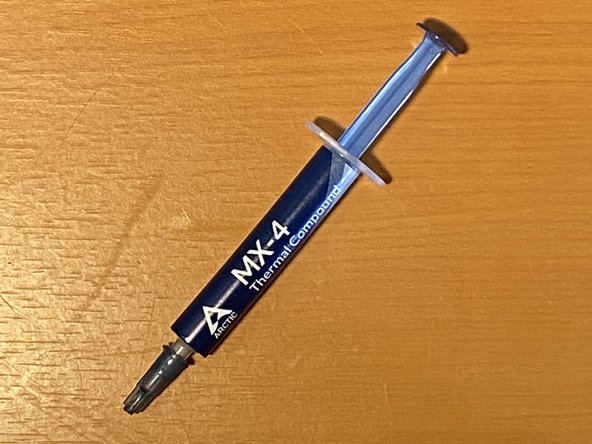
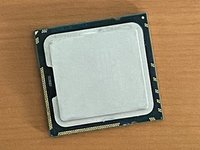
Place the new cpu in with a touch of thermal paste at the top.
-
-




To reassemble your device, follow these instructions in reverse order.
Cancel: I did not complete this guide.
4 other people completed this guide.

3 Guide Comments
This process shows a single CPU MacPro, which gets a Xeon processor WITH the LID covering it and heatsink on it. As of MacPro4,1 with Nehalem it's bi-xeon CPU and heatsink on a bare processor chip, no lid covers. That difference cannot be seen from a built MacPro board (because of the big heatsinks-) But it's a good performance improvement (CPU temp the lower the faster) when heatsink's directly in contact with the chip.
https://superuser.com/questions/923678/d...
If you can buy a Xeon upgrade just be sure to choose the processor without the lid (most Apple Mac setups) or with the lid cover (as PC setups)
Your guide has been very useful. Best compliments. I'll follow you 4ever!
Glad to here!
Thanks for the positive feedback! @goodyb Good job!
