Mac Mini Mid 2011 Hard Drive Replacement
Replace your Mac Mini's Mid 2011 hard drive for more storage space.
- Author: Walter Galan
- Difficulty: Moderate
Use this guide to completely replace your mini's hard drive.
Sections
- Bottom Cover 2 steps
- Fan 3 steps
- Cowling 2 steps
- Antenna Plate 4 steps
- Hard Drive 6 steps
- Hard Drive Cable 1 step
- Hard Drive 2 steps
Tools
Edit Step 8 — Antenna Plate 
-
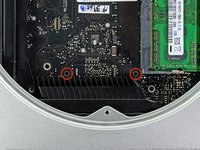
Remove the following screws securing the antenna plate to the mini:
-
Two 6.6 mm T8 Torx screws
-
Two 5.0 mm T8 Torx or 2.0 mm Hex screws (either screwdriver will work)
-
-
When putting back together:
-
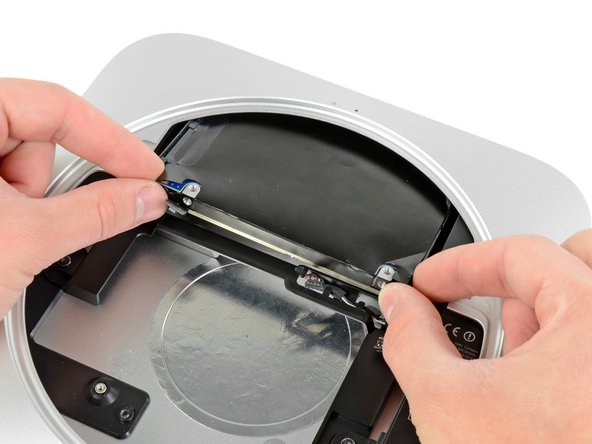
It can be difficult to get the hard drive seated correctly such that the antenna plate fits in place correctly. If the screw holes don't line up with those on the hard drive, make sure that the two pins that are in the back of the hard drive are properly seated in the holes at the back of the case, above the housing for the second hard drive.
-
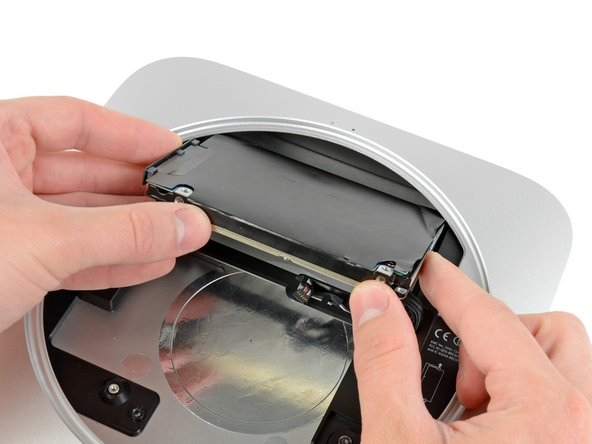
The antenna attaches directly to the hard drive (red markers), therefore attaching the antenna can move the hard drive around and loosen the connection of the hard drive cable to the logic board.
Edit Step 15 
-
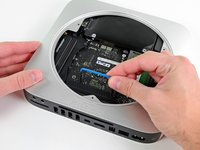
To remove the logic board, the two cylindrical rods of the Mac Mini Logic Board Removal Tool must be inserted into the holes highlighted in red. Inserting instruments into any logic board holes other than the ones highlighted in red may destroy the logic board.
-
Insert the Mac Mini Logic Board Removal Tool into the two holes highlighted in red. Be sure it makes contact with the top side of outer case below the logic board before proceeding.
-
Carefully pull the tool toward the I/O board. The logic board and I/O board assembly should slightly slide out of the outer case.
-
Cease prying when the I/O board is visibly separated from the outer case.
-
Remove the Mac Mini Logic Board Removal tool.
Edit Step 16 
-
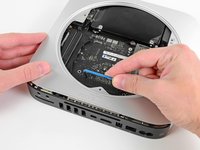
Simultaneously push the two plastic clips on the far left and right sides of the I/O board toward the middle of the I/O board and pull the I/O board away from the outer case.
-
Only pull the logic board assembly out of the outer case until the edge of the I/O board is about .5" away from the edge of the aluminum outer case.
Edit Step 20 
-
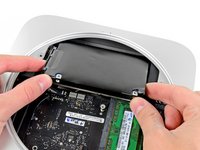
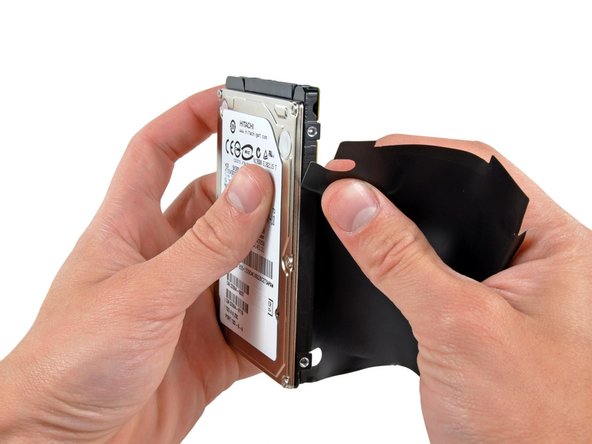
Carefully peel the hard drive cover off the hard drive.
-
Hard drive remains.
-
If you are installing a new hard drive, we have an OS X install guide to get you up and running.
Comments Comments are onturn off
That's right, steps 10-11 and 13-16 are not necessary.
It suffices to rotate the antenna plate out of the way without detaching its cable.
And after disconnecting the hard drive you can wiggle it out of the enclosure
without dealing with the logic board. Muc less hassle, and much less intimidating.
Very useful guide. Keep up the good work ! I have replaced the hard drive on my Mac Mini mid-2011 with a Vertex 3 SSD, and to my surprise I did not have to mess with the logic board (step 13 onwards) to slide-in the new drive. So it took me less than 20 minutes to do the whole thing. After that, recovering the whole system from Time Machine was a breeze.
If you have a Mac Mini with two hard drives, you need to add a few steps from the dual hard drive kit...
As others have said, it is possible to remove the HDD without moving the logic board. And the antenna board can also just be rotated out of the way.
However, I found it impossible to reseat the new drive (a Crucial m4 SSD) into the correct location without moving the logic board out a little anyway. I just couldn't get the bumper screws lined up in the top slot. This is on a mini i5 with a single HD (now SSD). In the end I got it done, but this step was much more difficult than I expected. Perhaps it is easier when there are dual drives?
I also initially caused the SSD connector to disconnect from the logic board when tightening the Antenna screws back up (step 8). So take care and do this slowly and check everything is aligned!
Do i need T8 with security bit or the simple T8 will work ?
Just replaced my disk and it was much easier than this guide:
1, 2 open the cover
3 it's three screws, not 2
4 to 9 all ok, specially step 5 where the cable is to pull *up* vertically not horizontally
10, 11 unnecessary, just pull the antena to the side
12 ok take the disk connector out
13-16 not needed
17 the disc, even a 9.5mm high, fits in and out without disassembling anything else
18 unnecessary, just unglue the sides of the disk and jump to 20 to unplug the cable and cover all together
19 are the screws that balance the disk inside the cage, don't forget them (I did and had to remove the new disk again, proving myself that it fits)
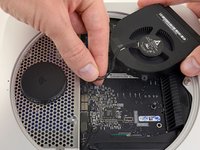
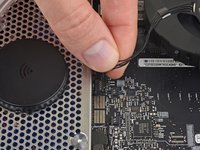
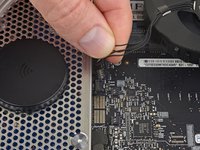
Be very careful with that IR connector, it will tear right off the board. Hold down the outside while prying out the inner part. Also, make note of where the rubber grommets are as you remove the fan, so you can replace them. The instructions do not make note of them.
websites140, · Reply
I accidentally broke the little things that hold the cover to the case. Is there a cheap replacement to the cover? Those clips are held onto it very weakly.
Remove a third screw at the opposite end of the fan near the DRAM
The fan has in fact, 3 screws that need to be removed before you can lift it out.
The 3rd screw needed a T5, for me.
You actually don't need to disconnect the fan. You can just let it hang on the side while working. I accidentally killed my connector trying to pry it loose. It's being held together now by some tape, after spending hours trying to reconnect it and figuring out pin outs.
Be careful to LIFT UP on the fan connector cable. Using a spudger tool helps here. I mistakenly thought that the connector would slide off the logic board and tried to remove the connector this way. I ended up lifting the connector off of the logic board, thus ruining my logic board and requiring a $350 logic board replacement at the genius bar. The second time I did a HD/SSD replacement, everything worked fine.
wattmagner, · Reply
That's probably the must tricky part of the replacement. I did the same thing, i just pull on my cables and the connector stays on the board. Tried many times to switch cables into but any order i try is not the good one.
The avoid this, now, when i want to pull out my fan, i just use a plate screwdriver and lift up the connector. That's work perfectly.
I've just pulled out the connector that's soldered to the logic board because I used a pry tool. Be careful at this point to just pull gently on the four cables that go to the fan.
in Step 6 — Cowling ; " Remove the single 3.5 mm T6 Torx screw securing the cowling to the heat sink", does it mean that it is the same T6 Torx screw for the cowling and the heat sink ?
In fact at the end, I mess this T6 Torx screw !
Uhh I can't get this to go back in? Not sure what is going on...
David Inman, · Reply
When reassembling this aerial plate, it may take a very strong force to align the side lips with the screw bays. The circular edge on the body is meant to slot into the plate by less than 1mm. I followed the rule of thumb, which is, if it takes an unusual force, stop and think it out to avoid a disaster! Then, I hit on using a paper clip to get around this problem. Make a paper clip L-shaped to loop through a hole close to the edge of the plate, where the slotting is not deep enough. Gently lifting the paper clip, slide and push the aerial plate in place. This worked like a charm without using a strong force.
My only real problem in the whole process was putting back the antenna plate. Couldn't get both side screws to align. Ended up leaving one out but might try the paper clip trick now
andrewarwas, · Reply
I had a similar experience, but when I realized the two 5.0mm T8 Torx screws were 2 of a set of 3 that also served to hold the cover on, I wasn't comfortable with only securing the cover with 2.
DO NOT BRUTE FORCE the reinstallation of the plate. In my case, the top lip of the antenna plate has a notch which aligns with the edge of the opening was preventing the perfect fit. All I did in my case was use the spudger to pry open the notch a little more to give me a little bit extra space so that edge of the aluminum enclosure fits into that notch on the top of the antenna plate. Hope that helps. :)
I was installing an SSD in my mini and when I got to this step, an issue came up. The two 6.6mm screws on the antenna plate screw into one side of, and secure, the hard drive. The problem was the SSD was thinner than the original hard drive, so when I tried to reassemble, the hard drive sat too low for the screws to reach it.
Here's how I got around the problem. I loosely attached the antenna plate to the hard drive, leaving plenty of wiggle room between the plate and the drive. I also left the two stand off screws on the logic board off to give me more wiggle room there.
With the SSD attached to the antenna plate, I carefully connected and stowed the Bluetooth cable. Using the antenna plate as a handle, I was able to guide the SSD into the hard drive mount. Once in place, I tightened the 6.6mm screws more, which raised the SSD to the proper level.
After insuring that the screws all lined up, I installed and tightened the logic board, then the other antenna plate screws.
yourgenius, · Reply
The "engineering tolerances" are definitely tight for the AirPort antenna plate. I would recommend trying to replace it as soon as it's removed for the first time, in order to work out the (precise) alignment of it.
Nothing I tried (including the suggestions here) seemed to help me during reassembly. No matter what I tried, I couldn't get the holes for the two 5.0mm T8 screws to line up. Eventually, I had to resort to CAREFULLY and SLIGHTLY re-bending the curved edge of the antenna plate.
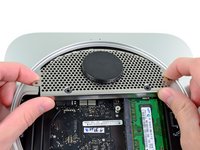
REATTACHING grate - al dente's trick helped me.
The tiny perforations on the grate rest ON TOP of the lip of the case, while the remainder of the grate slides UNDER the lip. It is very hard to see - I used a magnifying glass.
To get it into place, create a tiny hook on the end of a paperclip. Moving along the edge of the grate, lift a perforation with the hook to help it slip into place. Keep moving along the edge until entire grate is shifted into place.
Chris 1000, · Reply
I had several 2-terminal connectors that went to what appeared to be temperature sensors on several components including the hard disk and optical drive. I accidentally pulled the wires out of one of these connectors. Lucky for me, they came out clean and I was able to just re-insert them into the connector
Kyle Jurick, · Reply
As everyone else has noted during re-assembly, seating the antenna plate is tricky. For me, what ended up working was to attach the hard drive screws first. After this, with just a little wiggling of the plate, the 2 5mm screw holes lined up perfectly.
Aligning the drive holes with the ones on the antenna grate was easy – just take the pointy end of the spudger. Also, for getting the circular part of the grate set correctly, I had to bend down the outermost part a tiny little bit and then used curved tweezers to lift the grate once it was near its final position to get it slide in the last millimeter. Frustrating at first, but it worked after a few tries.
I skipped steps 10 and 11 but had to do the rest to get the drive out. My system had a second drive so that may be why the logic board had to be removed to have enough room to get the drive out past the DIMM sockets.
On the Late 2012 model the antenna connector is hidden under the case, so unlike as indicated in step 10 you can not see the connector and definitely not remove it until the Logic Board has been eased out an inch. Note how the cable makes a loop under the case as it is removed. Remember to reconnect the same way with the loop and connected before the logic board is pushed in all the way.
The antenna connector is underneath a black flap. I just lifted the flap slightly with a spudger and used my fingers to disconnect.
If your machine came with a 7mm drive and you are replacing with a 7mm drive you do not need to move the logic board. I installed an Intel 335 240GB drive which is a 9.5mm drive and to get that drive in I did need to bump the logic board out to clear the memory slot brackets. I did not need to remote any other wires or connections as the logic board only needs to move maybe an 1/8" to get the drive to clear the memory bracket.
There's no real need to disconnect the antenna. You can just lay the grill gently on its side and leave it connected.
That is true if you do not need to remove the logic board (i.e. you are only replacing the drive in the original slot position).
You can leave the antenna plate attached and remove the logic board if you're careful while removing the motherboard.
Dan Wilson, · Reply
I did not remove the IR sensor. I attempted to and it was very difficult, (I felt like I was going to snap or damage the logic board). I would advise skipping this part since it's not necessary to removal of the hard drive, and it seems like a number of people have damaged their logic board while trying to disconnect the IR sensor. Skip.
That third screw on the lower right hand side should be removed in the beginning when you remove the fan.
The 26 mm T6 Torx standoff is actually part of the the third fan screw which was removed earlier in order to get the fan out.
You may not find it necessary to push out the logic board in order to slide in (or out) the hard drive. It helps to have the extra room to maneuver, but it can be done without.
I had read all the comments thet said the HDD can be taken out at step 12, besides I'm in France, so I hadn't bought the special tool. when I realised I had to remove the logic board after all, I managed without the tool but I'm not doing it again. I inserted 2 screwdrivers in the holes and tried to move them both simultaneously. It worked but instead of sliding out slowly, the I/O board came out all the way with a noise! The clips from step 16 had unclipped by themselves, causing the noise. For a second I thought I had broken everything. I really don't recomment doing this without the tool.
Instead of the removal tool it is also possible to use two metal pins with 2,5mm diameter.
Martin Born, · Reply
Be careful when replacing the HD/SSD in this step. If you are not careful, you can mess up the rubber shock absorbers by misaligning the posts. If that happens, you will have a hard time getting the screws to line up when putting the perforated grille back on (wifi antenna grill).
wattmagner, · Reply
I have macMini (late 2012) and buy a Samsung SSD 850 PRO 256GB to replace original 500GB Apple HDD. Your guide is OK, but in step 17 I have a big problem. HDD in my Mini was securing with two screws. So first I need to remove logic board and unplug the power connector. Then remove two screws from HDD side.
Roman Pucko, · Reply
My MacMini (bought late 2013), had the HDD installed in the upper bay, so a complete teardown was required in order to change the driver.
However, if you are planning just to add a second driver, there is no need for the doubler kit (only a new lower flex drive).
Just a note, the OS X Install Guide is for 10.5 Snow Leopard. Maybe also include a install guide for 10.6 Lion?