Free Shipping on Domestic Orders $75+

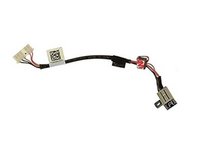
Dell Inspiron 5758 DC Jack Replacement

What you need

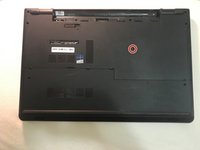
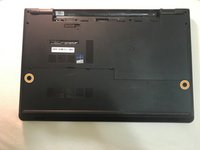
  1. Dell Inspiron 5758 DC Jack Replacement, Battery: step 1, image 1 of 2 Dell Inspiron 5758 DC Jack Replacement, Battery: step 1, image 2 of 2
    • Flip the laptop with the serial number facing up. You should be able to see the battery release switch.

    Ask FixBot
  2. Dell Inspiron 5758 DC Jack Replacement: step 2, image 1 of 3 Dell Inspiron 5758 DC Jack Replacement: step 2, image 2 of 3 Dell Inspiron 5758 DC Jack Replacement: step 2, image 3 of 3
    • Slide the battery release switch towards the unlock icon.

    • You should hear a click.

    • Lift and pull the ejected battery to remove it.

    Ask FixBot
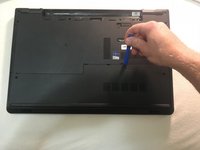
  3. Dell Inspiron 5758 DC Jack Replacement, DC Jack: step 3, image 1 of 3 Dell Inspiron 5758 DC Jack Replacement, DC Jack: step 3, image 2 of 3 Dell Inspiron 5758 DC Jack Replacement, DC Jack: step 3, image 3 of 3
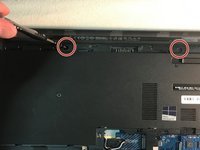
    • Remove the one 3mm optical drive screw.

    • Remove the two 8 mm screws.

    • Pry up and remove the access door.

    Ask FixBot
  4. Dell Inspiron 5758 DC Jack Replacement: step 4, image 1 of 1
    • Remove the one 3 mm screw.

    • Remove the bracket.

    Ask FixBot
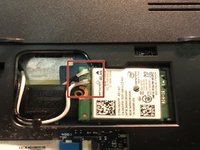
  5. Dell Inspiron 5758 DC Jack Replacement: step 5, image 1 of 2 Dell Inspiron 5758 DC Jack Replacement: step 5, image 2 of 2
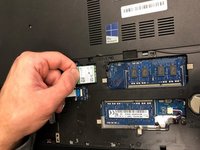
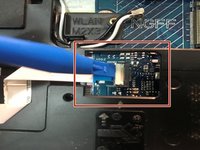
    • Unplug the antenna cables.

    • Remove the Wireless Card.

    Ask FixBot
  6. Dell Inspiron 5758 DC Jack Replacement: step 6, image 1 of 2 Dell Inspiron 5758 DC Jack Replacement: step 6, image 2 of 2
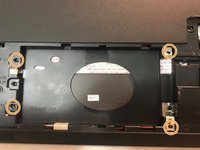
    • Unplug the hard drive cable.

    • Use a plastic opening tool or your fingernail to pop the tab of the cable connector. Then you will be able to disconnect the cable.

    • Remove the four 8 mm screws.

    • Remove the hard drive.

    Ask FixBot
  7. Dell Inspiron 5758 DC Jack Replacement: step 7, image 1 of 3 Dell Inspiron 5758 DC Jack Replacement: step 7, image 2 of 3 Dell Inspiron 5758 DC Jack Replacement: step 7, image 3 of 3
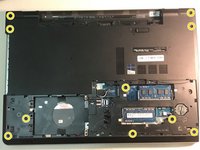
    • Remove the two 3 mm screws under the battery.

    • Remove the three 2 mm wafer screws under the optical drive.

    • Remove the ten 8 mm base screws.

    Ask FixBot
  8. Dell Inspiron 5758 DC Jack Replacement: step 8, image 1 of 1
    • Unplug the speaker cable by sliding to the right.

    Ask FixBot
  9. Dell Inspiron 5758 DC Jack Replacement: step 9, image 1 of 2 Dell Inspiron 5758 DC Jack Replacement: step 9, image 2 of 2
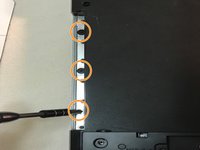
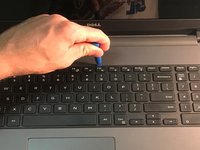
    • Press in the tabs to loosen the keyboard.

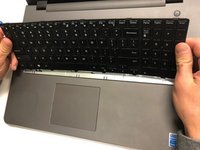
    • Carefully lift the keyboard up and turn it over.

    Ask FixBot
  10. Dell Inspiron 5758 DC Jack Replacement: step 10, image 1 of 1
    • Unplug the keyboard cable & remove the keyboard.

    Ask FixBot
  11. Dell Inspiron 5758 DC Jack Replacement: step 11, image 1 of 2 Dell Inspiron 5758 DC Jack Replacement: step 11, image 2 of 2
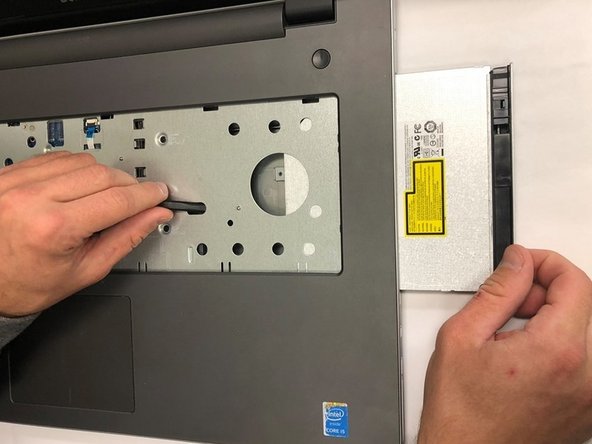
    • Slide the DVD optical drive over & remove it from the laptop.

    Ask FixBot
  12. Dell Inspiron 5758 DC Jack Replacement: step 12, image 1 of 2 Dell Inspiron 5758 DC Jack Replacement: step 12, image 2 of 2
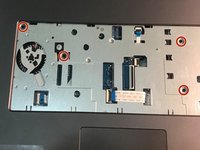
    • Remove the four 5 mm screws.

    • Unplug the optical drive interposer cable.

    Ask FixBot
  13. Dell Inspiron 5758 DC Jack Replacement: step 13, image 1 of 2 Dell Inspiron 5758 DC Jack Replacement: step 13, image 2 of 2
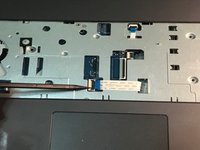
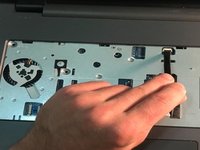
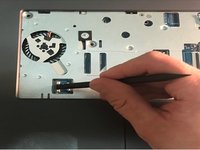
    • Unplug the power button cable.

    • Unplug the touchpad cable.

    Ask FixBot
  14. Dell Inspiron 5758 DC Jack Replacement: step 14, image 1 of 3 Dell Inspiron 5758 DC Jack Replacement: step 14, image 2 of 3 Dell Inspiron 5758 DC Jack Replacement: step 14, image 3 of 3
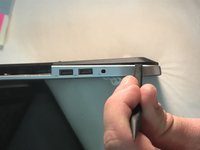
    • Carefully pry off & loosen the bottom base.

    Ask FixBot
  15. Dell Inspiron 5758 DC Jack Replacement: step 15, image 1 of 1
    • Remove the bottom base.

    Ask FixBot
  16. Dell Inspiron 5758 DC Jack Replacement: step 16, image 1 of 2 Dell Inspiron 5758 DC Jack Replacement: step 16, image 2 of 2
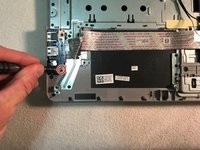
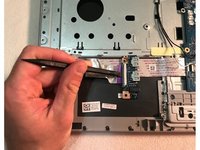
    • Remove the one 5mm screw.

    • Lift the circuit board & turn it over.

    • Unplug the cable.

    • Remove the audio/USB circuit board.

    Ask FixBot
  17. Dell Inspiron 5758 DC Jack Replacement: step 17, image 1 of 3 Dell Inspiron 5758 DC Jack Replacement: step 17, image 2 of 3 Dell Inspiron 5758 DC Jack Replacement: step 17, image 3 of 3
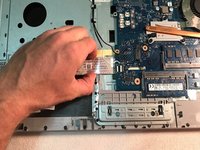
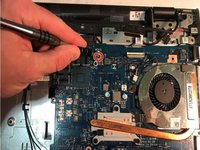
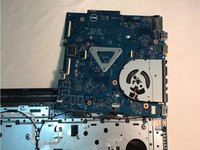
    • Loosen the audio / USB cable.

    • Remove the one 3mm motherboard screw.

    • Lift the motherboard & carefully move it out of the way.

    Ask FixBot
  18. Dell Inspiron 5758 DC Jack Replacement: step 18, image 1 of 3 Dell Inspiron 5758 DC Jack Replacement: step 18, image 2 of 3 Dell Inspiron 5758 DC Jack Replacement: step 18, image 3 of 3
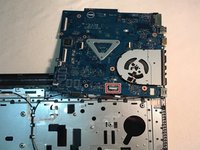
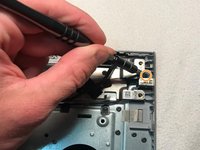
    • Unplug the DC jack cable.

    • Remove the one 3mm screw.

    • Remove the DC Jack.

    Ask FixBot
Conclusion

To reassemble your device, follow these instructions in reverse order.

One other person completed this guide.

0 Guide Comments

Add Comment

View Statistics:

Past 24 Hours: 1

Past 7 Days: 4

Past 30 Days: 58

All Time: 1,322