Introduction
In this guide we have a MSI Force GC30 V2, model number/name is MSI Force GC30 V2 and we are replacing the internal haptic motors. The haptic motors provide feedback from in-game touch or input and can be damaged with age, dropping of controller, etc. One symptom that occurs often with users is clicking sound coming from the haptic motor.
What you need
-
-
Puncture the sticker where indicated using a screwdriver, then remove the 9.1 mm-long Phillips screw.
-
Remove the six 9.2 mm-long Phillips #0 screws.
-
-
-
-
Use tweezers to grip the white battery connector.
-
Pull the battery connector directly out of its port.
-
-
-
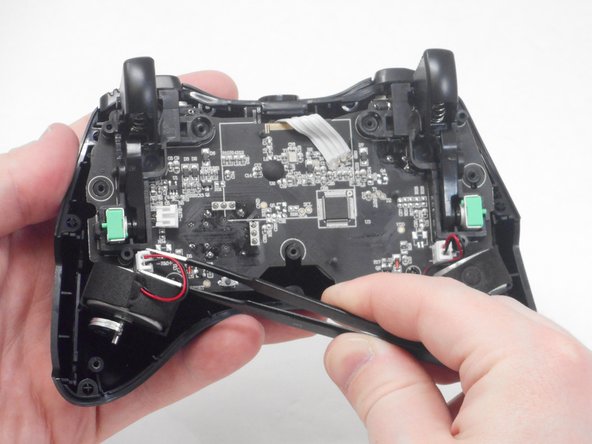
Use blunt tweezers to disconnect both of the vibration motor connectors from the motherboard.
-
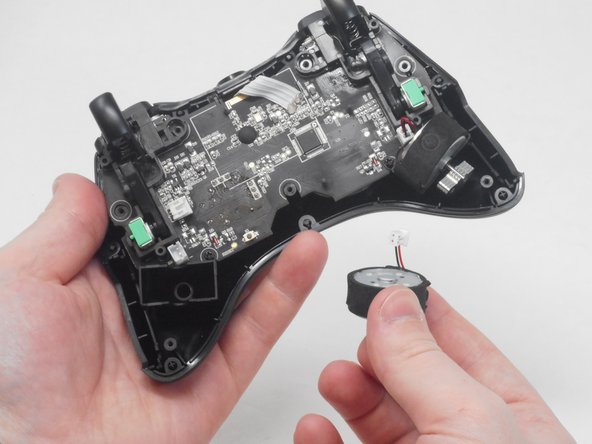
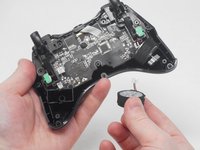
Carefully remove both the right and left vibration motors from their housing.
-


To reassemble your device, follow these instructions in reverse order.


Team

University of Memphis, Team 1-4, Sneed Spring 2024 Member of University of Memphis, Team 1-4, Sneed Spring 2024
UM-SNEED-S24S1G4
4 Members
6 Guides authored
