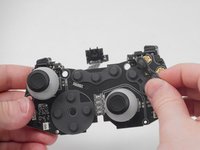
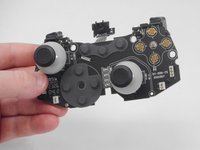
MSI Force GC30 V2 ABXY Buttons Replacement

What you need

  1. MSI Force GC30 V2 ABXY Buttons Replacement, Back Cover: step 1, image 1 of 1
    • Puncture the sticker where indicated using a screwdriver, then remove the 9.1 mm-long Phillips screw.

    • Remove the six 9.2 mm-long Phillips #0 screws.

  2. MSI Force GC30 V2 ABXY Buttons Replacement: step 2, image 1 of 3 MSI Force GC30 V2 ABXY Buttons Replacement: step 2, image 2 of 3 MSI Force GC30 V2 ABXY Buttons Replacement: step 2, image 3 of 3
    • Insert an opening pick in the gap between the front and rear case.

    • Slide the pick around the perimeter of the controller while prying until it fully releases.

  3. MSI Force GC30 V2 ABXY Buttons Replacement, Battery: step 3, image 1 of 1
    • Use tweezers to grip the white battery connector.

    • Pull the battery connector directly out of its port.

    • Do not pull on the wires.

  4. MSI Force GC30 V2 ABXY Buttons Replacement: step 4, image 1 of 1
    • The battery is secured to the motherboard with a mild adhesive. If necessary, apply a small amount of high-concentration isopropyl alcohol beneath the battery to loosen the adhesive.

    • Pry carefully around the battery until it fully releases.

    • Take care not to puncture or bend the battery.

    • Remove the battery.

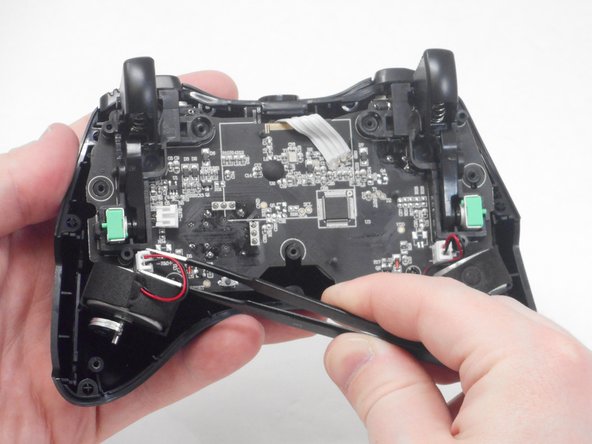
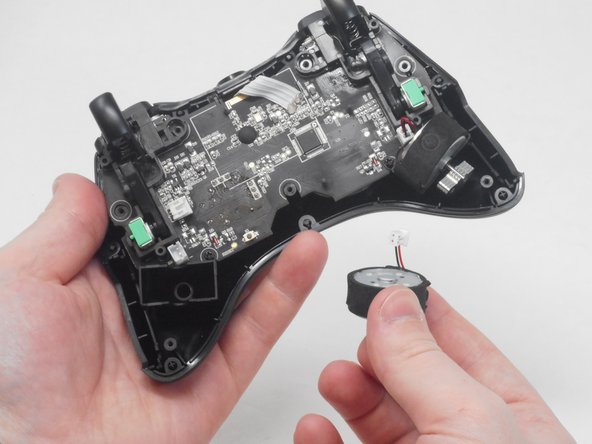
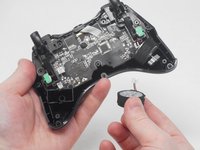
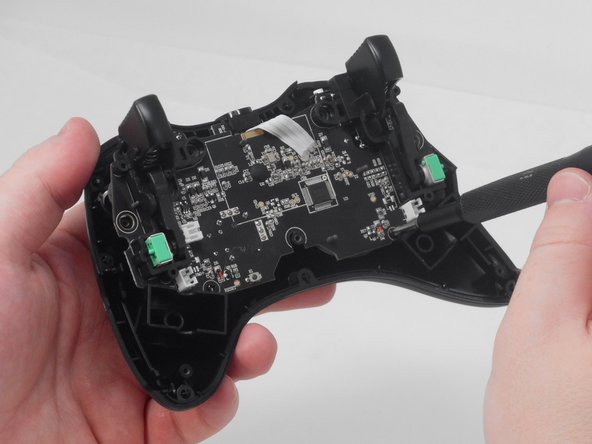
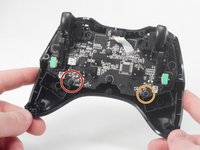
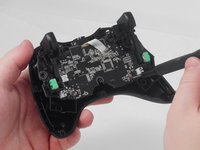
  5. MSI Force GC30 V2 ABXY Buttons Replacement, Vibration Motor: step 5, image 1 of 3 MSI Force GC30 V2 ABXY Buttons Replacement, Vibration Motor: step 5, image 2 of 3 MSI Force GC30 V2 ABXY Buttons Replacement, Vibration Motor: step 5, image 3 of 3
    • Use blunt tweezers to disconnect both of the vibration motor connectors from the motherboard.

    • Grip the white connectors, not the wires.

    • Carefully remove both the right and left vibration motors from their housing.

  6. MSI Force GC30 V2 ABXY Buttons Replacement, ABXY Buttons: step 6, image 1 of 2 MSI Force GC30 V2 ABXY Buttons Replacement, ABXY Buttons: step 6, image 2 of 2
    • Remove the 7.1 mm-long Phillips #0 screw.

    • Remove the 7 mm-long Phillips #0 screw.

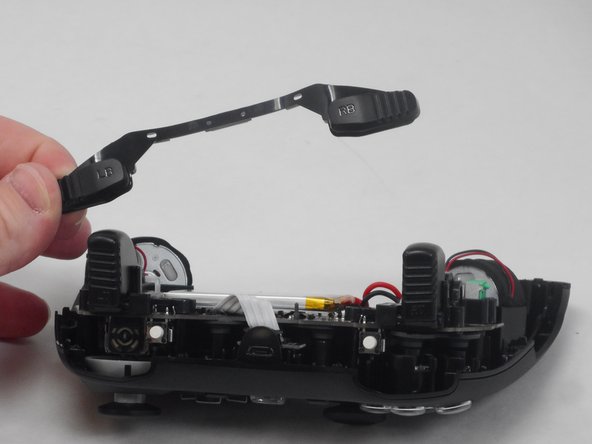
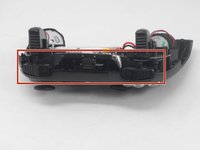
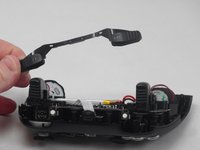
  7. MSI Force GC30 V2 ABXY Buttons Replacement: step 7, image 1 of 2 MSI Force GC30 V2 ABXY Buttons Replacement: step 7, image 2 of 2
    • Remove the left/right bumper assembly.

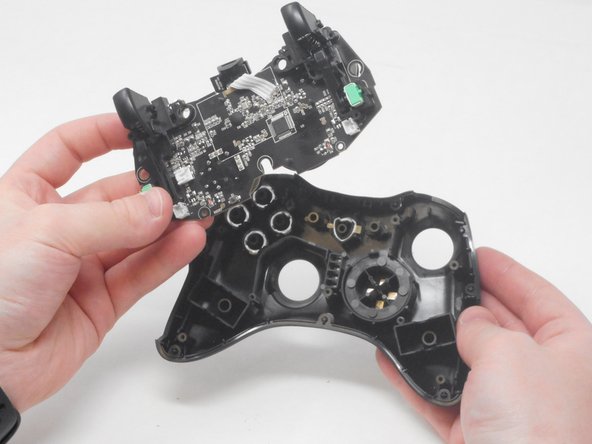
  8. MSI Force GC30 V2 ABXY Buttons Replacement: step 8, image 1 of 2 MSI Force GC30 V2 ABXY Buttons Replacement: step 8, image 2 of 2
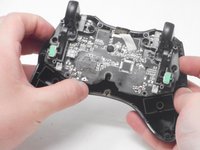
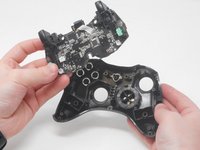
    • Carefully lift the motherboard out of its casing and remove it.

  9. MSI Force GC30 V2 ABXY Buttons Replacement: step 9, image 1 of 2 MSI Force GC30 V2 ABXY Buttons Replacement: step 9, image 2 of 2
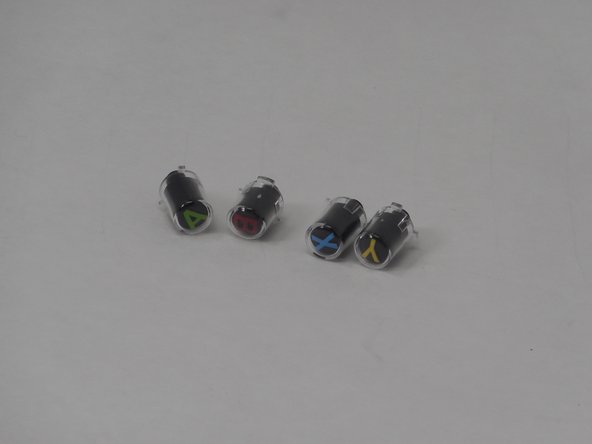
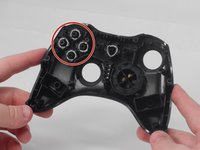
    • Remove the ABXY button either by pulling them out or turning the controller the other side and letting the buttons fall out.

  10. MSI Force GC30 V2 ABXY Buttons Replacement: step 10, image 1 of 3 MSI Force GC30 V2 ABXY Buttons Replacement: step 10, image 2 of 3 MSI Force GC30 V2 ABXY Buttons Replacement: step 10, image 3 of 3
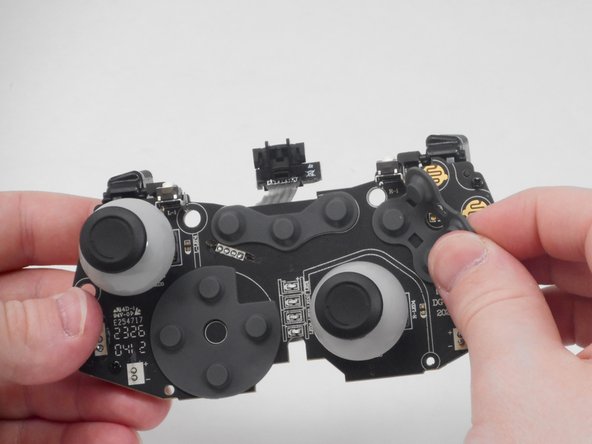
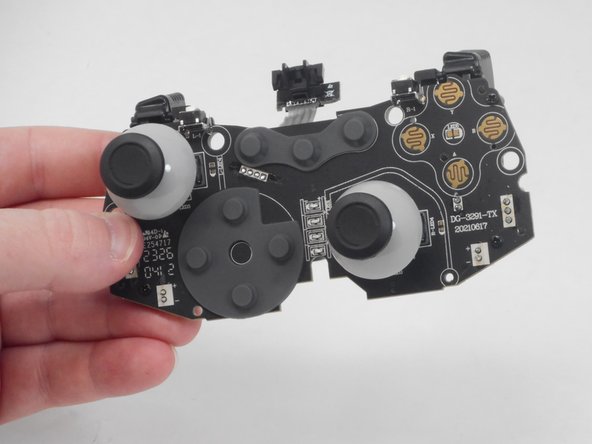
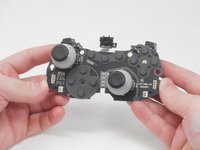
    • Remove the ABXY button membrane by carefully lifting it off the motherboard.

Conclusion

To reassemble your device, follow these instructions in reverse order.

0 Guide Comments

Add Comment

View Statistics:

Past 24 Hours: 0

Past 7 Days: 11

Past 30 Days: 33

All Time: 576