
Lenovo ThinkPad X250 RAM Replacement

Princemiguelcayetano and 2 other contributors
Last updated on Aug 5, 2026
Views: 2.4K
View statistics:
- Past 24 Hours:
- 8
- Past 7 Days:
- 38
- Past 30 Days:
- 155
- All Time:
- 2,431
Comments: 0
No one has left comments on this guide. Will you be first?
Go to guide commentsCompleted: 1 2
1 person has marked this guide "completed." Will you be next?
2 people have marked this guide "completed." Including you — great job!
Favorites: 0 1
No one has favorited (and subscribed to) this guide. Will you be the first?
1 person has favorited (and subscribed to) this guide — and that's you!
Needs Better Images
Better photos will improve this guide. Help out by taking, editing, or uploading new ones!
Community-Contributed Guide
An awesome member of our community made this guide. It was not created by iFixit staff.
Introduction
Go to step 1 ↓The memory (RAM) is a critical part of your computer, and if your workload becomes too demanding, it may be time to upgrade it. Thankfully, memory upgrades for this laptop are relatively simple.
You can check your current memory usage in Task Manager (Ctrl + Shift + Esc).
Some models of this laptop were configured with just 4GB of memory, and if you're updating to Windows 11, or have a heavier workload, such as having many tabs open at once, you'll need to upgrade your memory to ensure a smooth experience.
What you need

-
-
-
Unscrew the 8 screws holding the back panel in place.
-
Use a plastic prying tool to release all the clips holding the panel in place.
 Ask FixBot
-
-
-
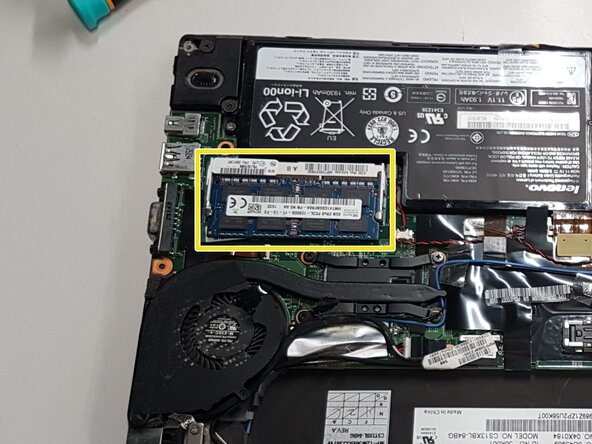
Push the metal latches outward on both sides of the memory slot to let the existing stick loose.
-
Pull the old module straight out of the socket.
-
Align the notch on your new RAM stick with the one inside the slot, and insert it at a 45-degree angle.
-
Press down on the top edge of the RAM module until the side latches click and lock it flat into place.
-
-
-


To reassemble your device, follow these instructions in reverse order.
Cancel: I did not complete this guide.
One other person completed this guide.

