
Logitech MX Keys Key Removal and Replacement

sitarane and 6 other contributors
Last updated on Dec 5, 2024
Views: 94K
View statistics:
- Past 24 Hours:
- 122
- Past 7 Days:
- 628
- Past 30 Days:
- 2,701
- All Time:
- 93,581
Comments: 32
2 comments on steps, 30 guide comments.
Go to guide commentsCompleted: 29 30
29 people have marked this guide "completed." Will you be next?
30 people have marked this guide "completed." Including you — great job!
Favorites: 4 5
4 people have favorited (and subscribed to) this guide. Will you be next?
5 people have favorited (and subscribed to) this guide — including you!
Community-Contributed Guide
An awesome member of our community made this guide. It was not created by iFixit staff.
Introduction
Go to step 1 ↓Useful for rearranging the layout, or cleaning a key if it doesn't move right.
What you need
Tools

-
-
-
Insert something thin under the top of the key.
-
Apply a little force. It comes out easily.
 Ask FixBot
-
-
-
-
Slide in bottom first
-
Gently push the top part in. It clips easily.
-
-


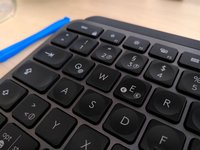

You've successfully removed and replaced a keycap on your Logitech MX Keys keyboard.
Cancel: I did not complete this guide.
29 other people completed this guide.

30 Guide Comments
Where can I find the keys for the replacement? I can only find keys for like $15 per key...
If you are having sticky key issues, take the key out, clean out the area beneath the key, and underneath the key, and reinsert the same key. In most cases, this will fix your issue. This may happen if debree/dust gets in-between the keys.
