
Logitech M500 Mouse Switch Replacement

Harry Cutts and 2 other contributors
Last updated on Mar 8, 2024
Views: 3.3K
View statistics:
- Past 24 Hours:
- 3
- Past 7 Days:
- 56
- Past 30 Days:
- 235
- All Time:
- 3,326
Comments: 4
1 comment on steps, 3 guide comments.
Go to guide commentsCompleted: 1 2
1 person has marked this guide "completed." Will you be next?
2 people have marked this guide "completed." Including you — great job!
Favorites: 1 2
1 person has favorited (and subscribed to) this guide. Will you be next?
2 people have favorited (and subscribed to) this guide — including you!
Community-Contributed Guide
An awesome member of our community made this guide. It was not created by iFixit staff.
Introduction
Go to step 1 ↓The switches on a mouse wear out over time, and often start double-clicking from a single press. Luckily, replacing them is quite straightforward so long as you have a soldering iron and a way to remove solder.
When buying new switches, it is advisable to pay attention to the quality. The switches are sold in different quality levels. The quality indicates the number of clicks for which the switch is designed for. This is usually indicated on the switch by the number in brackets. Example: Omron D2FC-F-7N(20M)
This means: This switch is designed for 20 million clicks.
By this type of switch, the bandwidth ranges from about 10 / 20 / 50 / 60 million clicks. So if you plan to use your mouse for a long time, try to get a micro switch with a higher click number.
This limit on the number of possible clicks is also responsible for the failure of the switches. This is also seen in the fact that the left mouse button is often the first to fail, as it is generally the most used button on a mouse.
What you need
Parts

Tools


-
-
-
The screws are hidden under the four rubber feet on the underside of the mouse.
-
Carefully peel away each foot and its layer of adhesive, putting them to the side to replace later.
 Ask FixBot
-
-
-
Unscrew the four Phillips #0 screws hidden by the feet.
-
The top casing should now come loose with just a shake.
-
-
-
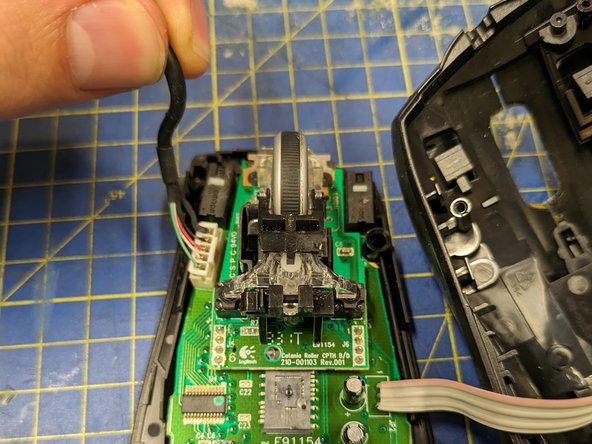
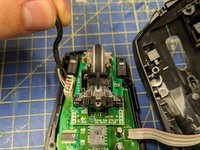
Grip the white plastic plug and remove it from its socket.
-
-
-
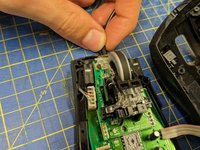
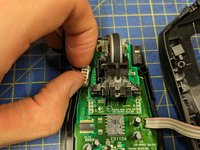
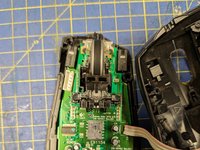
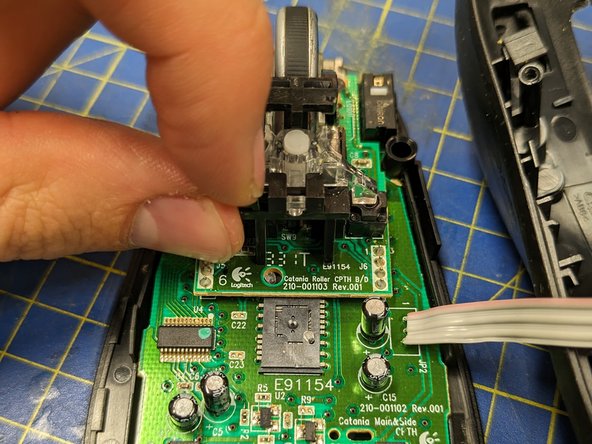
The scroll wheel is held in place by a plastic pin. Pull it sideways to remove it.
-
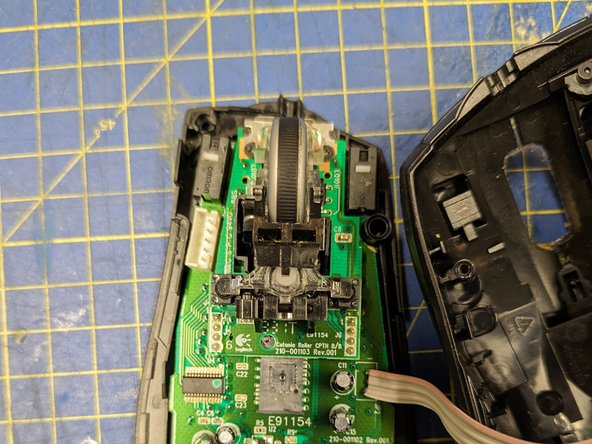
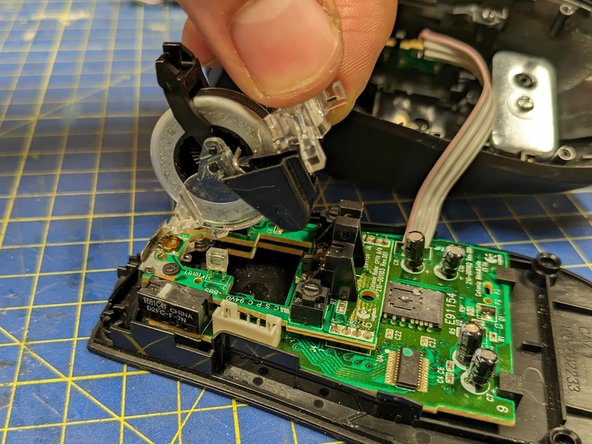
Grip the scroll wheel assembly by the transparent part and lift it out.
-
-
-
-
-
Remove the two screws that secure the plastic wheel mount in the centre of the circuit board.
-
Lift the wheel mount off the circuit board.
-
-
-
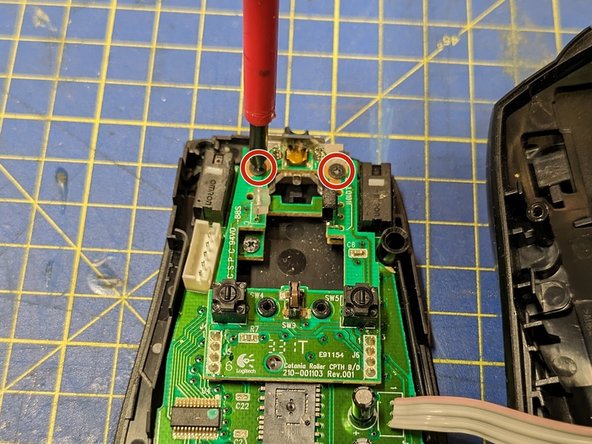
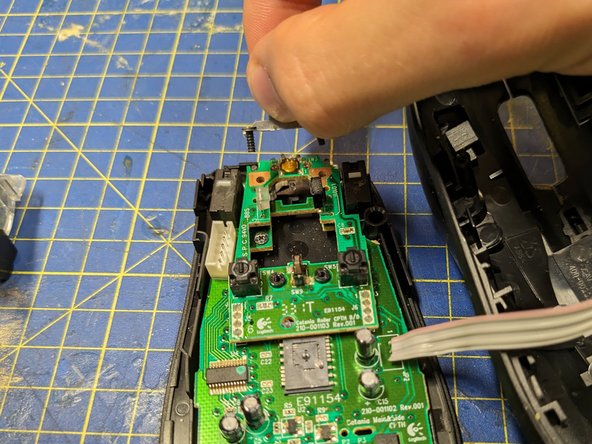
Undo the two screws holding down the metal piece at the front of the mouse.
-
Remove the metal piece.
-
-
-
Two springs sit in holes in the circuit board at the front of the mouse. Put them somewhere safe.
-
-
-
-
Remove the last screw holding down the circuit board (next to the hole left by the scroll wheel).
-
Remove the circuit board by lifting it up at the front.
-
-
-
-
-
Remove the solder from the three pins of the old switch.
-
Pull the old switch out of its holes. You may need to loosen any remaining drops of solder with a soldering iron while doing this.
-
-
-
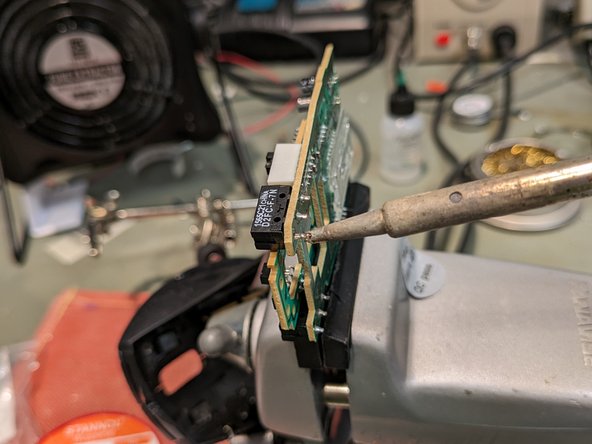
Insert the new switch into the holes, being careful to put it in the right way around. The white button on the top of the switch should be closest to the front end of the circuit board.
-
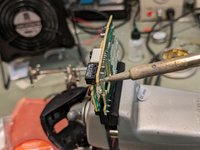
Solder the new switch into place.
-
-




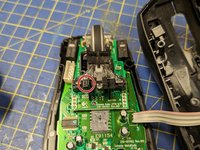
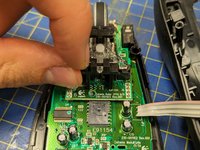
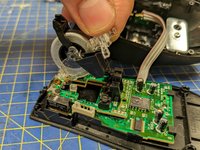

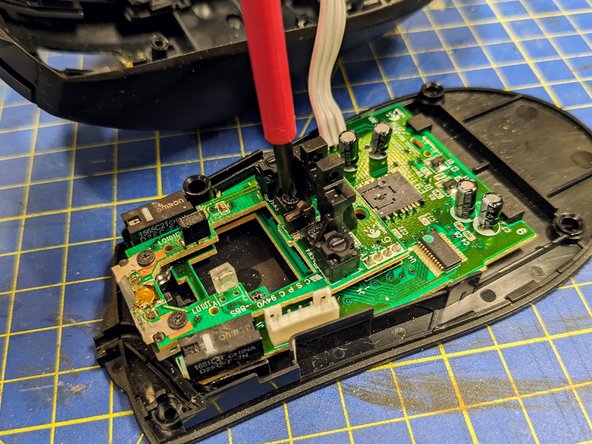
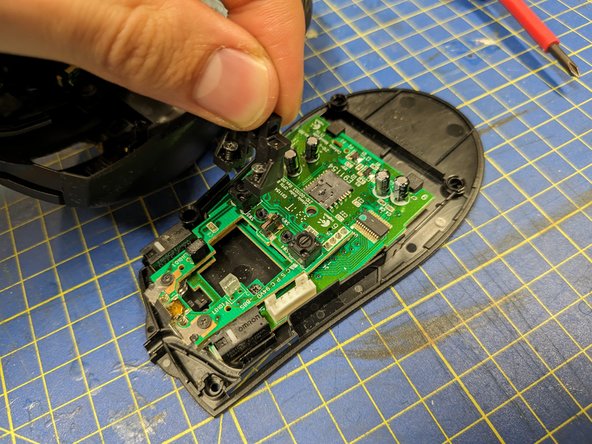


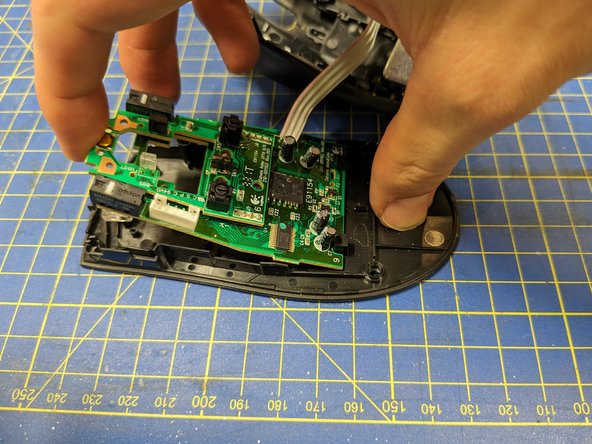
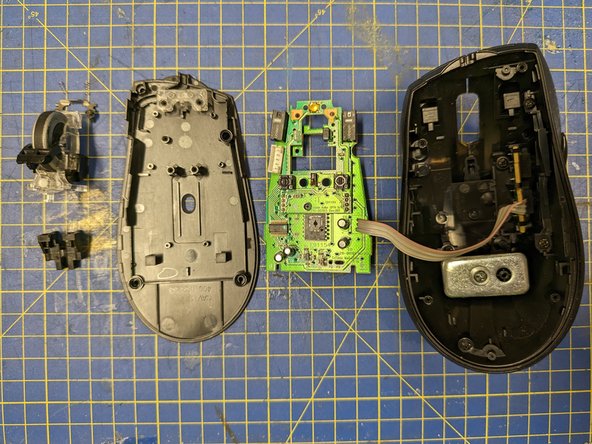
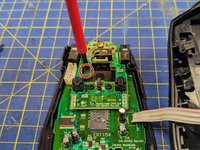
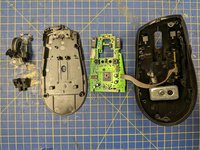

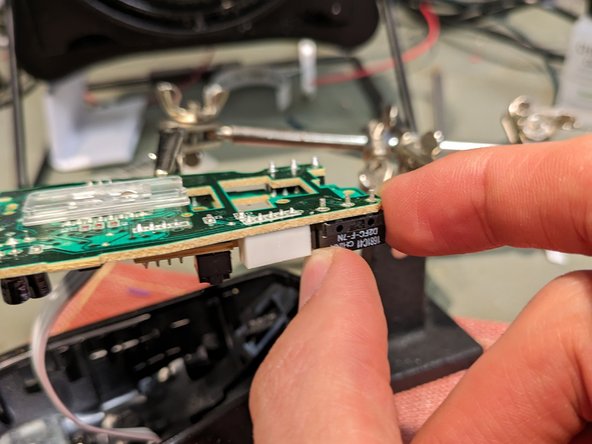
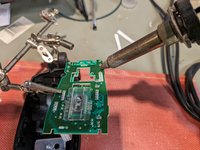
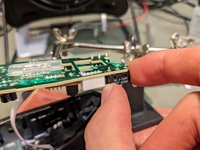

To reassemble your device, follow these instructions in reverse order.
Cancel: I did not complete this guide.
One other person completed this guide.

3 Guide Comments
Thanks for this guide. Mostly works on the M500S too, but you need to remove a second screw close to the Logitech logo on the circuit board before you can remove it.
