Introduction
Replacing the battery in your Logitech M310 wireless mouse is an easy process with no tools necessary. This guide will walk you through the steps, providing detailed instructions and helpful tips. By doing so, you can enhance your device's performance as well as extend its lifespan.
What you need
-
-
-
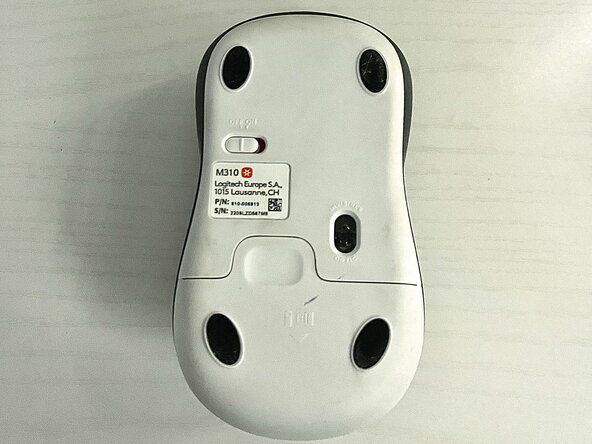
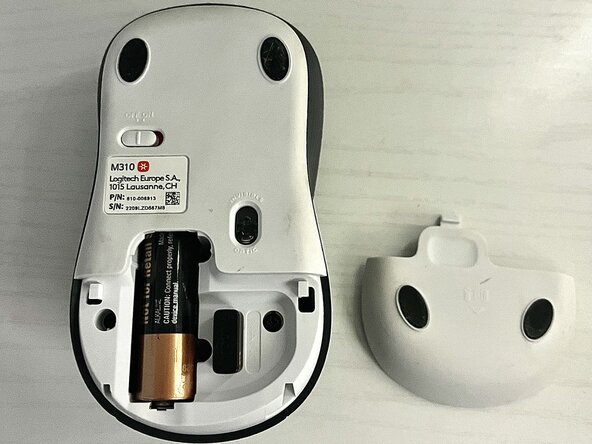
Press down firmly on the tab and pull it off to expose the inside of the mouse.
-
-
-
-
Make sure the direction of the signs at the ends of the battery matches the diagram on the inside of the mouse before inserting it.
-
-
-
Insert the new battery.
-
Turn the mouse on to make sure the new battery works.
-



 Ask FixBot



Cancel: I did not complete this guide.
One other person completed this guide.

Team

Rose State College, Team 2-11, Kirkman Spring 2025 Member of Rose State College, Team 2-11, Kirkman Spring 2025
ROSE-KIRKMAN-S25S2G11
1 Member
12 Guides authored
