
Logitech K480 Keycap Replacement

Madison and 2 other contributors
Last updated on Dec 17, 2024
Views: 957
View statistics:
- Past 24 Hours:
- 2
- Past 7 Days:
- 21
- Past 30 Days:
- 97
- All Time:
- 957
Comments: 1
1 comment on steps.
Completed: 1 2
1 person has marked this guide "completed." Will you be next?
2 people have marked this guide "completed." Including you — great job!
Favorites: 0 1
No one has favorited (and subscribed to) this guide. Will you be the first?
1 person has favorited (and subscribed to) this guide — and that's you!
Introduction
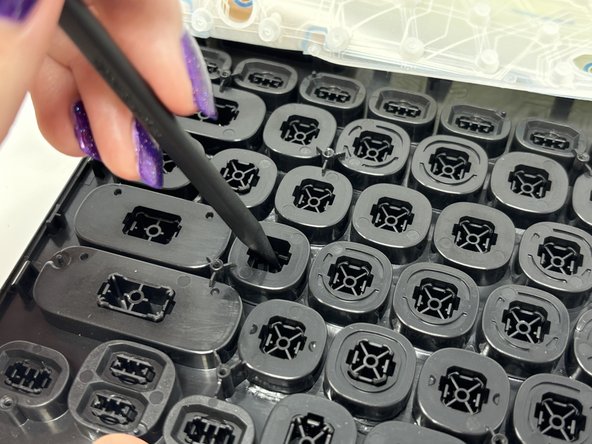
Go to step 1 ↓If your Logitech K480 keyboard is missing a keycap or if it's damaged, you can follow this guide to replace it. Replacing keycaps on rubber dome keyboards can be confusing but these steps are easy for anyone to follow. Keycaps cover the buttons that actually register what you're typing. They provide a more comfortable way to type and can also allow for customization.
What you need
Tools
-
Spudger4.9
-


-
-
-
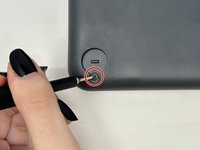
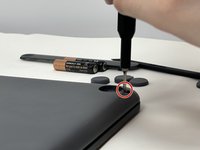
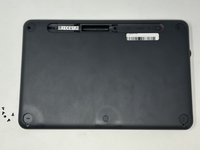
Remove the three 4 mm screws under the rubber feet using a Phillips #0 screwdriver.
-
-
-
-
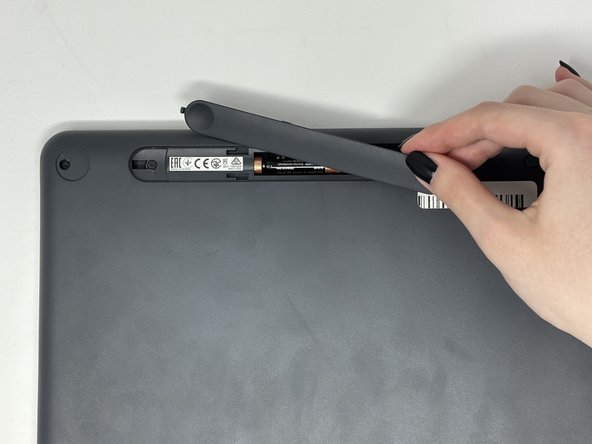
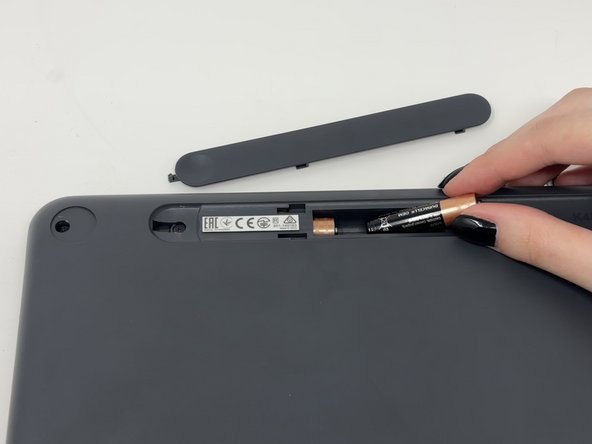
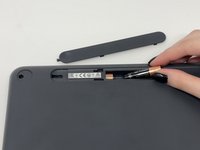
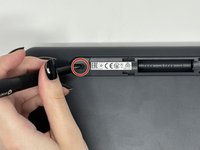
Remove the two 4 mm screws from beneath the battery cover using a Phillips #0 screwdriver.
-
-
-
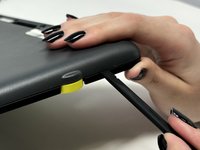
Starting by the dial, slide the spudger between the front and back panels until it lifts and snaps.
-
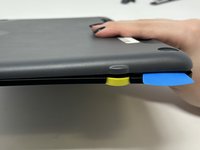
Slide a blue pick in to keep the pieces apart while you work on other areas.
-
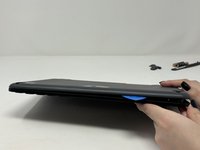
Continue prying along the edges until you have enough opened that you can pull both pieces apart gently with your hands.
-
-
-
-
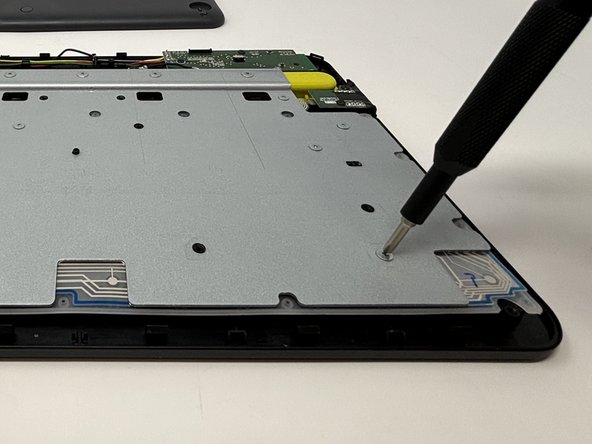
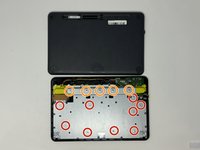
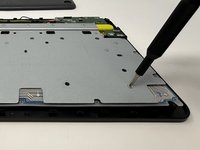
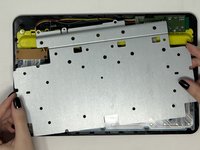
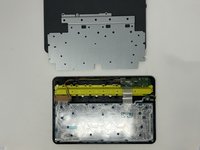
Remove the eight 3 mm screws using a Phillips #00 screwdriver
-
Remove the five 2 mm silver screws from the metal plate using a Phillips #00 screwdriver.
-
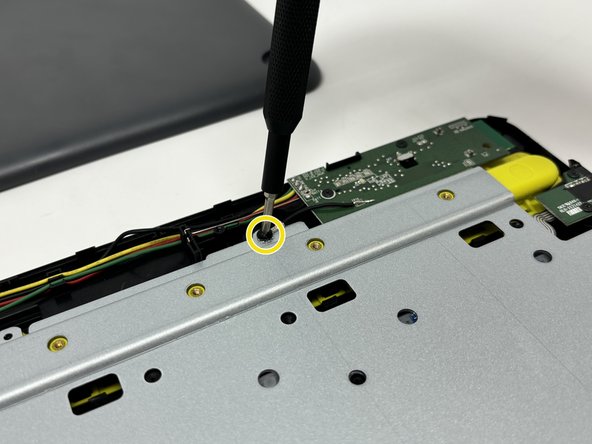
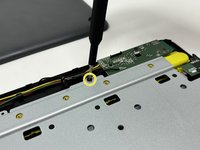
Remove the single 4 mm black screw by the motherboard using a Phillips #00 screwdriver.
-
-
-

 Ask FixBot













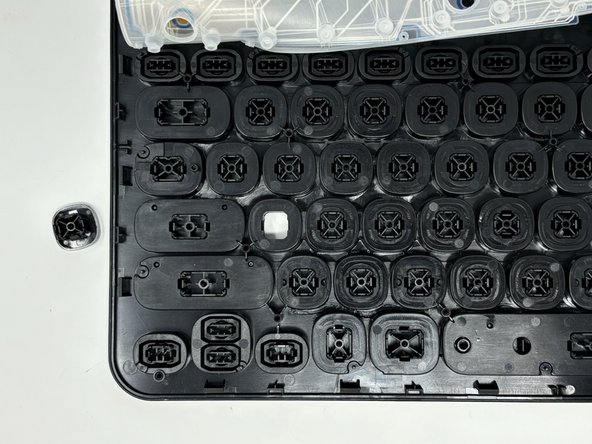
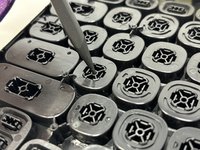
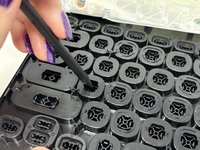
To reassemble your device, follow these instructions in reverse order.
Cancel: I did not complete this guide.
One other person completed this guide.

